No steps match “”
Try a shorter word, check the spelling, or pick a popular search below
Getting started
Sign in, use the menu and sign out
-
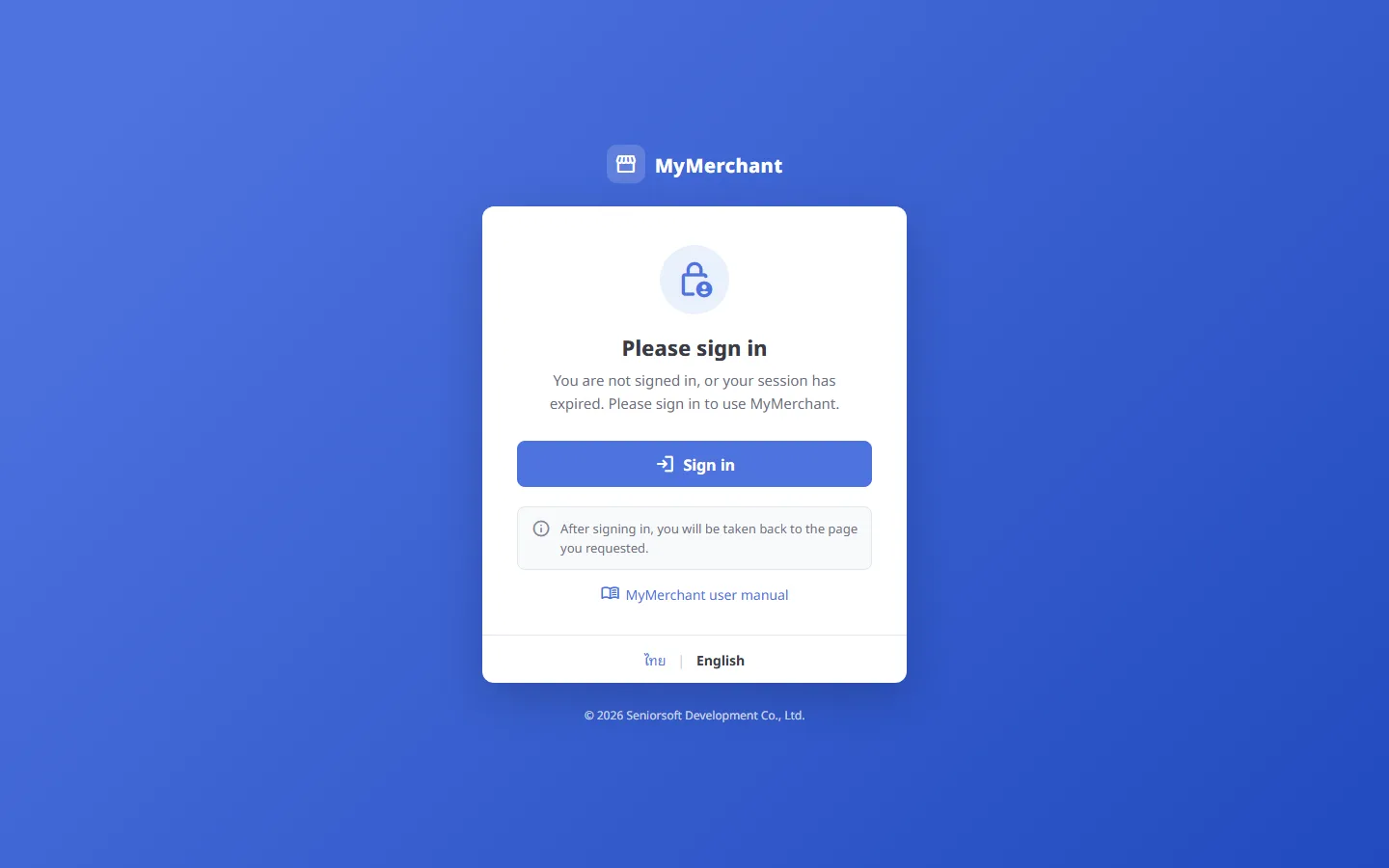
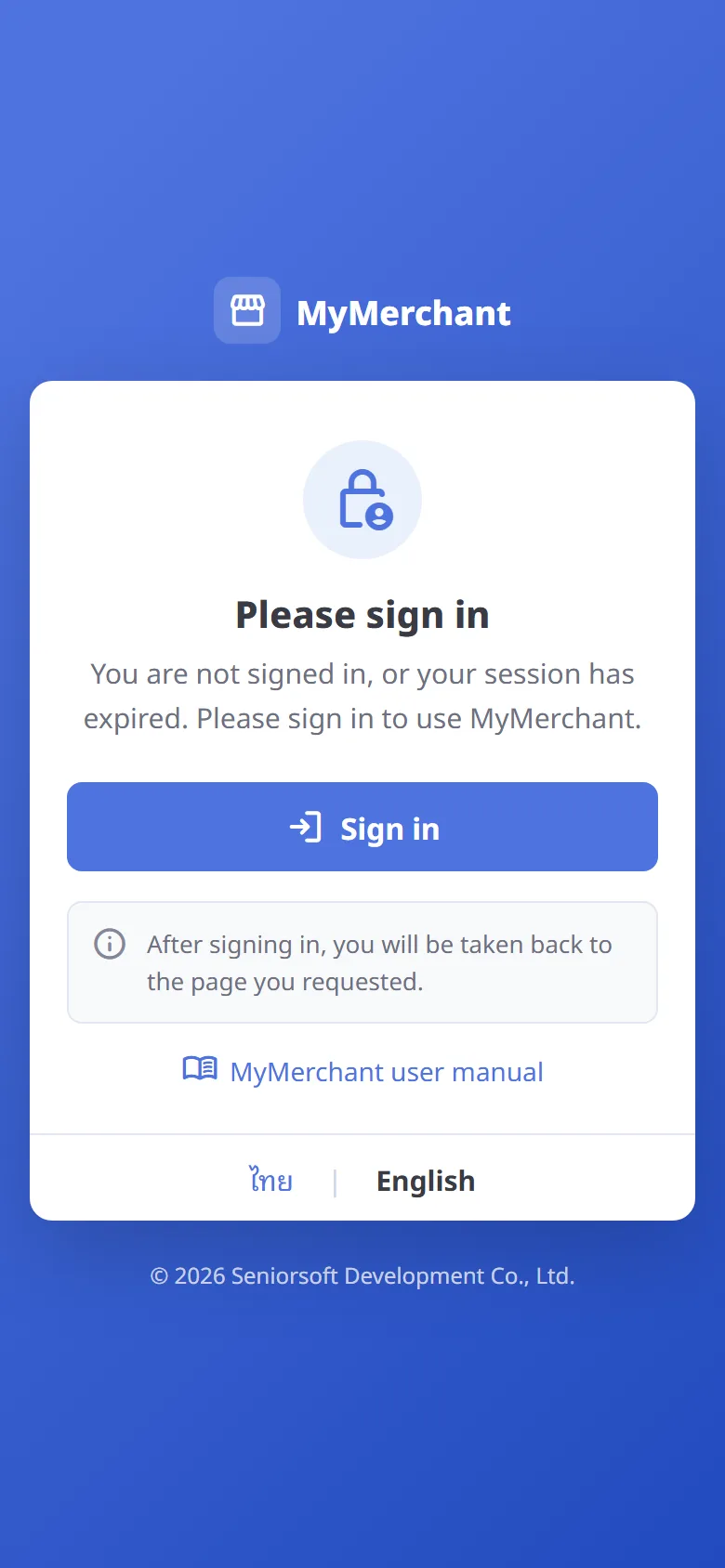
The "Please sign in" page
If you are not signed in or your session has expired, you will see this page. Press Sign in to go to the login page. Switch language with ไทย | English at the bottom. After signing in you are taken back to the page you opened.
-
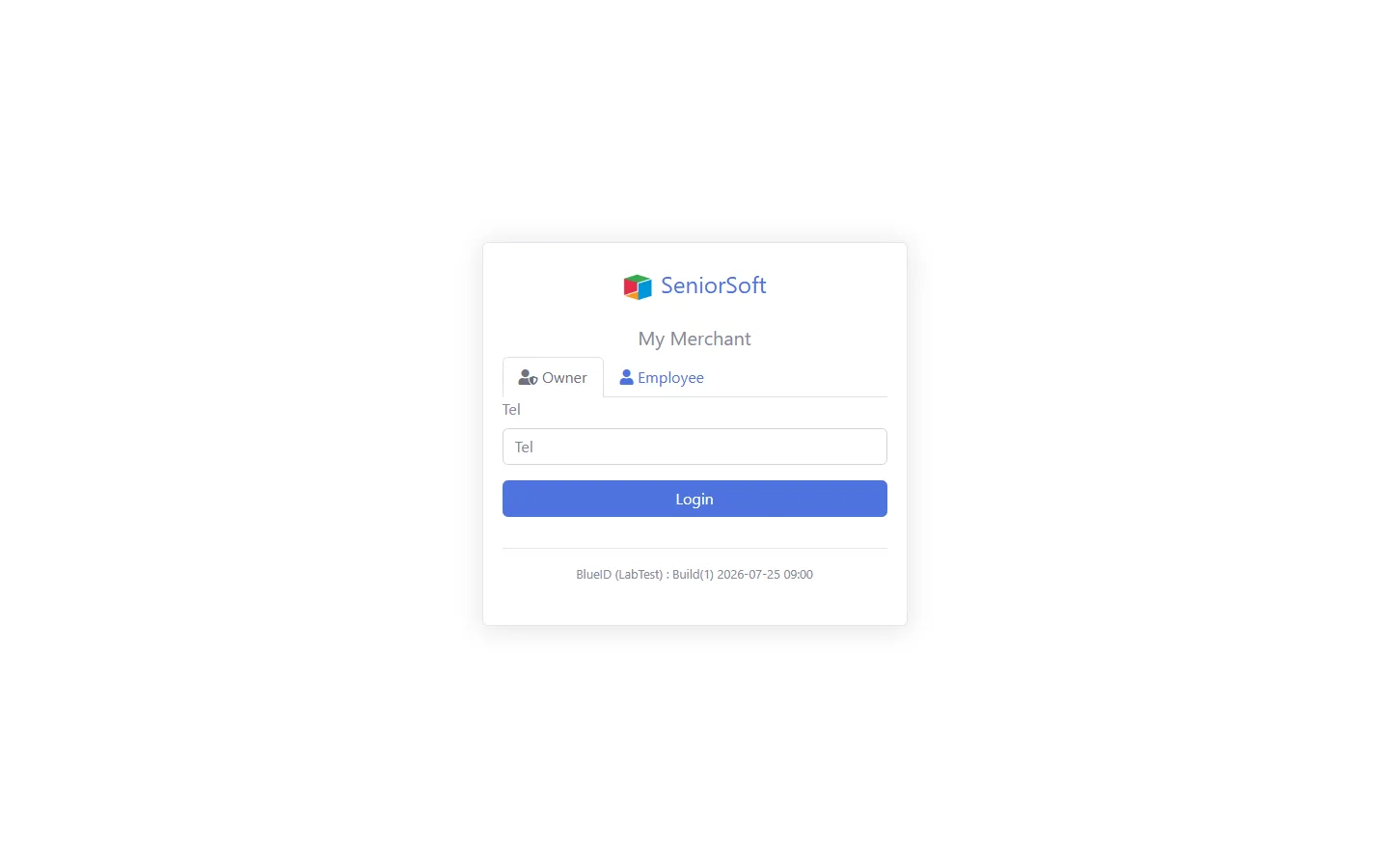
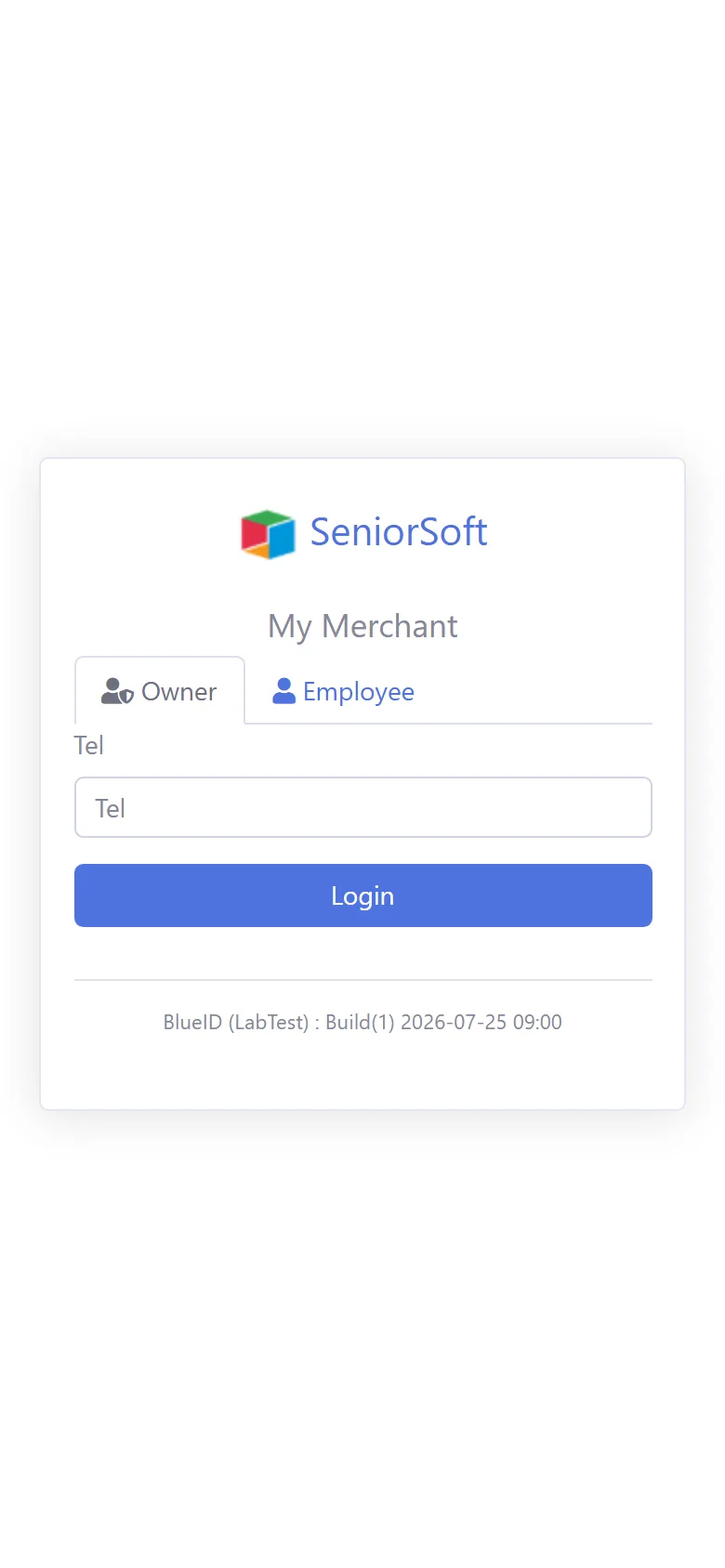
Sign in as the store owner (Owner)
Choose the Owner tab, enter the owner's phone number and press Login. An OTP code is sent to that number to verify your identity.
-
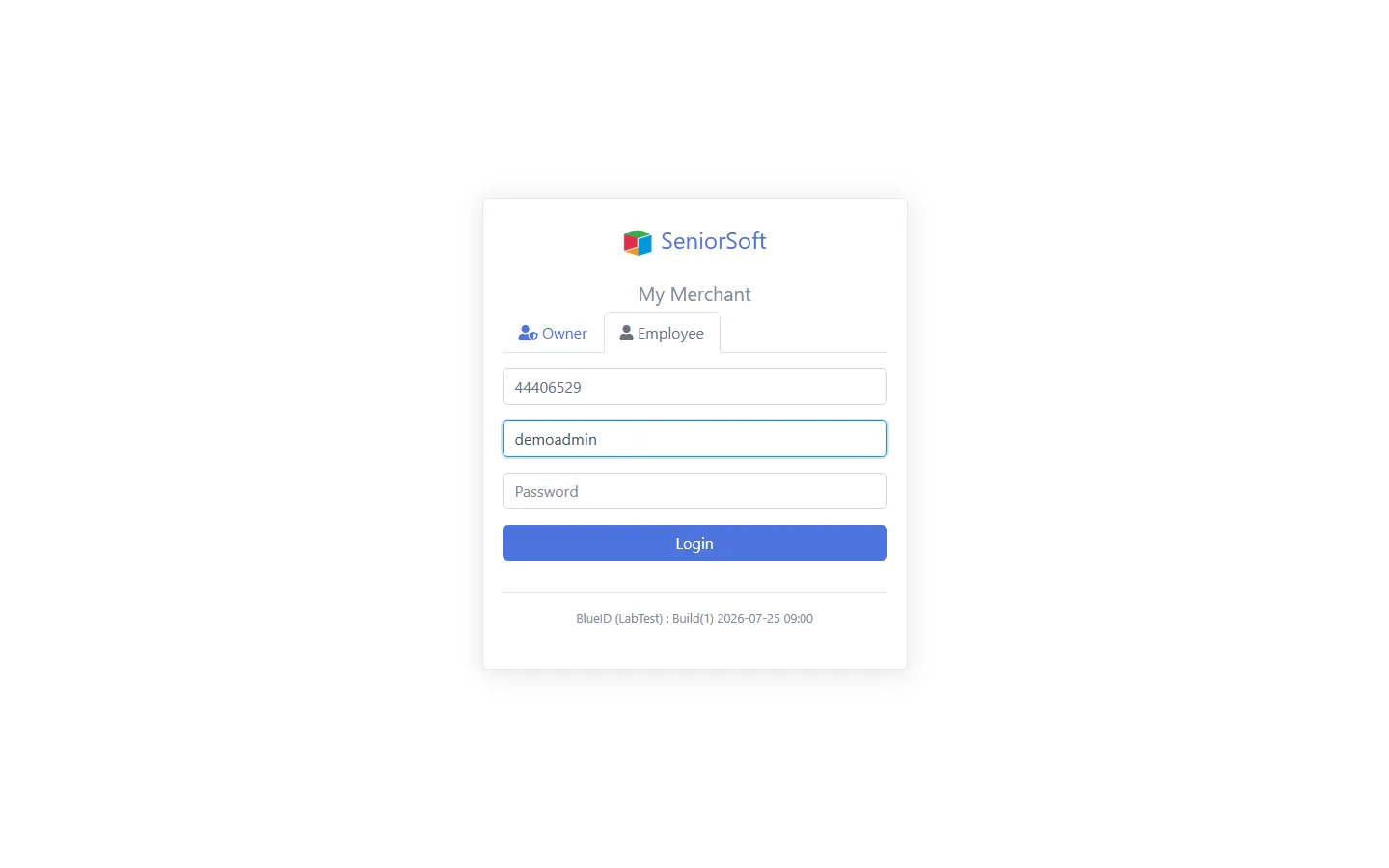
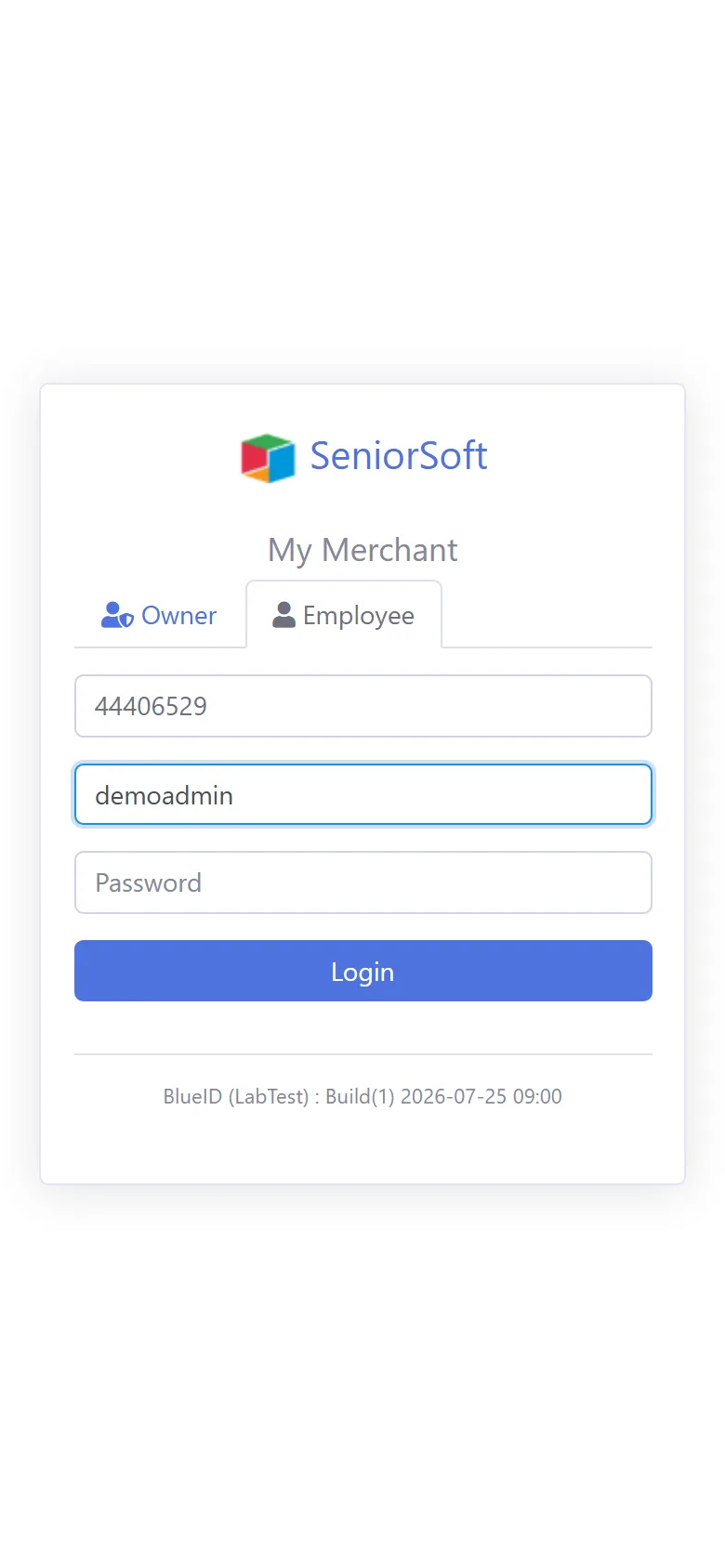
Sign in as an employee (Employee)
Choose the Employee tab, enter the Merchant ID, user name and password created for you by the owner or administrator, then press Login.
-
Main menu
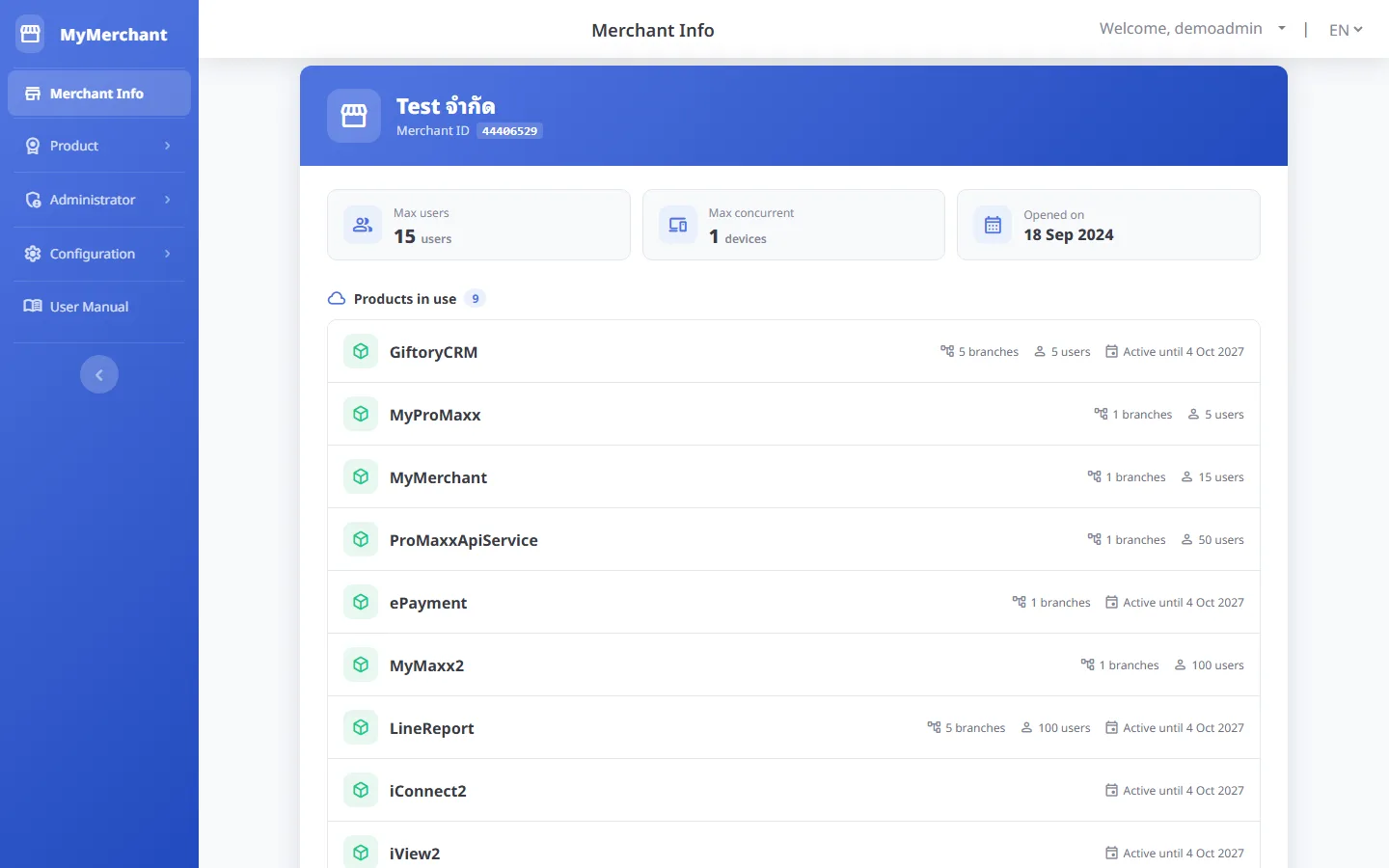
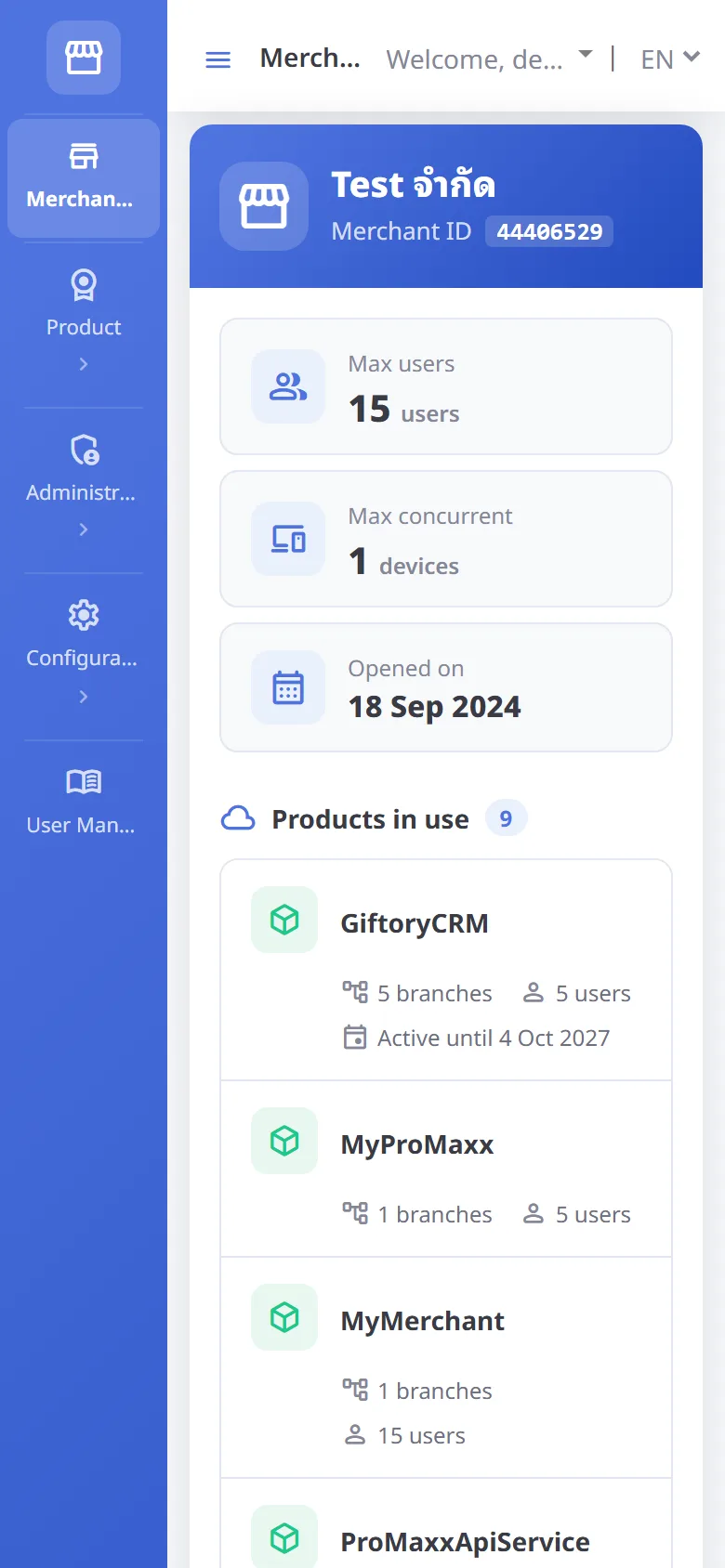
The left menu has Merchant Info · Product · Administrator · Configuration · User Manual. On mobile, press menu at the top left to open the menu.
-
Collapse / expand the menu
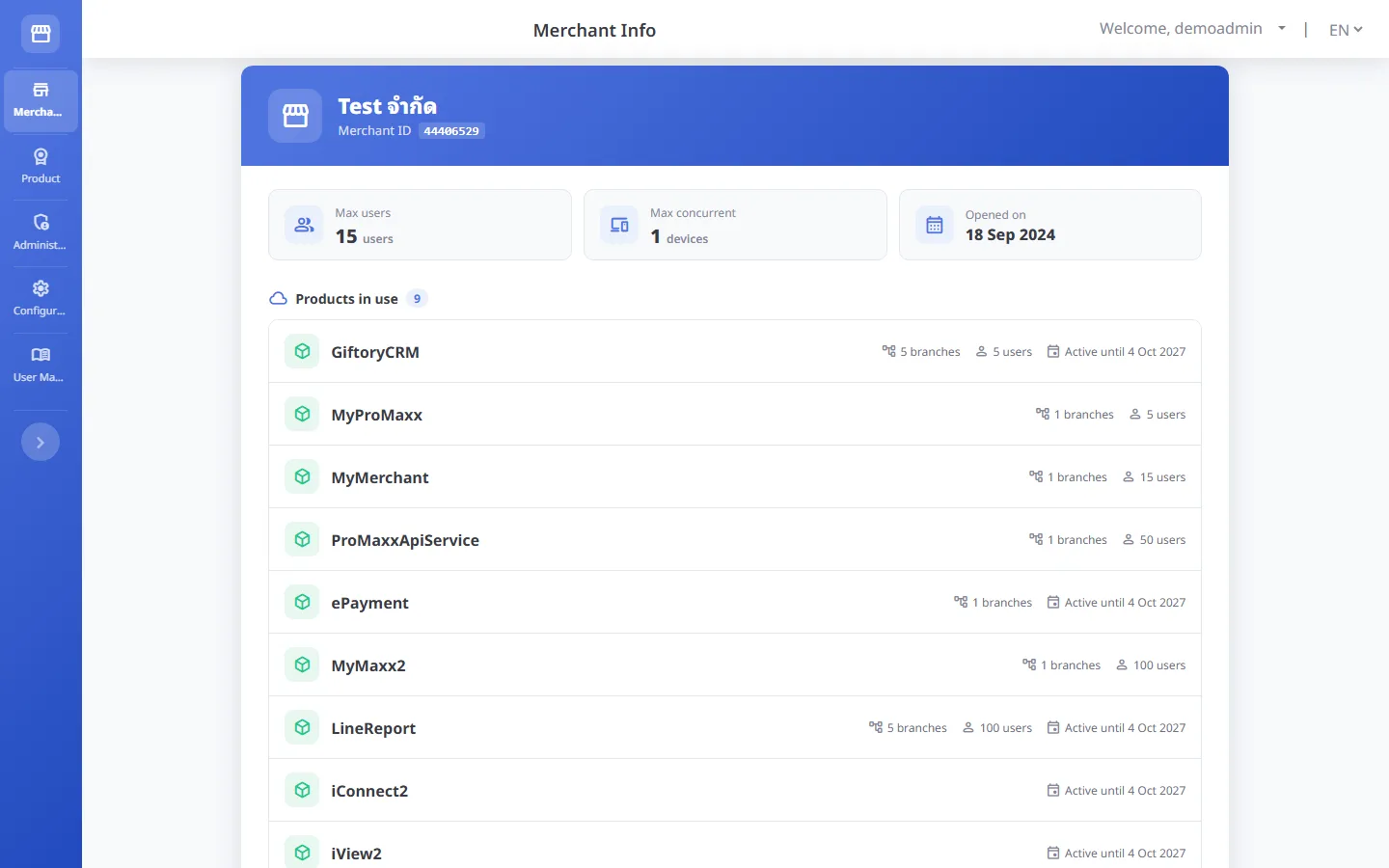
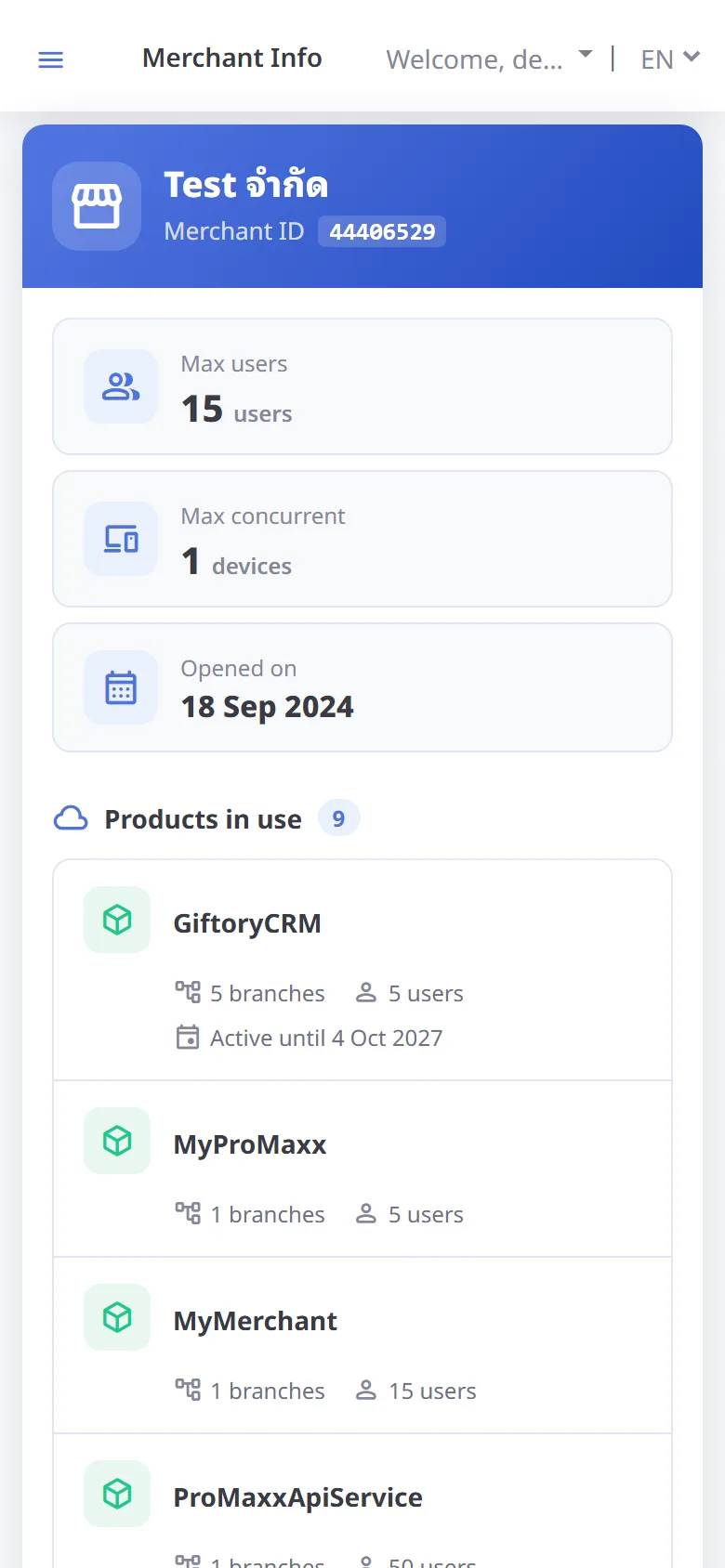
Desktop: press the arrow under the menu to collapse it to icons only; your choice is remembered. Mobile: the menu is hidden; press menu to open it and press again to close.
-
Sign out
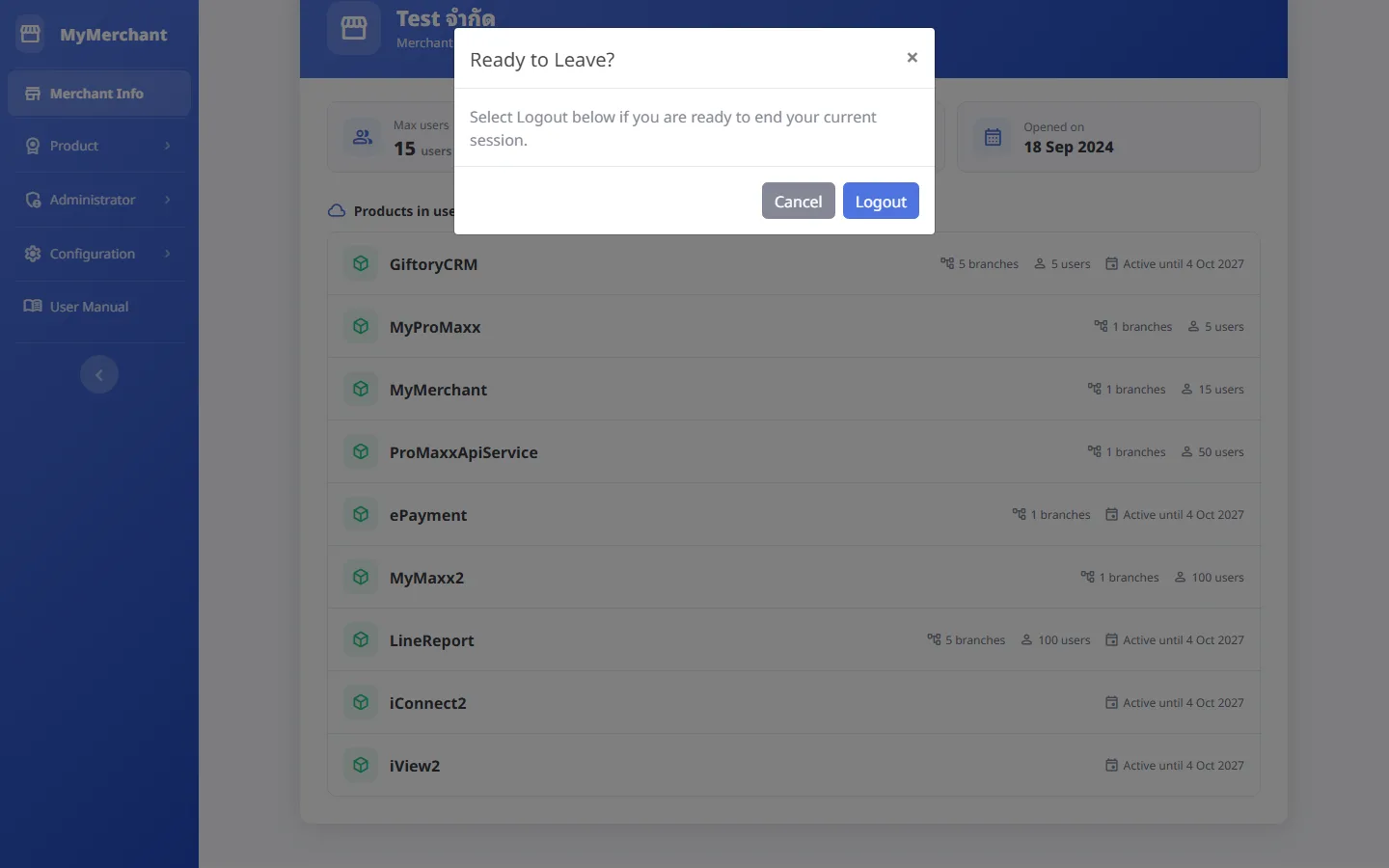
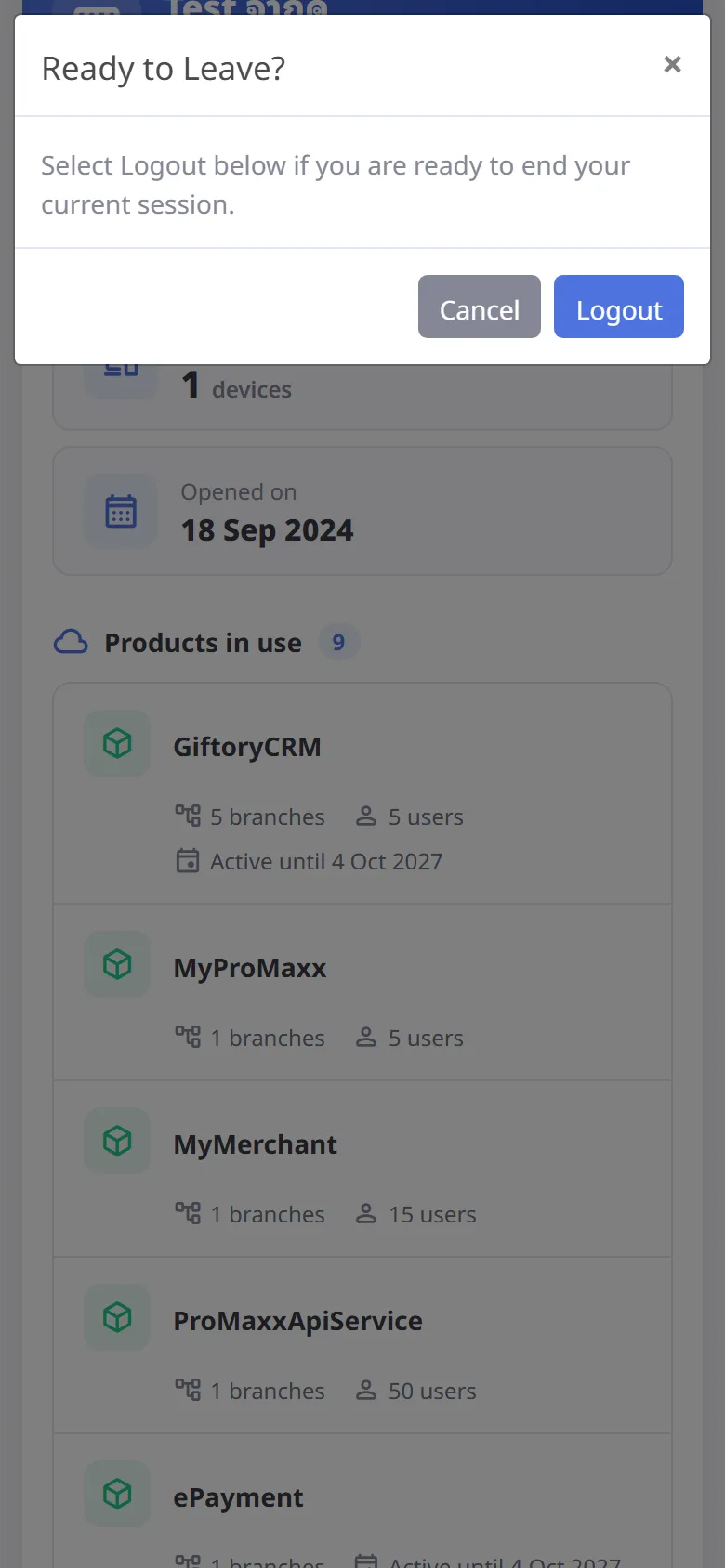
Press your user name at the top right and choose Logout. You are asked to confirm: press Logout to sign out, or Cancel to stay.
Notifications
Types of messages you may see on any page
-
Message types
Type Shown when What to do Confirmation (box in the middle with Cancel / Confirm) Before an action that cannot be undone, e.g. renew, activate, delete, sign out Read the message, then confirm, or press Cancel / Esc to stop Short notice (top right, disappears after 3 seconds) Saved, added or deleted successfully Nothing In-form message (red box on the page) Saving failed; what you typed is kept Read the reason, fix it and save again Session expired The page was left open too long, or you signed out elsewhere Press Sign in again Access denied Your account's role cannot do this Contact the store owner or administrator -
Success notice
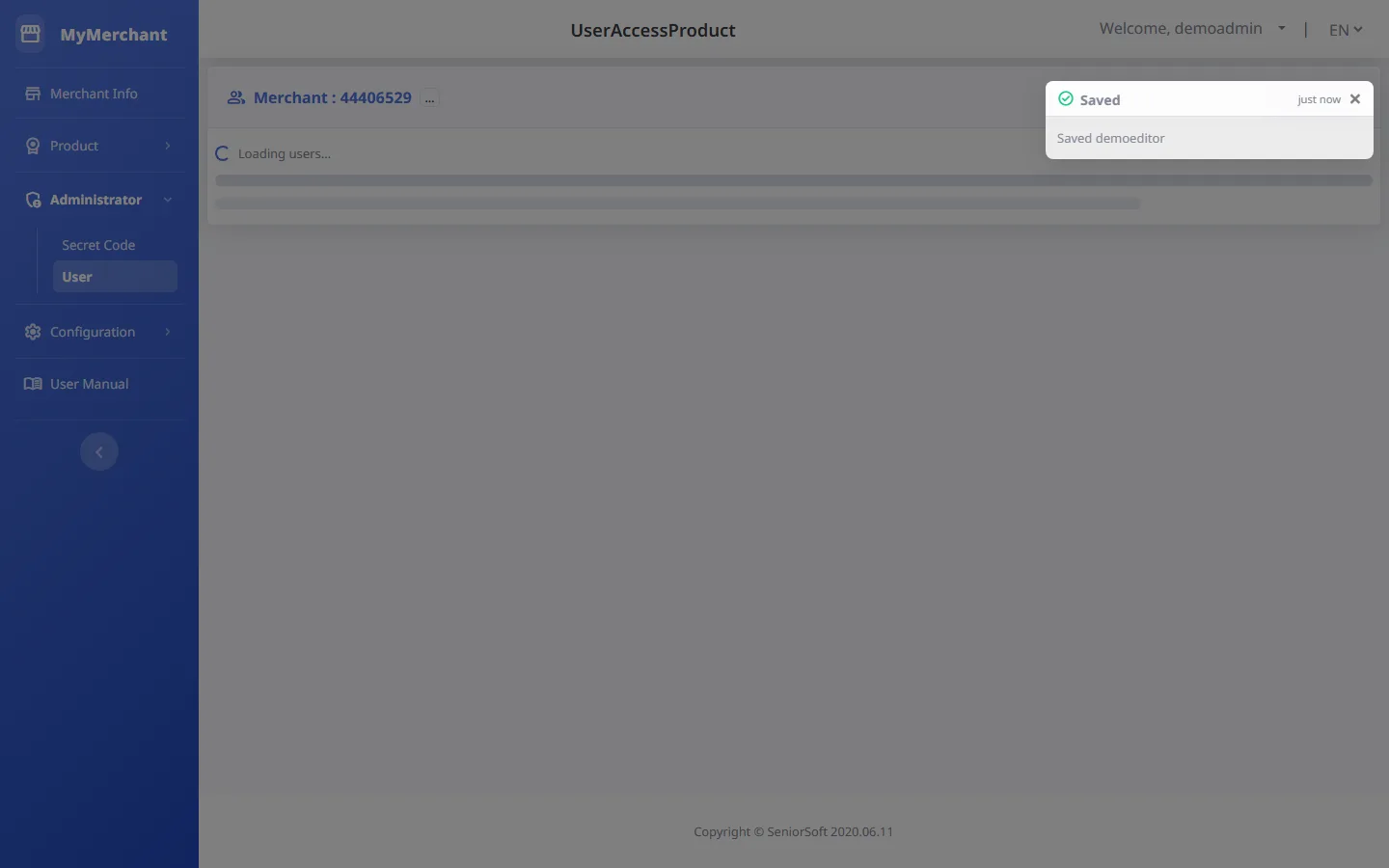
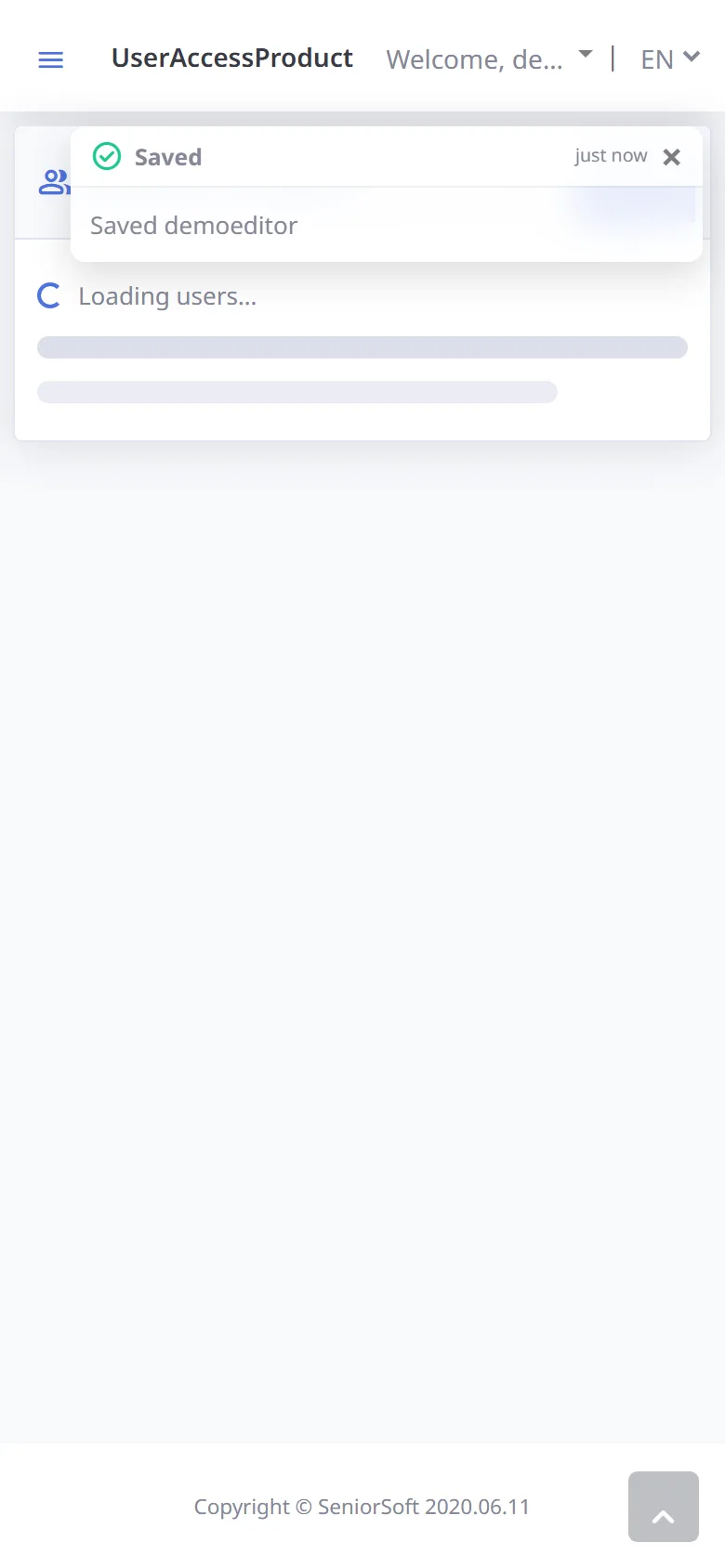
When saving succeeds, a notice appears at the top right for a moment and then disappears.
-
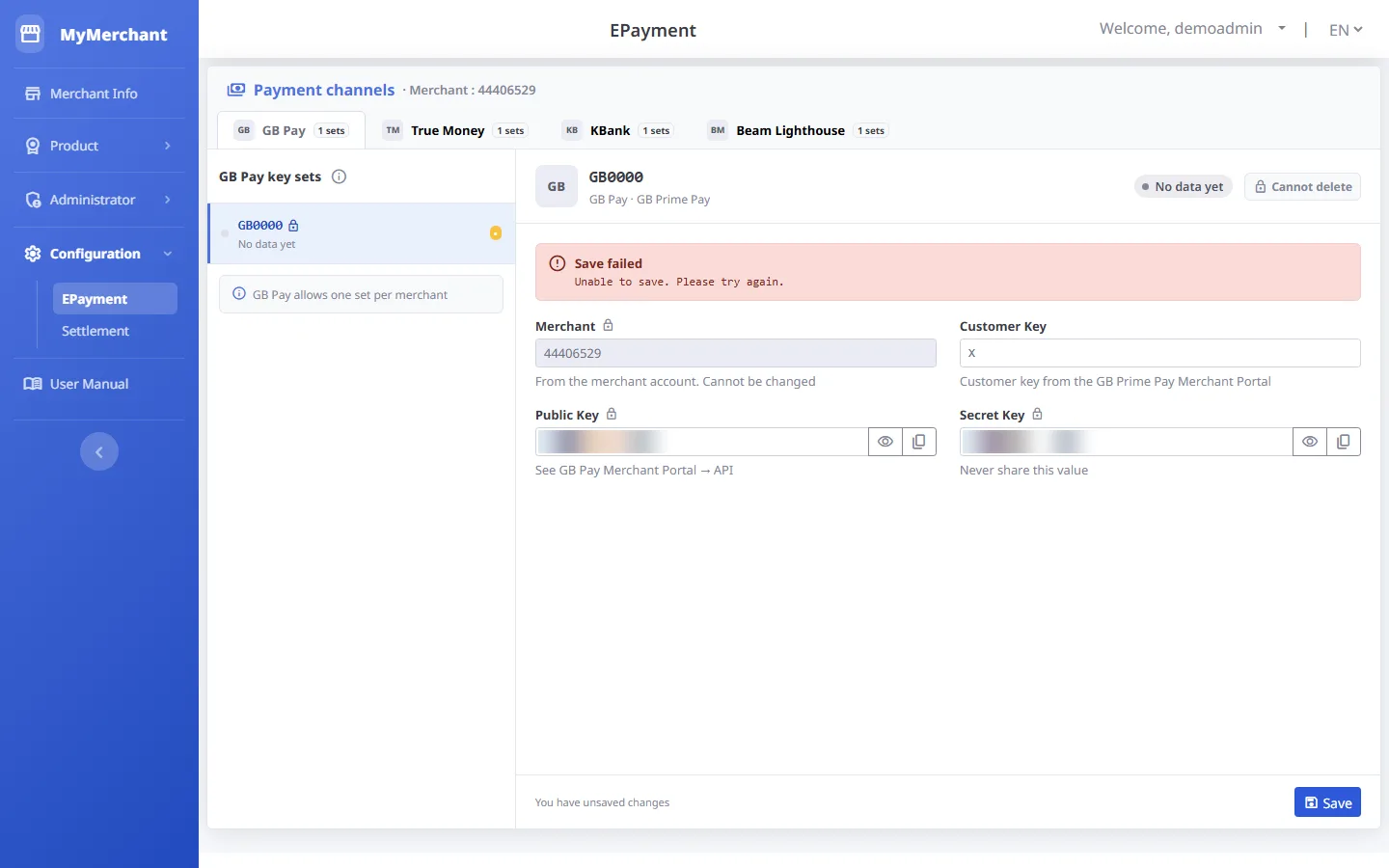
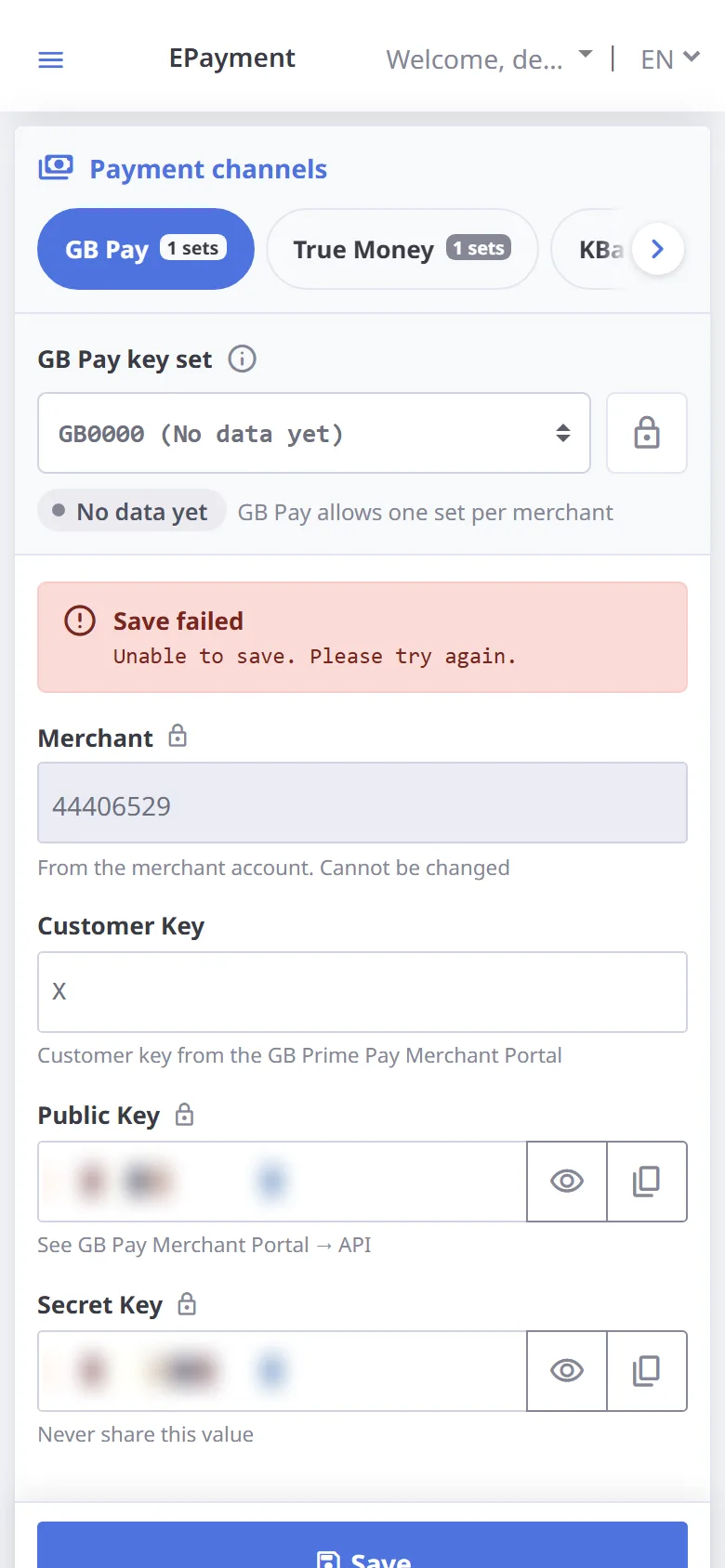
Saving failed
If the system cannot save, a red Save failed box with the reason appears in the form. Your values are kept, so you can fix them and save again.
-
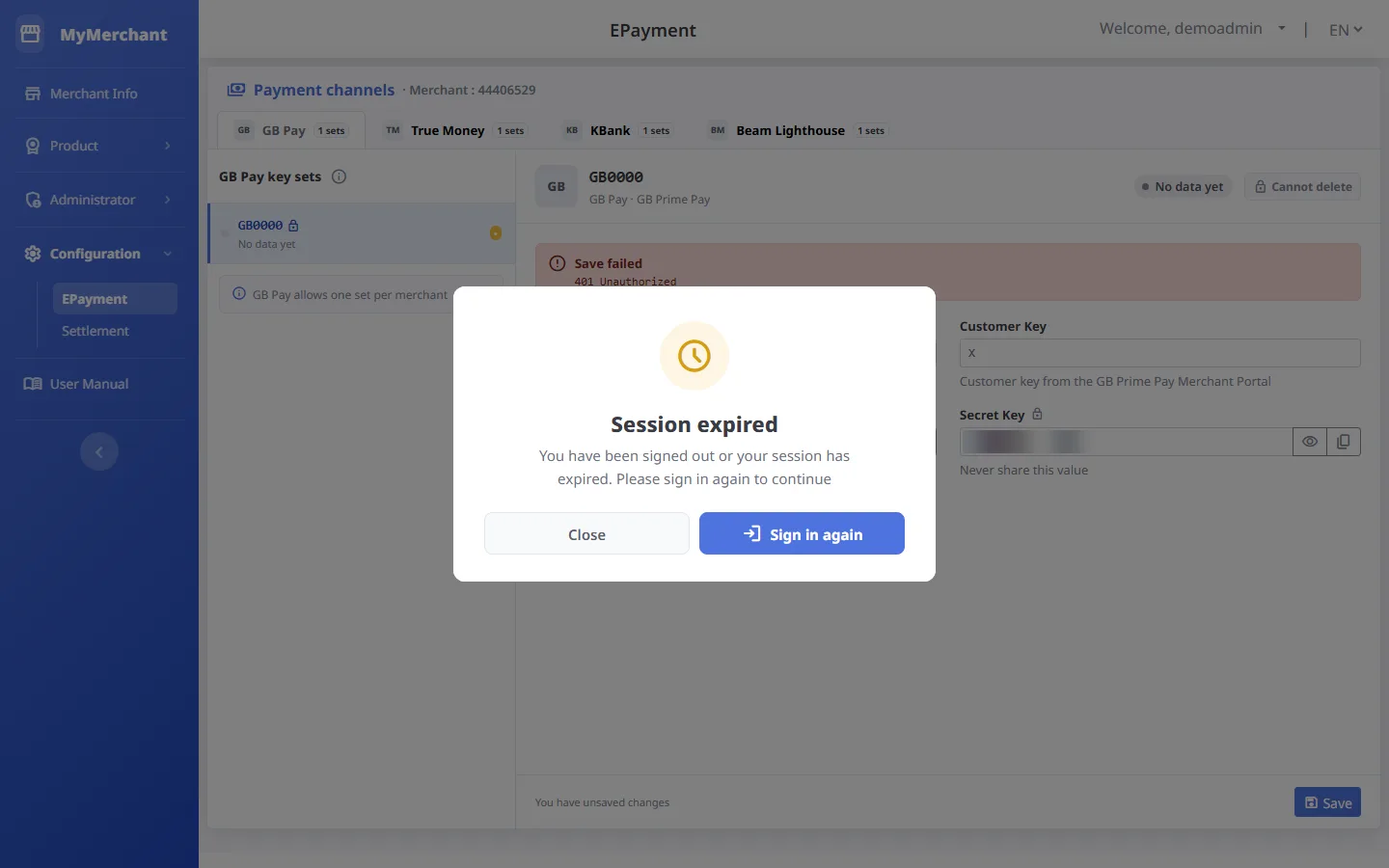
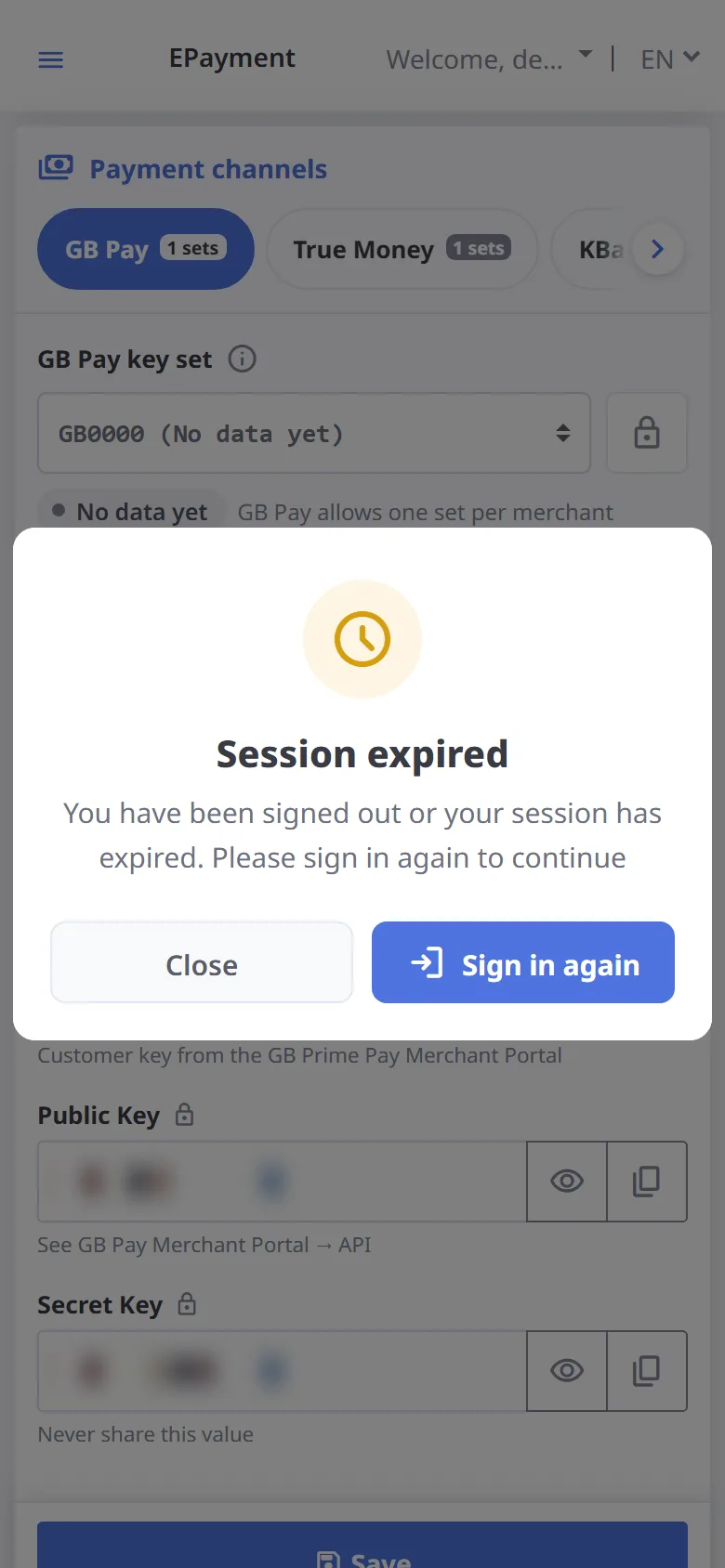
Session expired
If your session expires while working, a Session expired box appears. Press Sign in again to return to the same page. Unsaved changes must be entered again.
-
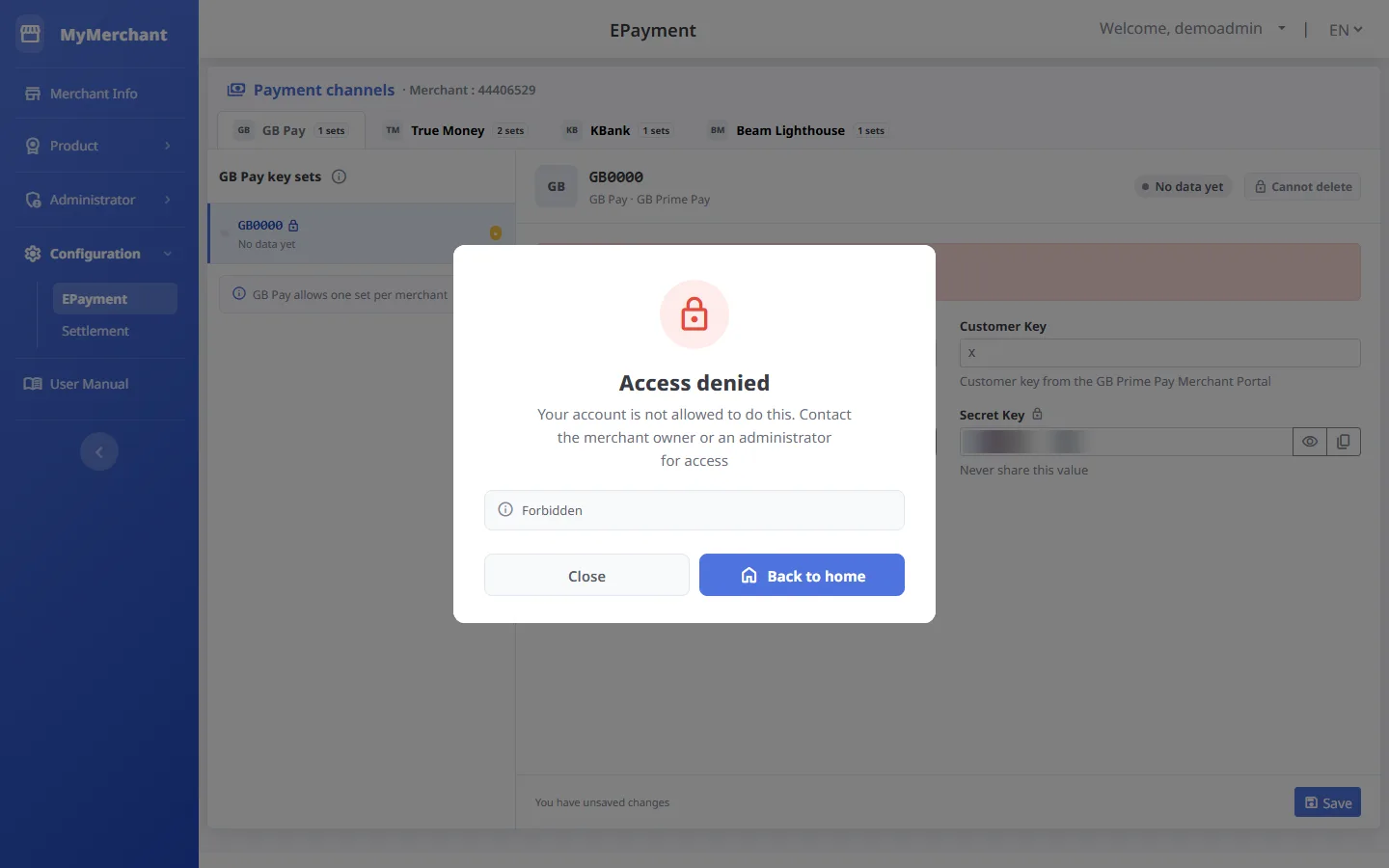
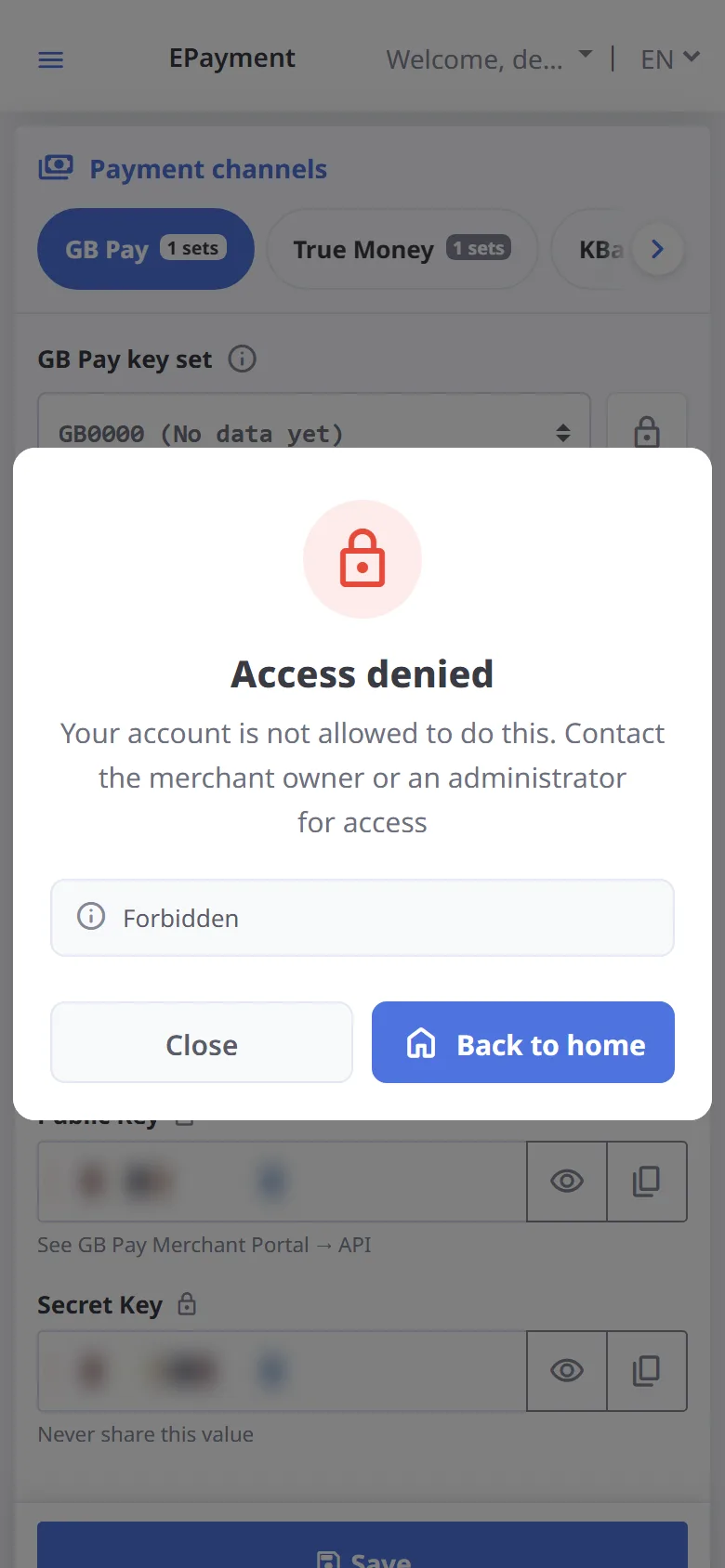
Not allowed to do this
If your account is not allowed to do something, an Access denied box appears with a button back to the home page.
-
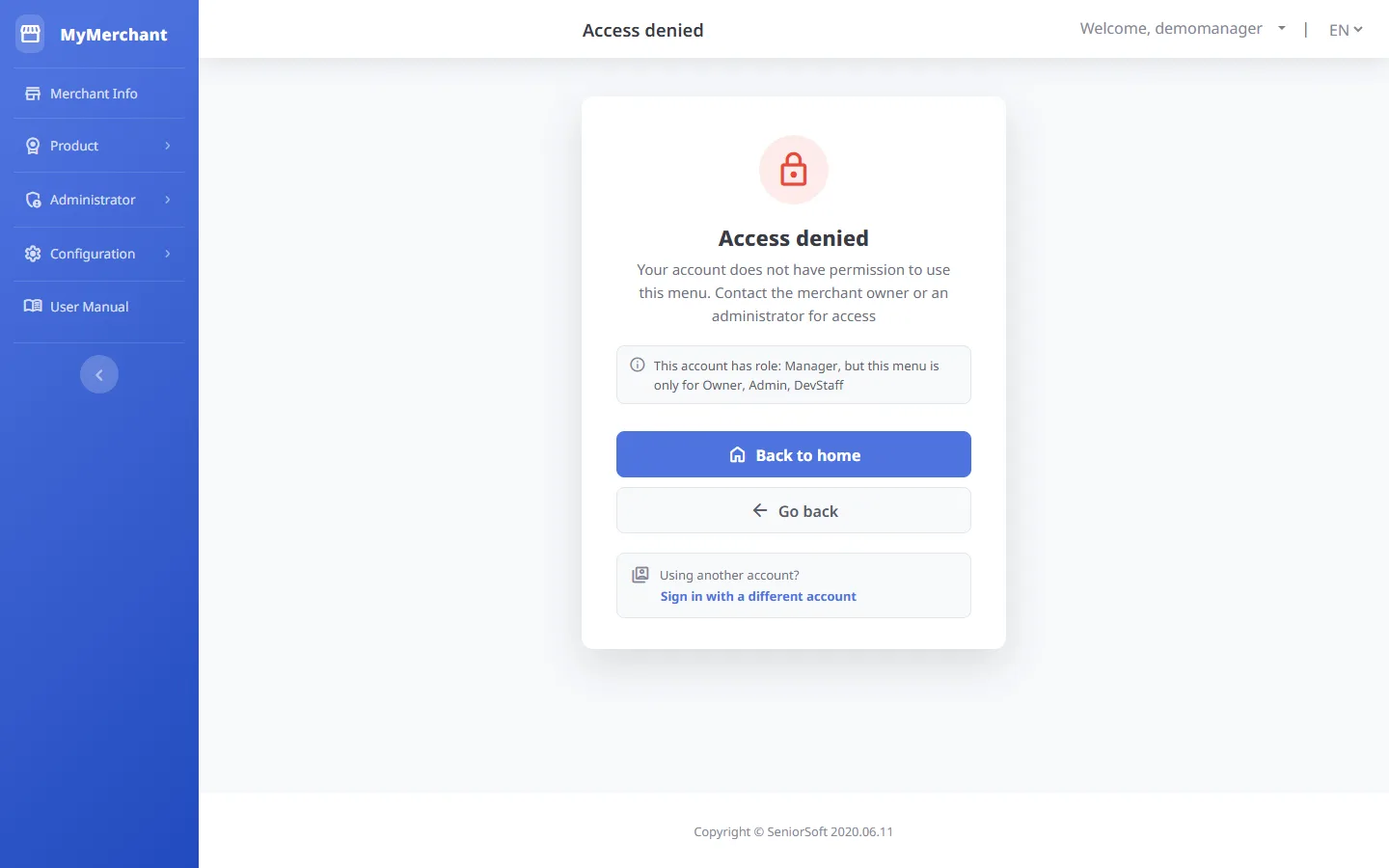
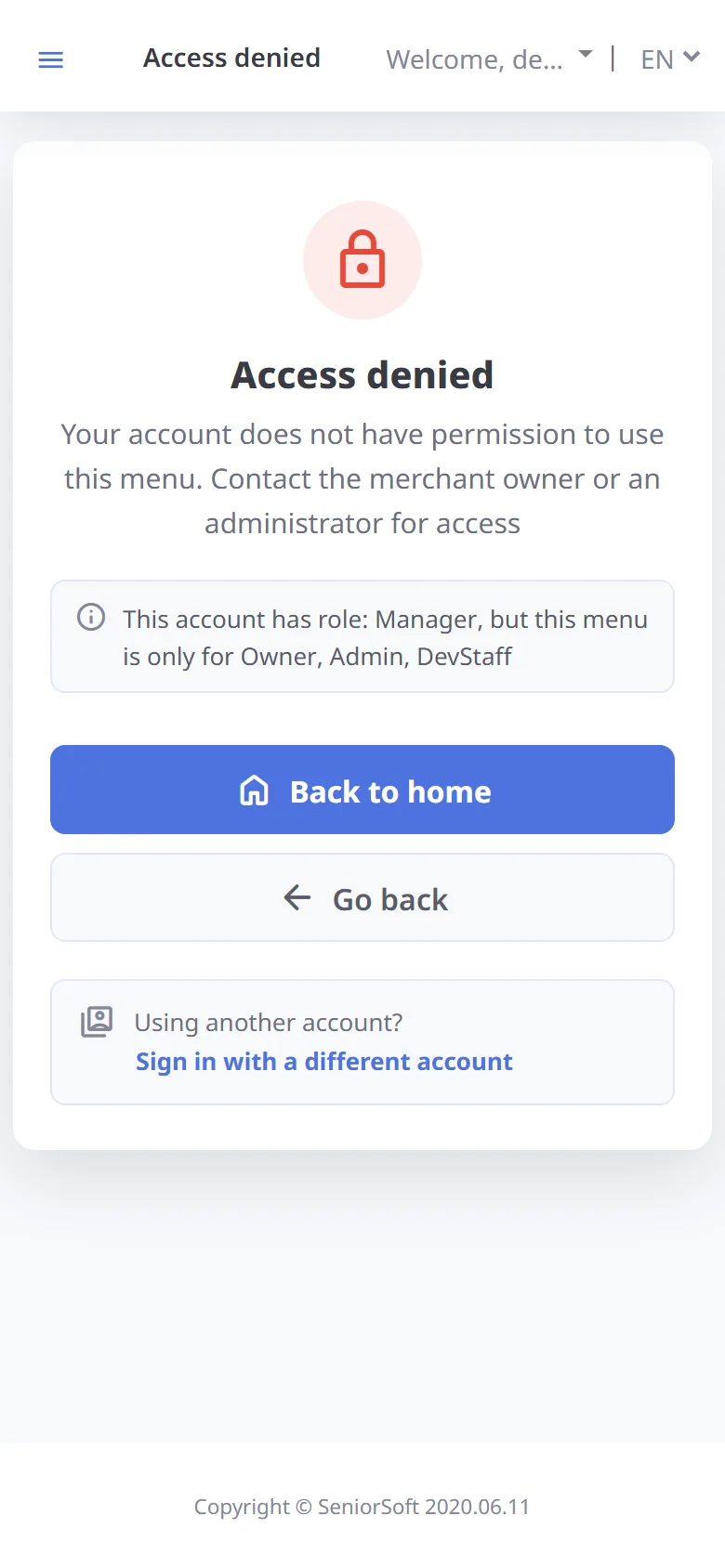
Opening a menu your role cannot use
If you open a menu your role cannot use, an Access denied page shows your role and the roles the menu requires (see the table in Users and roles).
Merchant info
Overview of your store and the products in use
-
Store overview
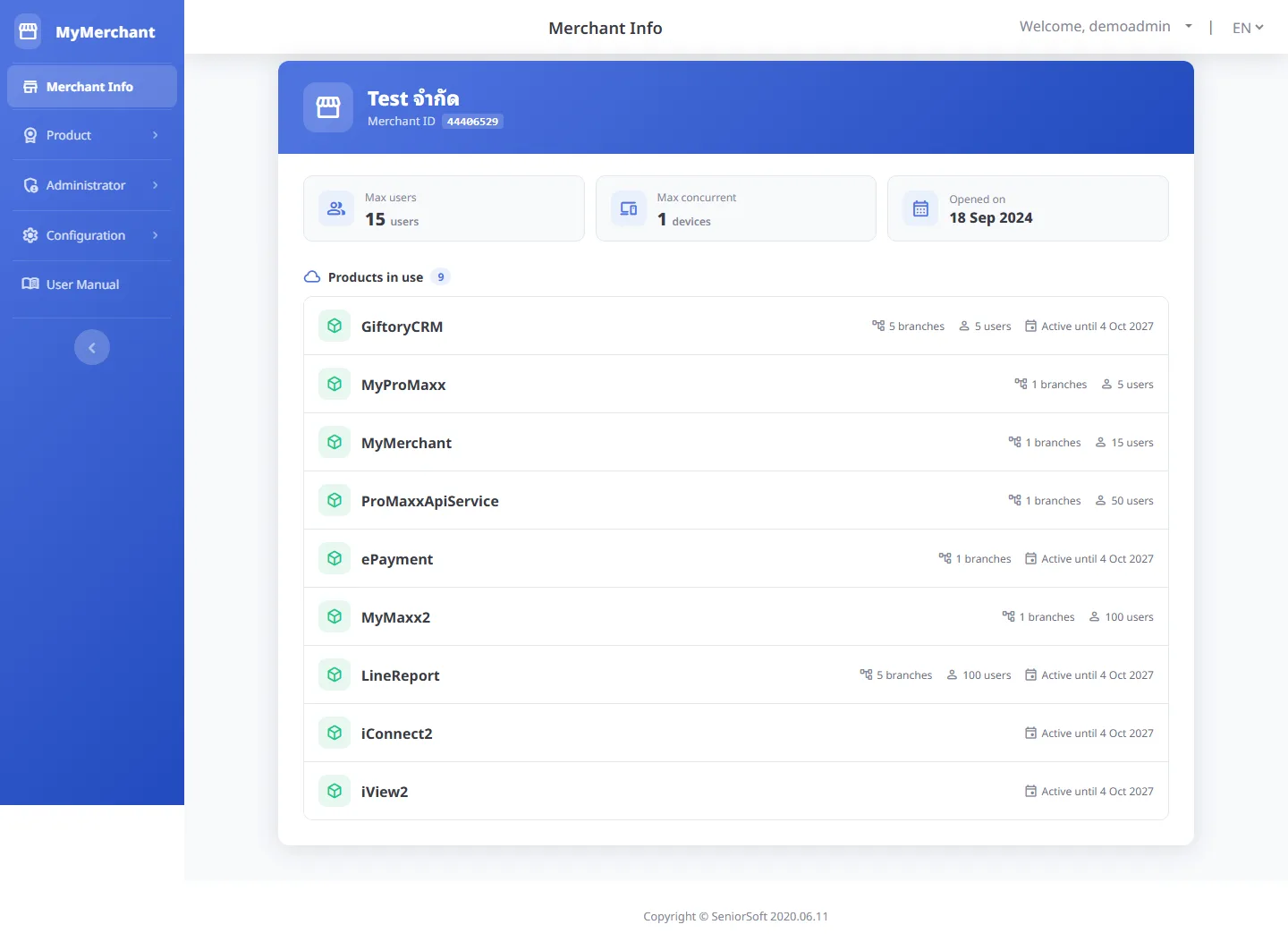
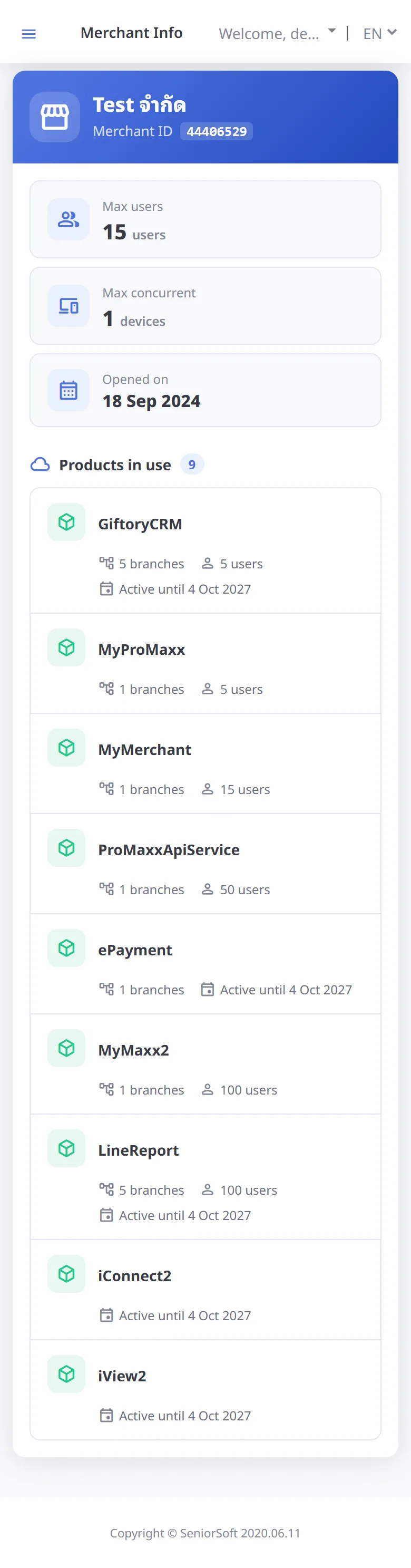
Shows the store name and ID, maximum users, maximum concurrent devices, the date the store started, and the products in use with branches / users and expiry dates. Accounts that manage several stores see a card for each store (with a search box when there are more than 3).
Product License
Product → Product Licence · check status, renew and activate licenses
-
License list
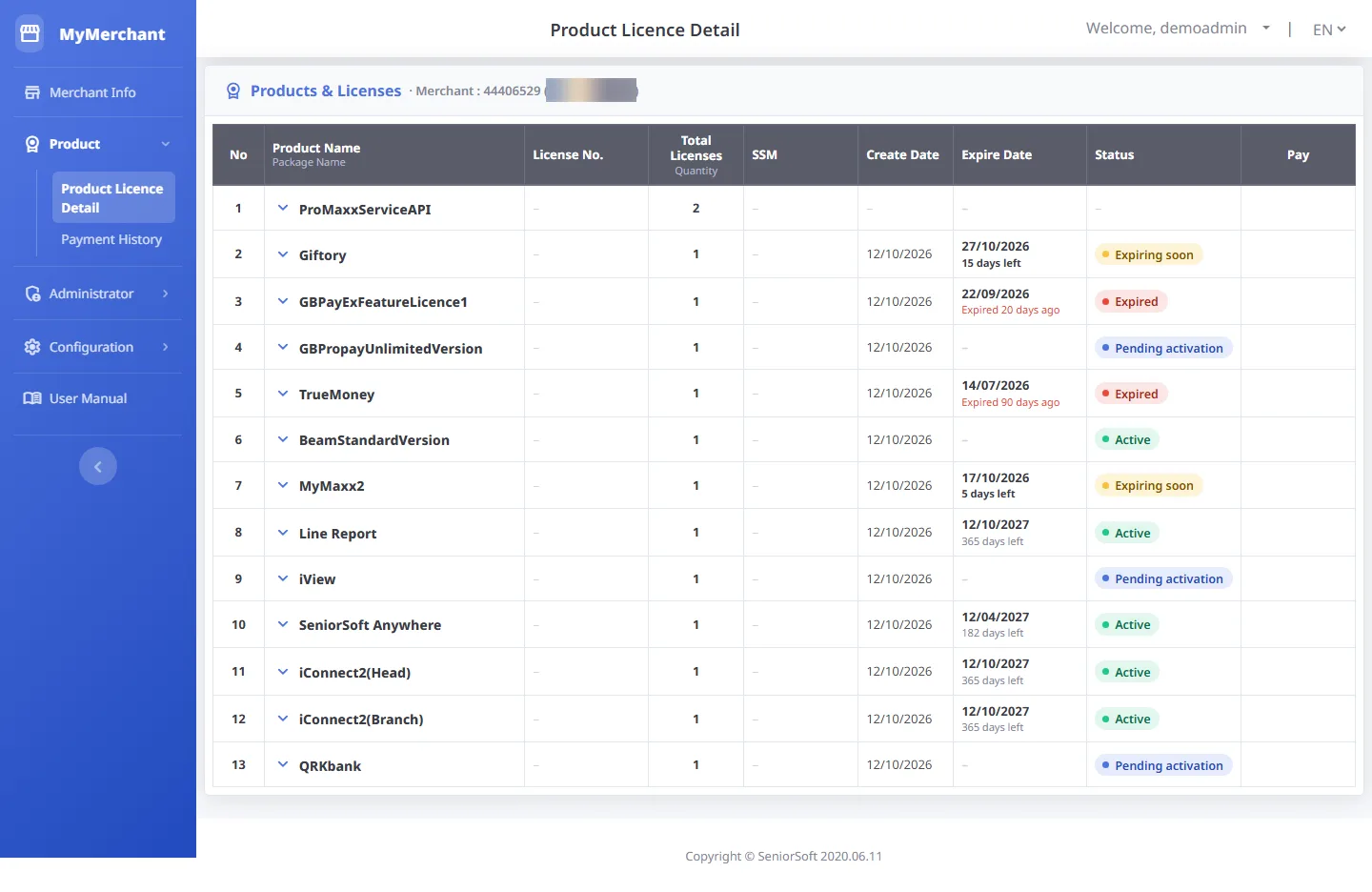
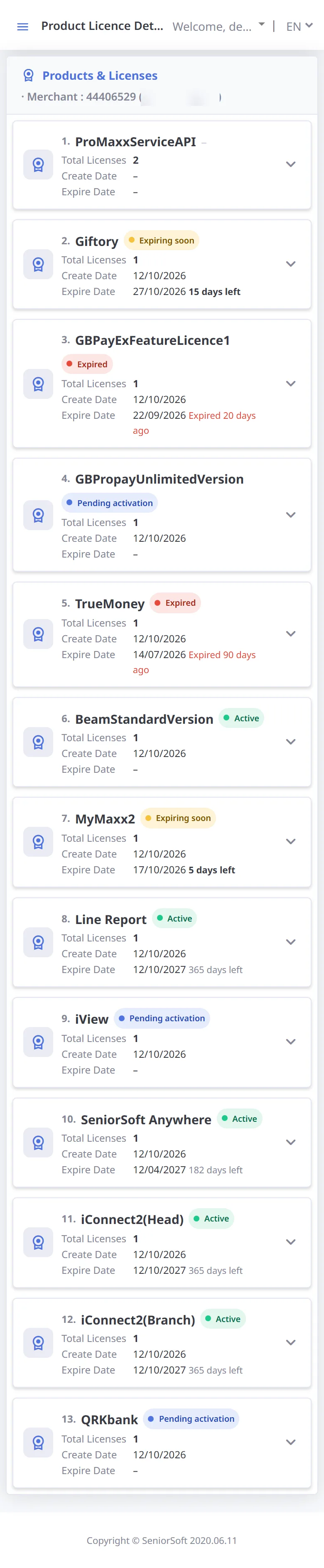
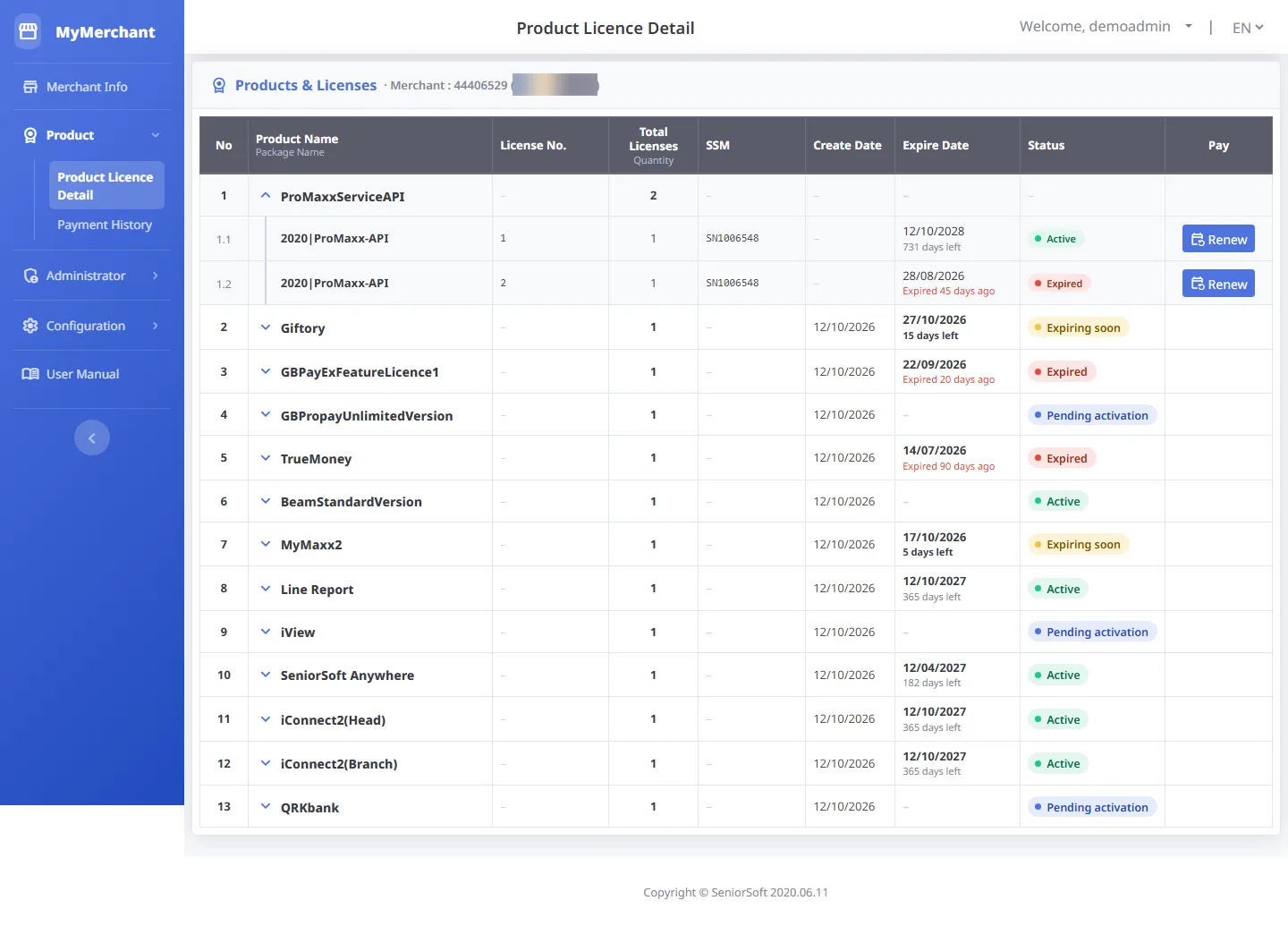
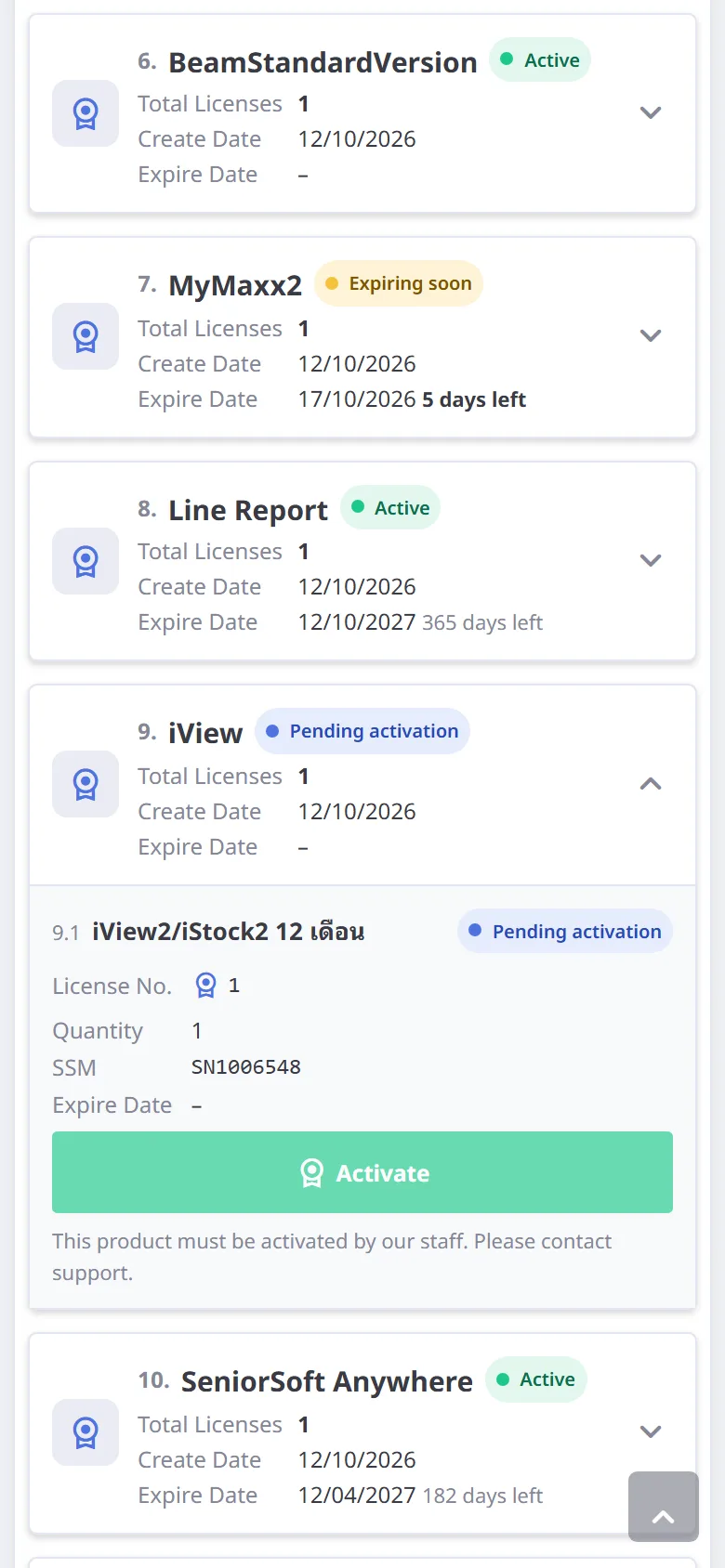
Lists all products of the store with create date, expiry date (with days left) and status. For a product with several licenses the product row shows "–"; expand it to see each license.
-
License status
Status Meaning Available button Active In use, more than 30 days left (or no expiry date) Renew (asks to confirm) Expiring soon In use, 30 days or less left — renew soon Renew (asks to confirm) Expired Past the expiry date; shows "Expired N days ago" Renew (goes straight to payment) Pending activation Purchased but not started yet Activate (some products must be activated by our staff) Locked / Deleted Suspended by our staff Contact support Buttons appear only for packages that have a price · press the arrow before the product name to see its packages and buttons -
View the packages of a product
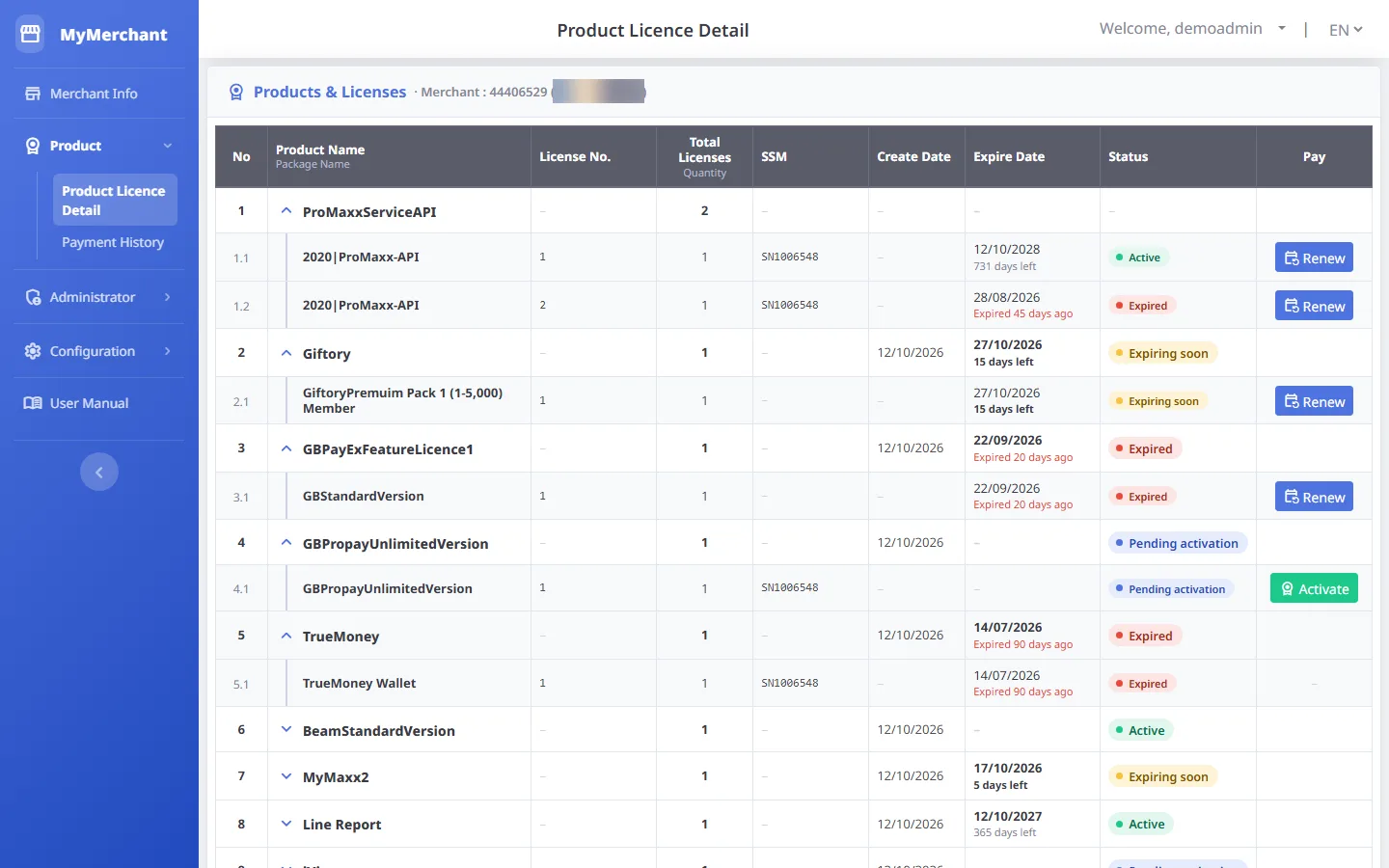
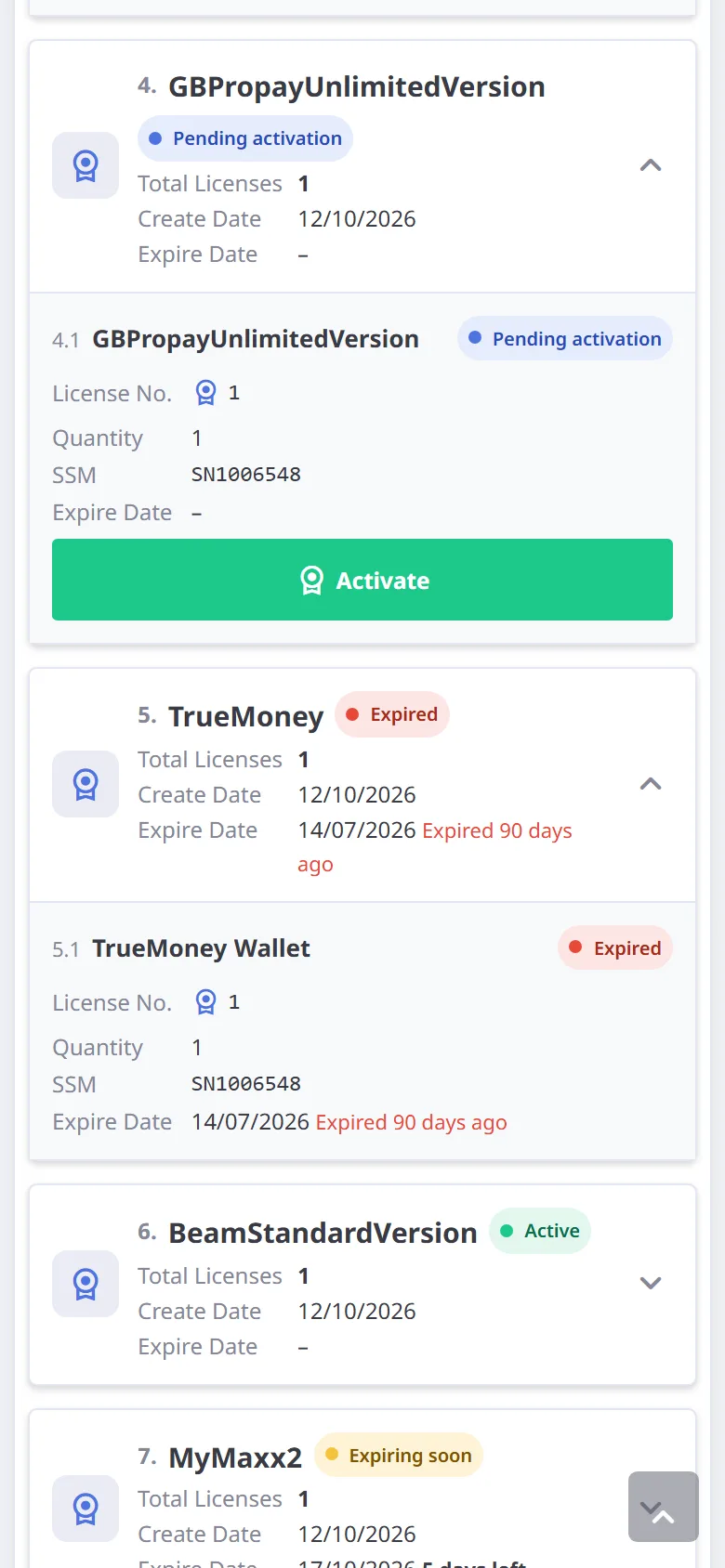
Press the arrow before the product name to see its packages: license number, SSM, status and the Renew / Activate button of each package.

-
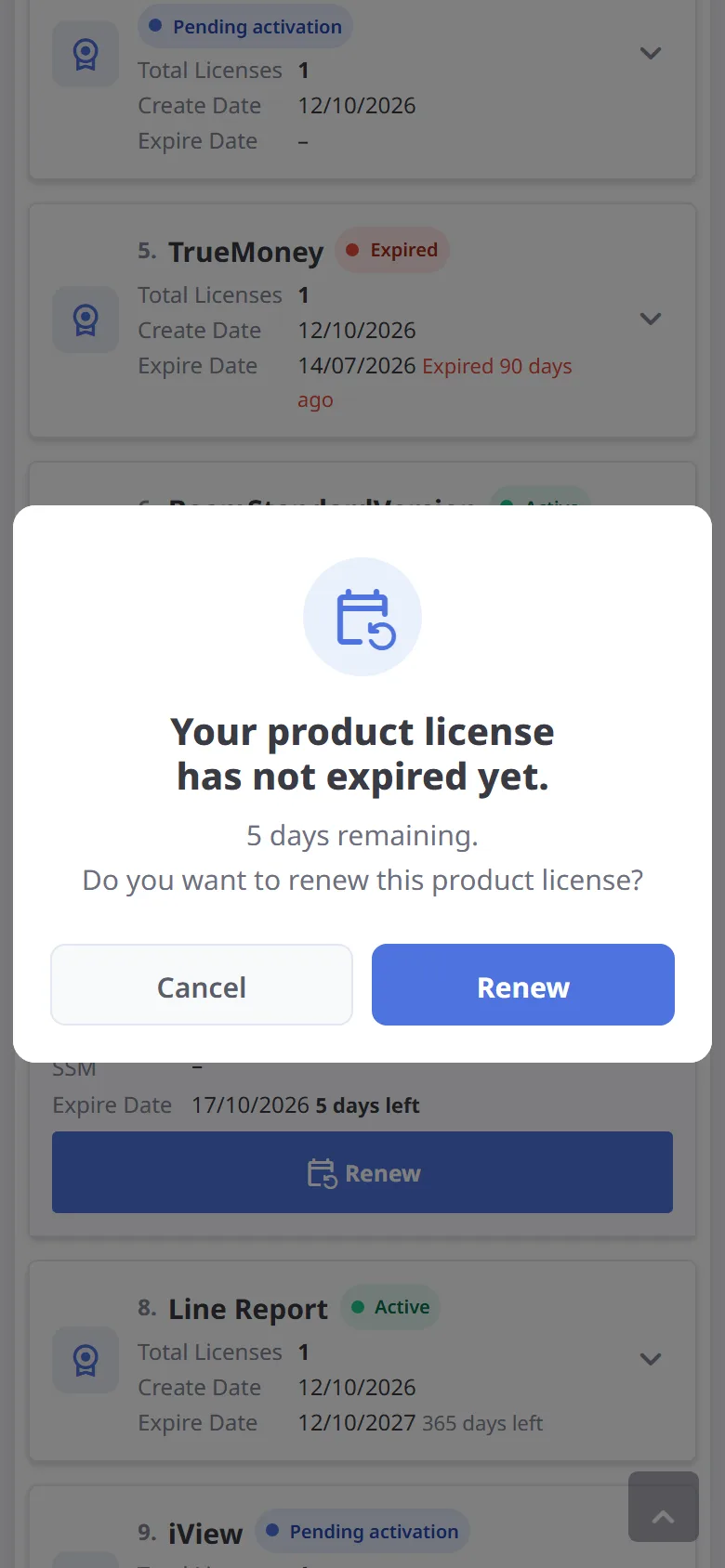
Renew an "Active" license
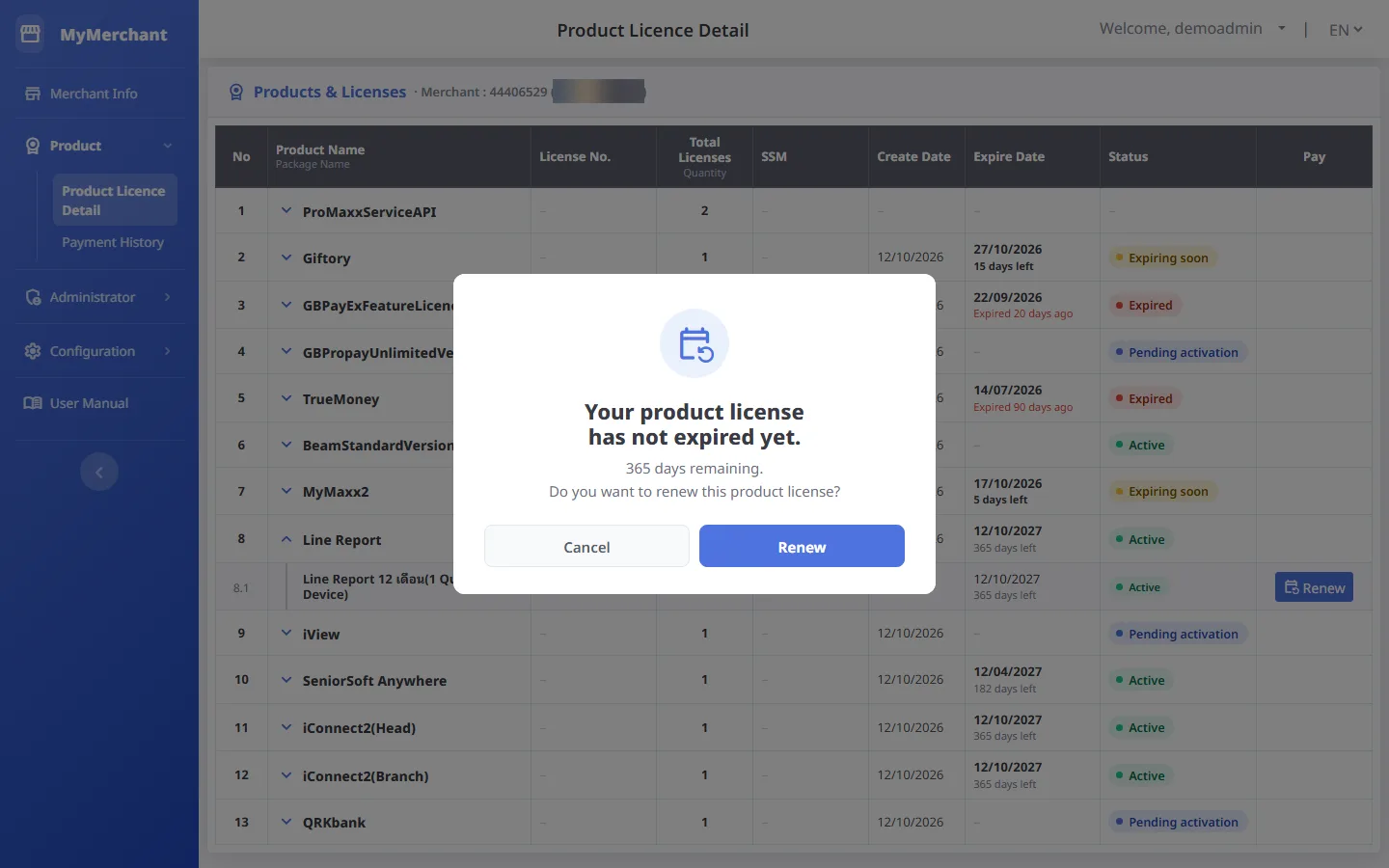
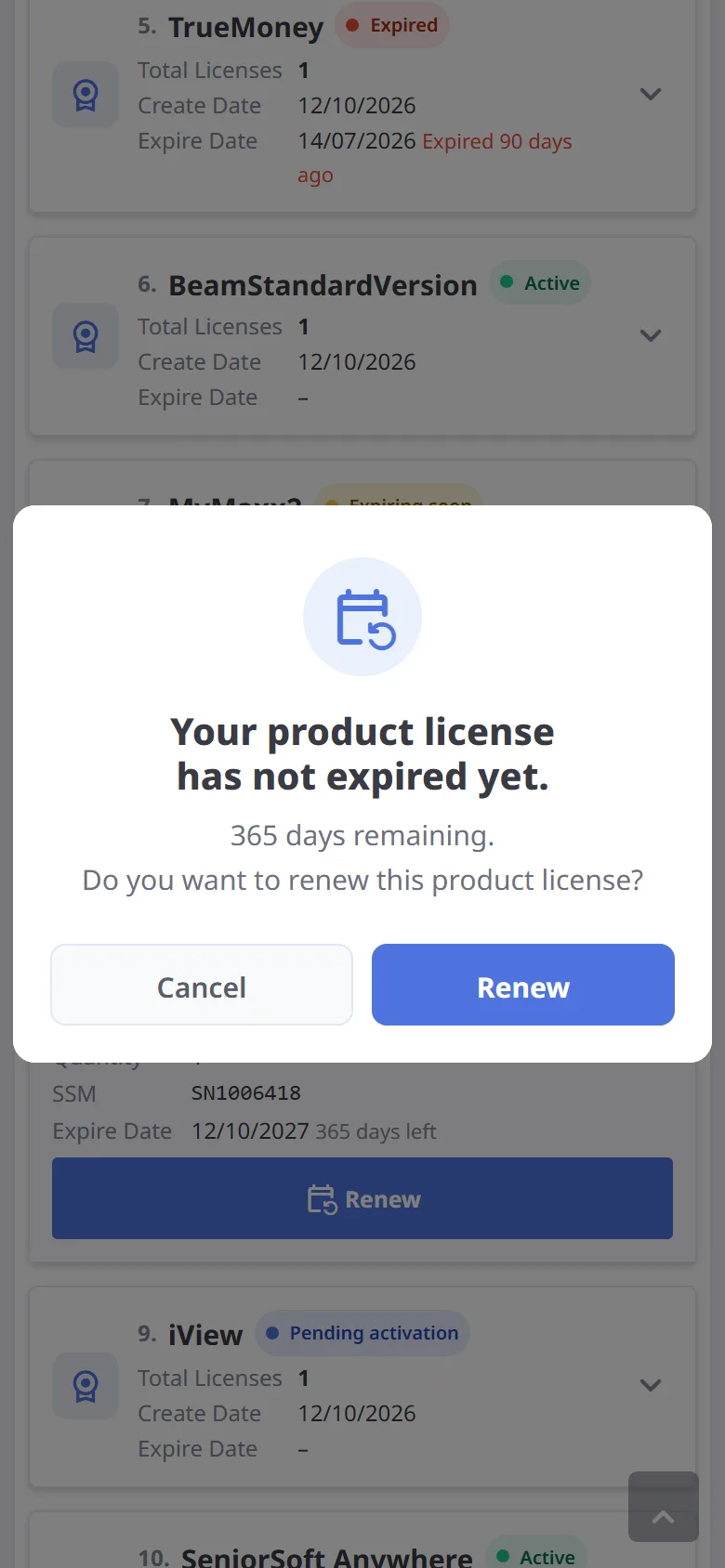
Press Renew. You are told the license has not expired yet and how many days are left. Press Renew to go to payment, or Cancel if you do not want to renew now.
-
Renew an "Expiring soon" license
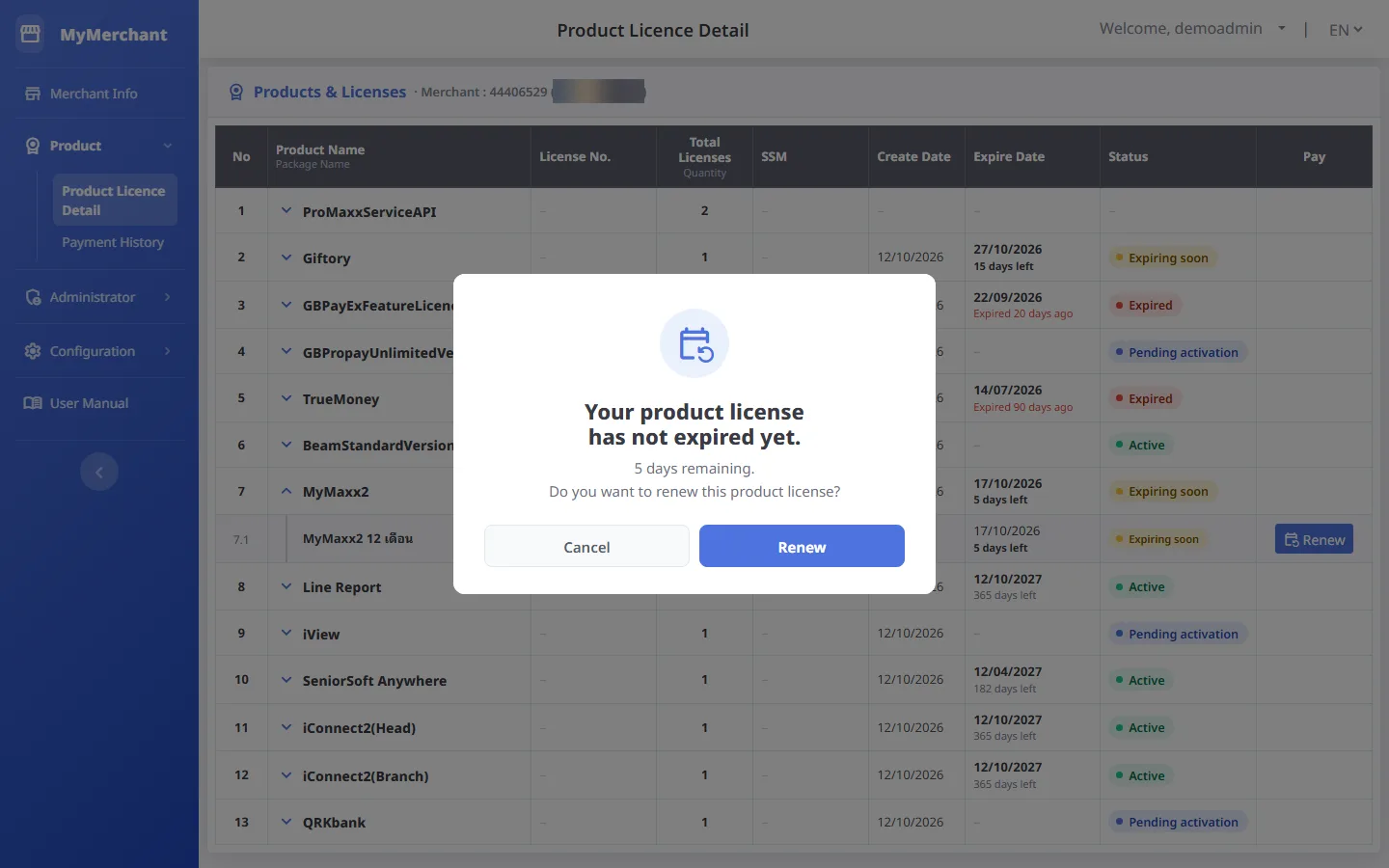
Same as an active license: you are always asked to confirm, with the days left shown.
-
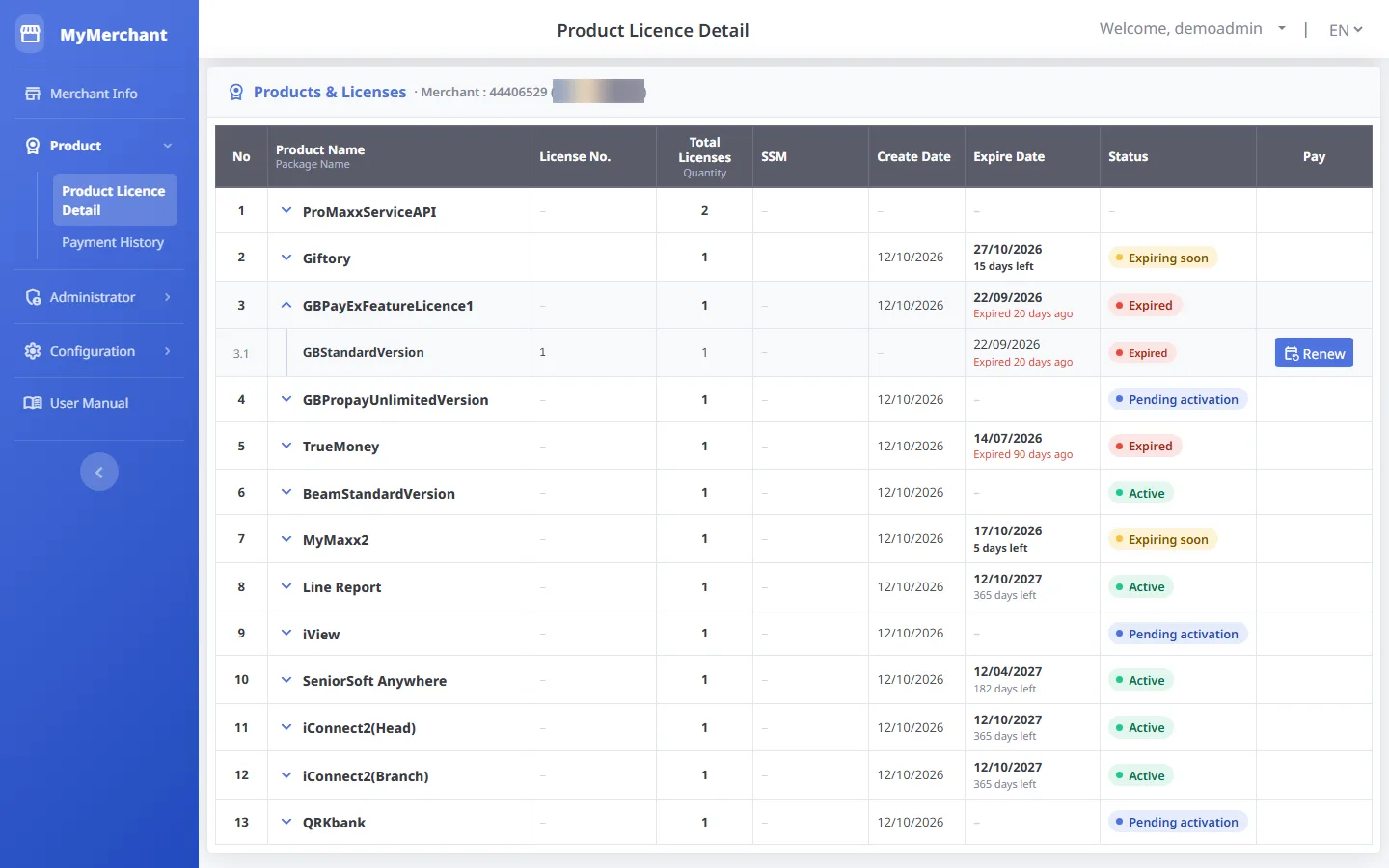
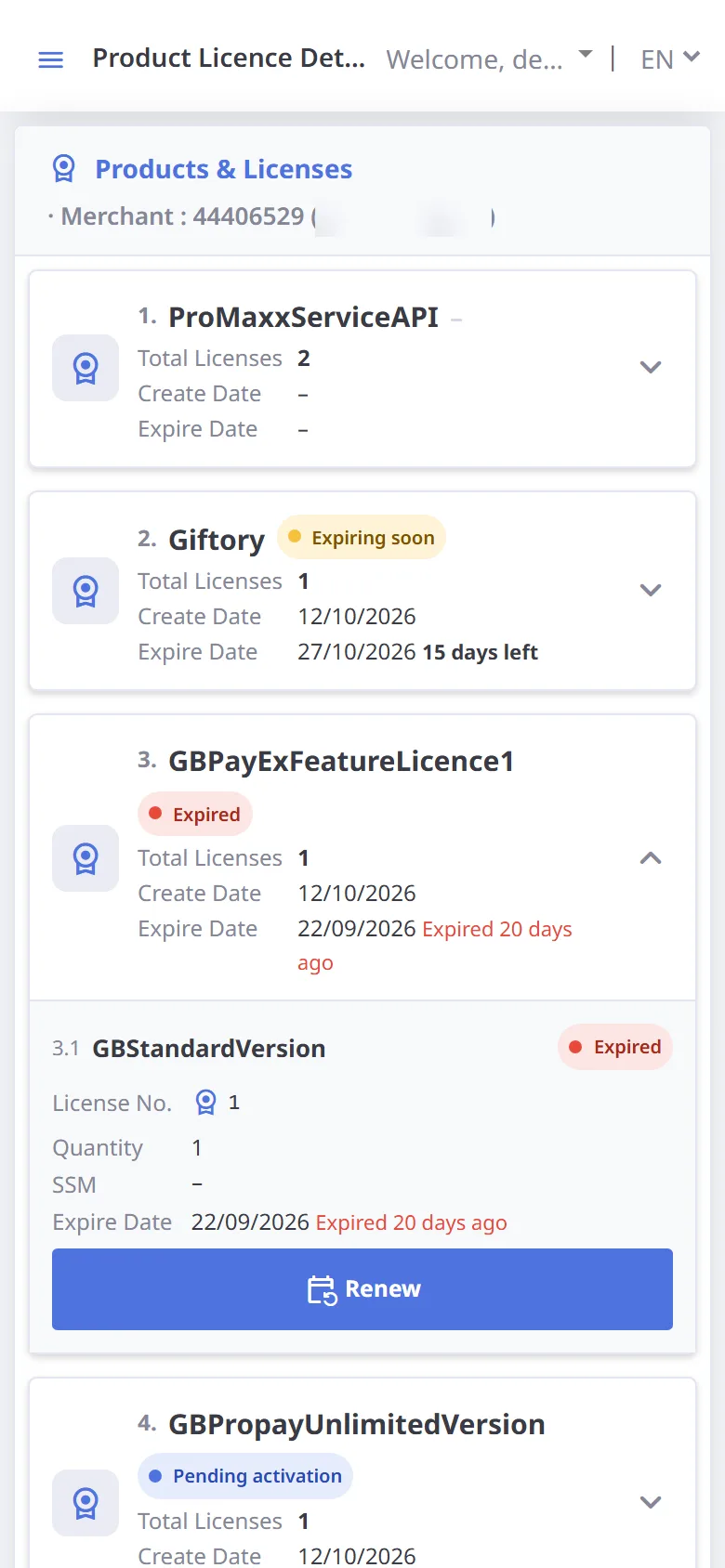
Renew an "Expired" license
For an expired license, press Renew. There is no confirmation; you go straight to payment.
-
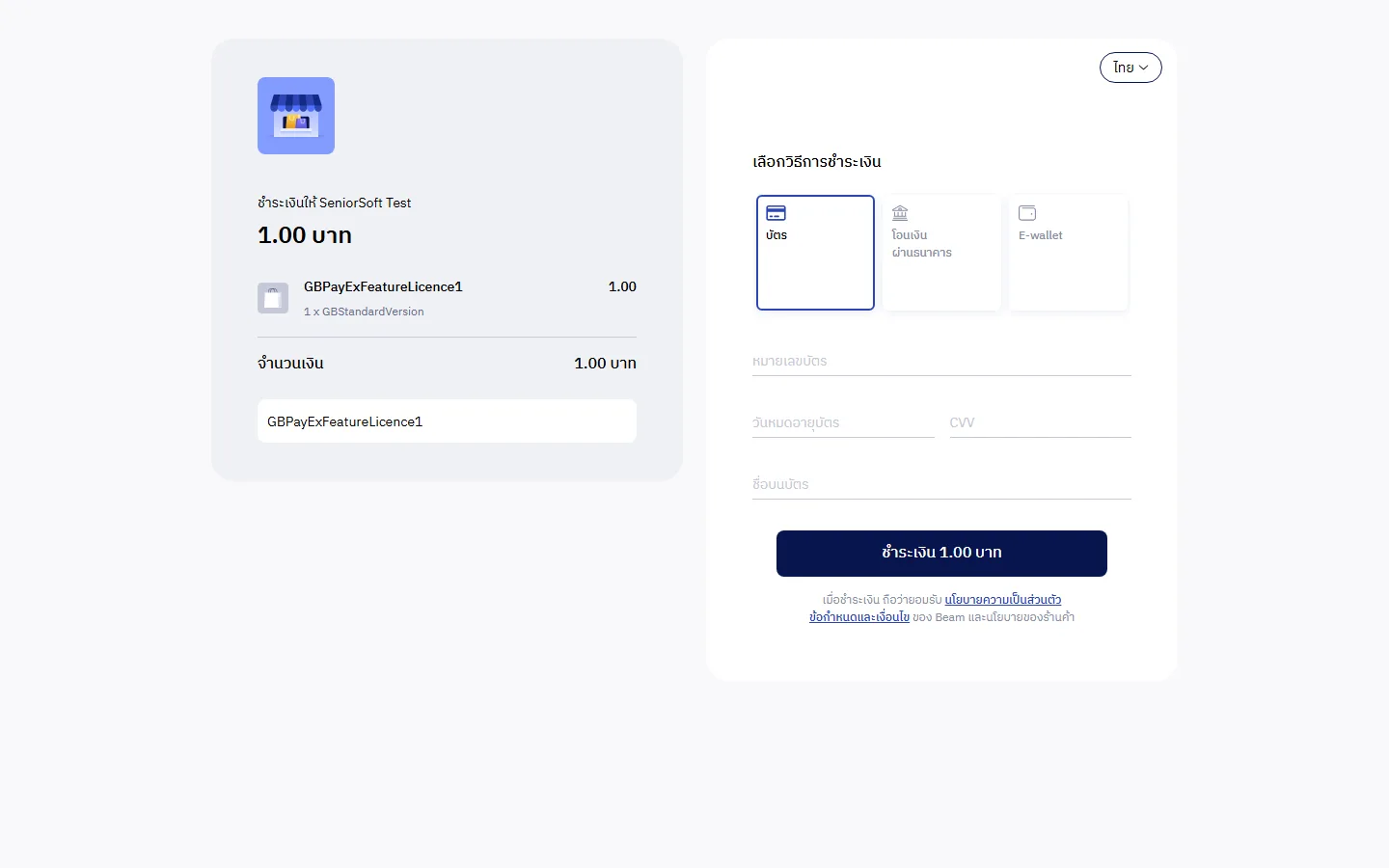
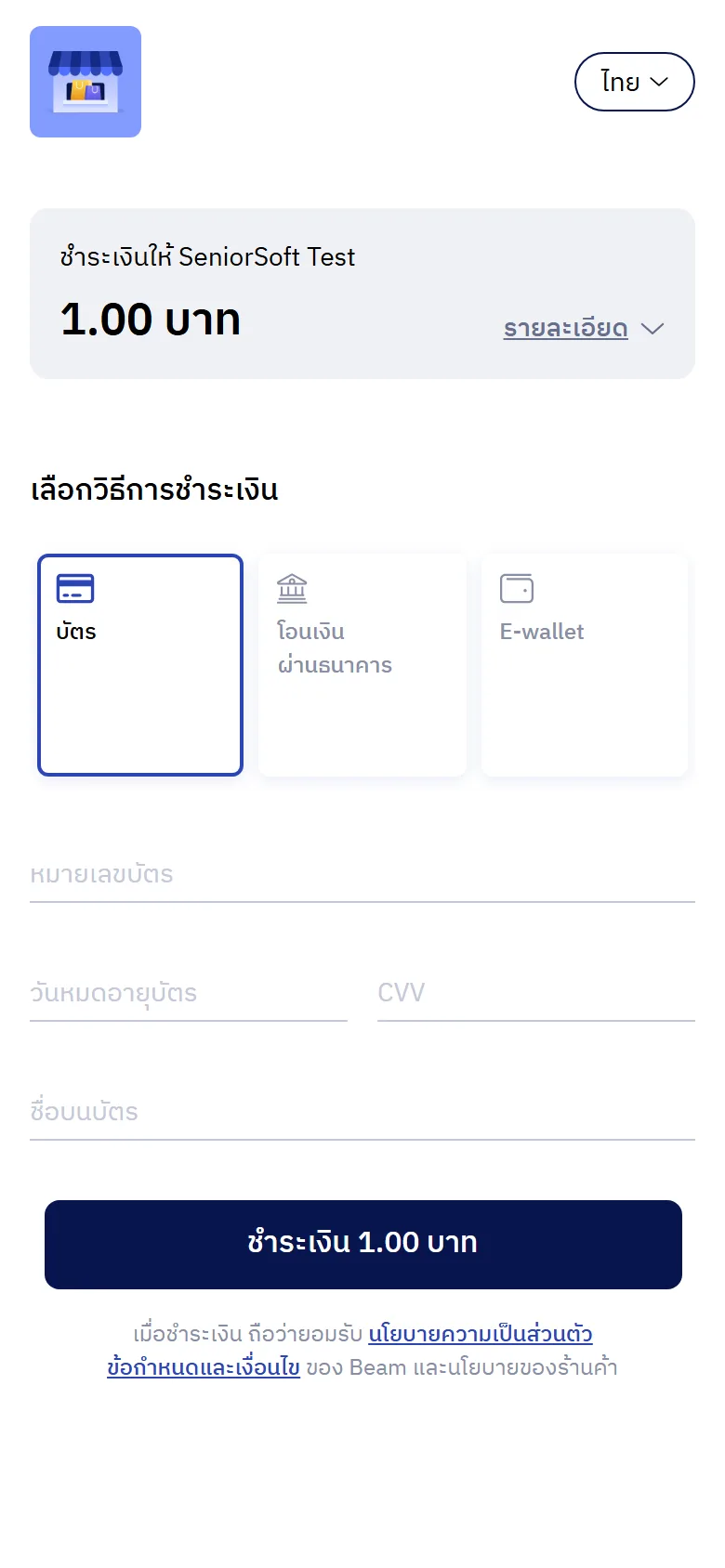
Payment page
An invoice is created and you are taken to the payment page. After payment the license can be used again. The invoice appears in Payment history (as "Unpaid" until it is paid).
-
A "Pending activation" license
A package that has not started yet has a green Activate button (no Renew button).
-
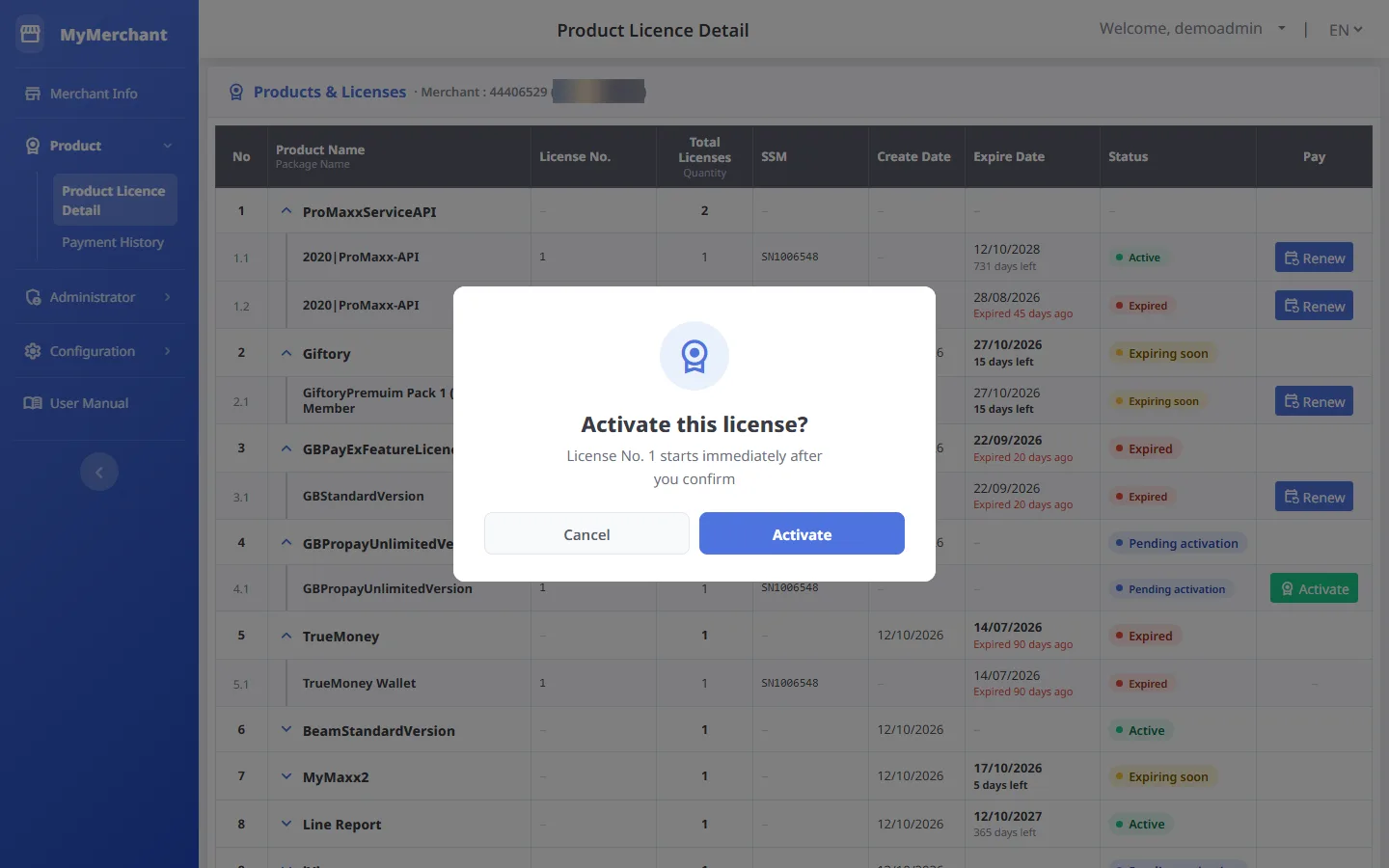
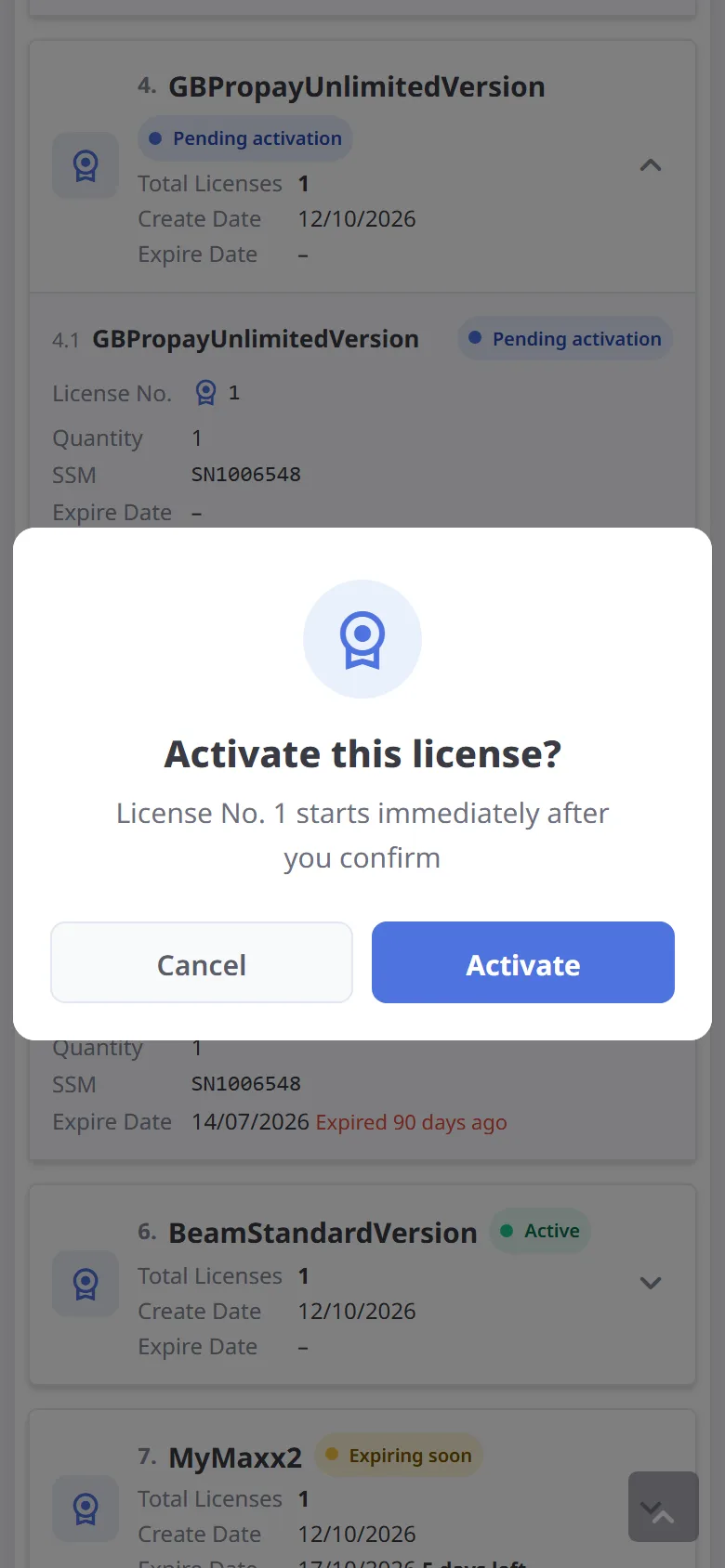
Activate: confirmation
Press Activate. You are asked to confirm, with the license number shown. Once confirmed the license starts immediately and this cannot be undone.
-
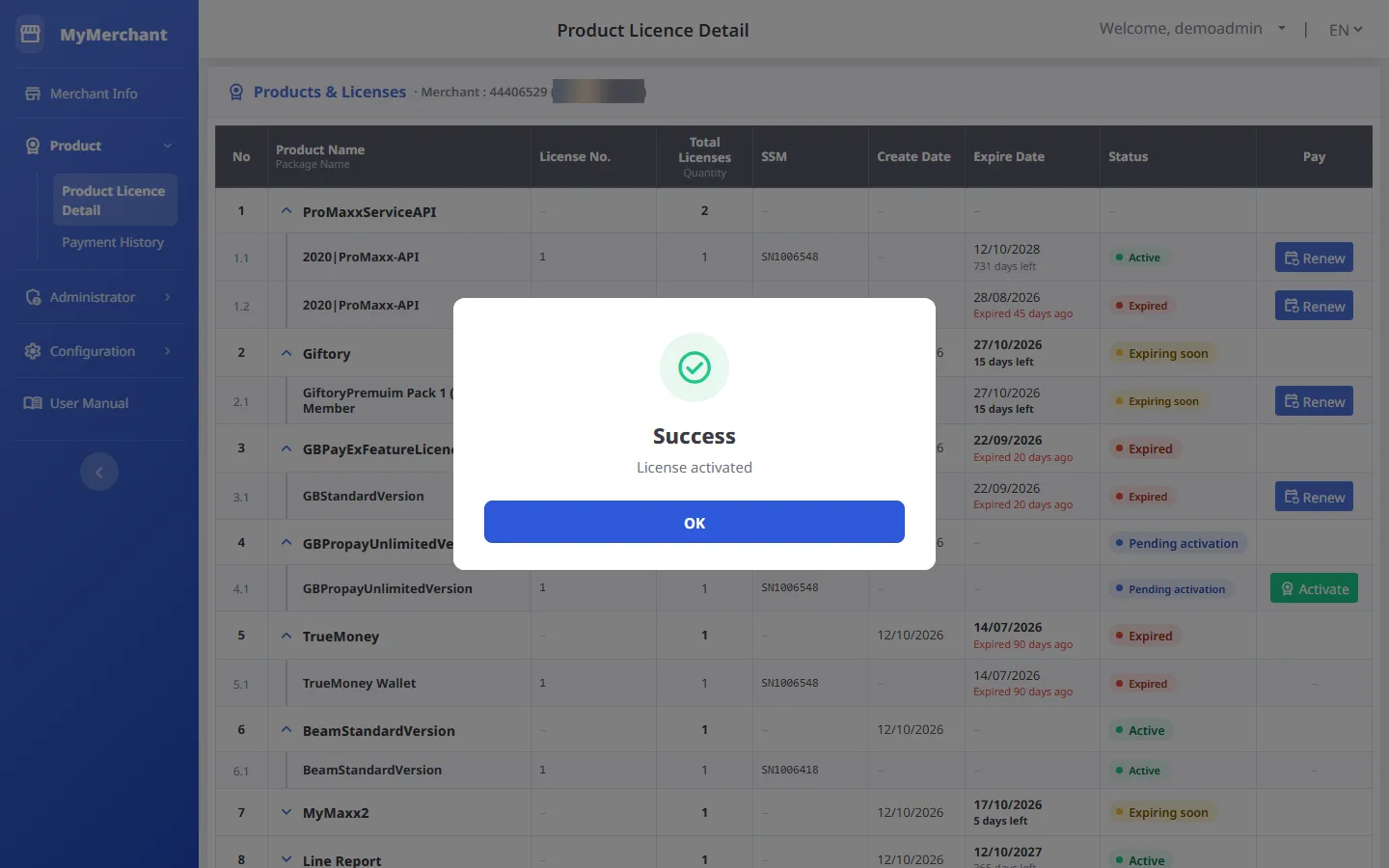
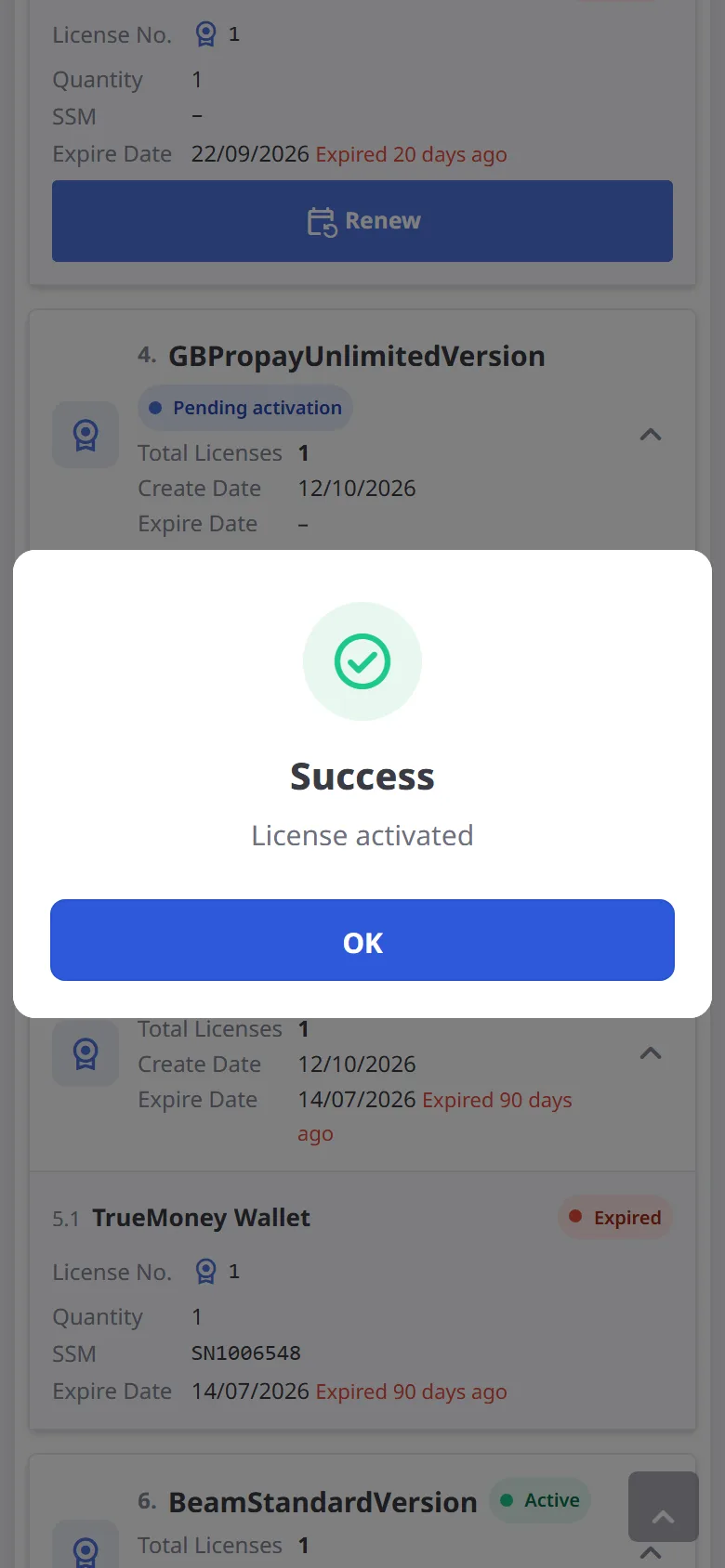
Activation succeeded
The license is activated and product access is updated. Press OK; the page reloads and the status changes to Active with an expiry date.
-
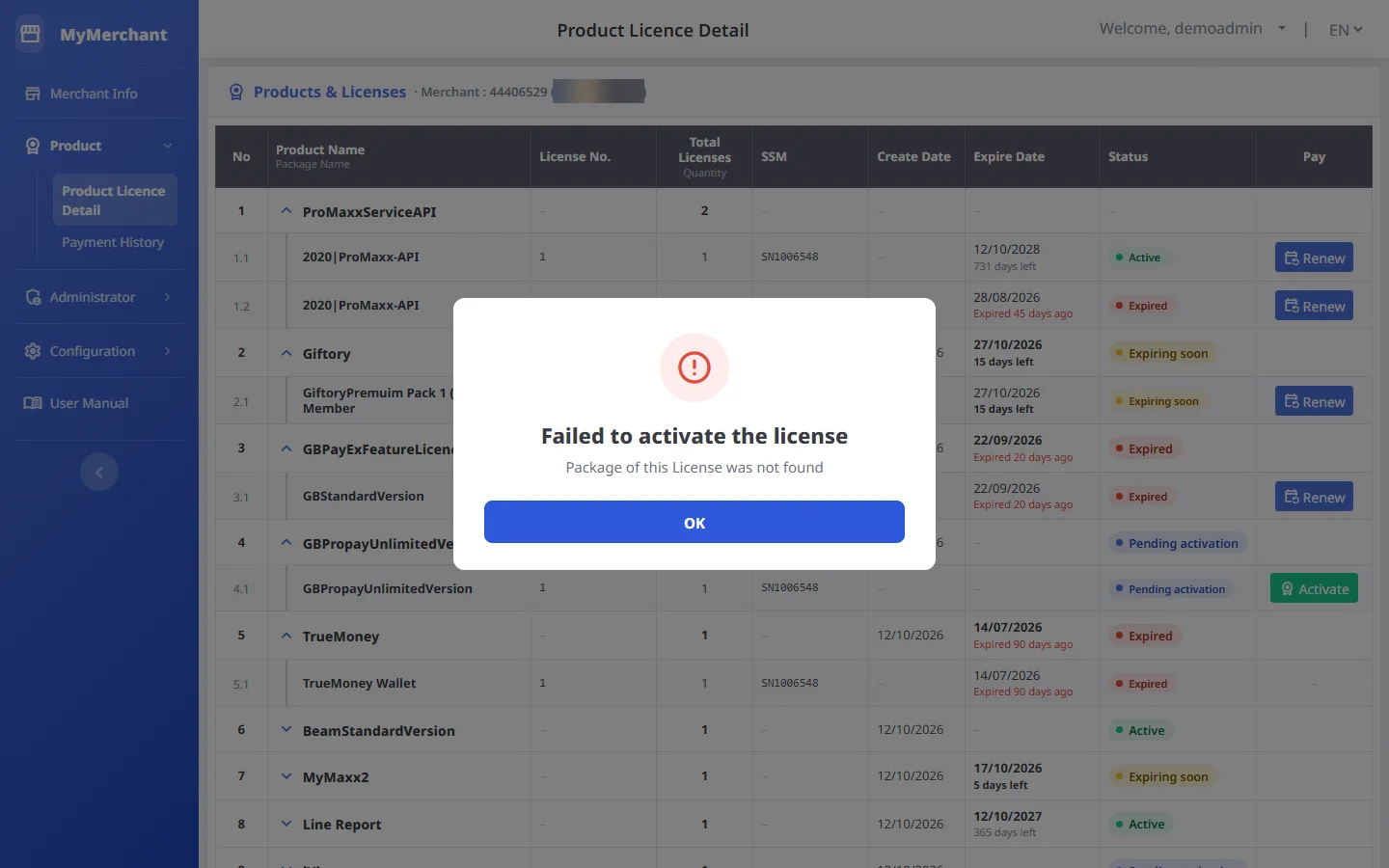
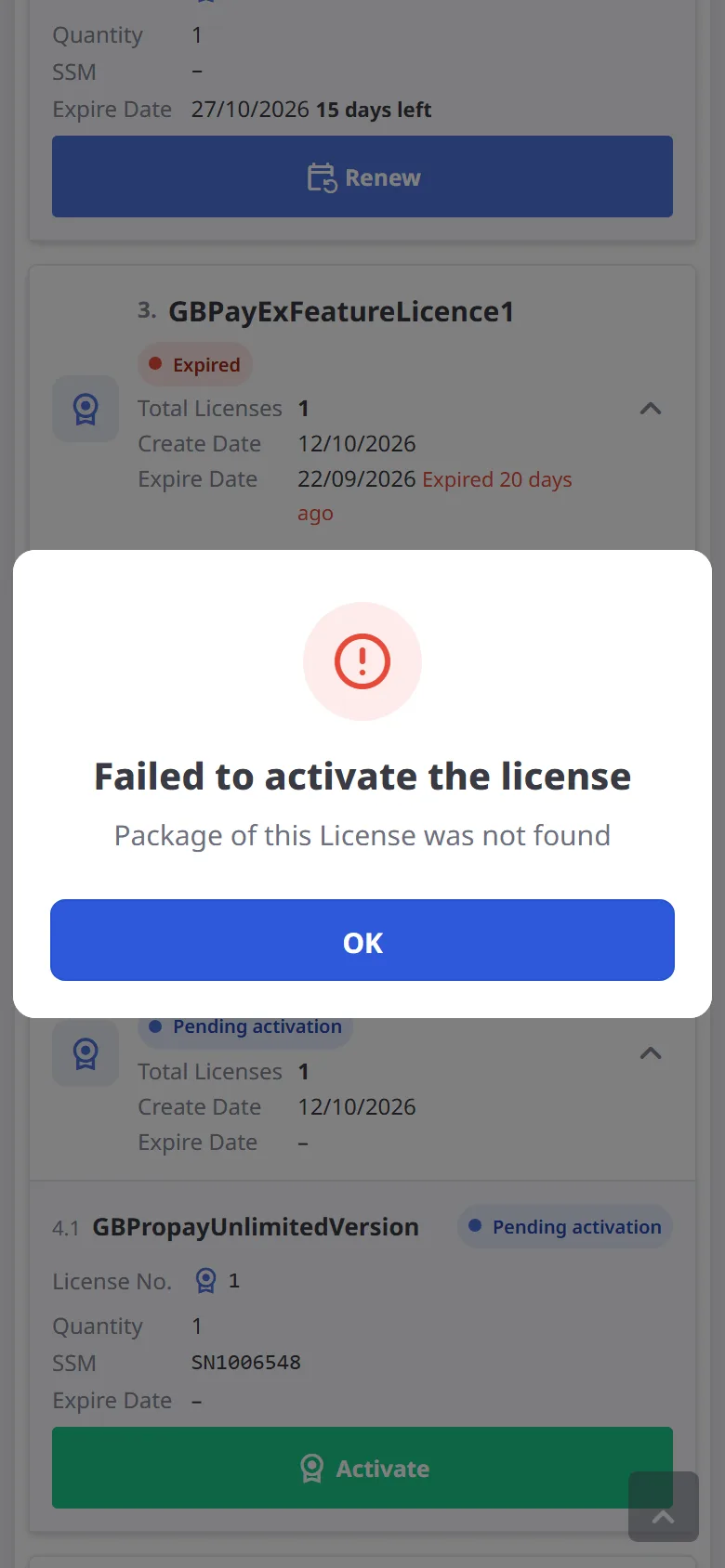
Activation failed
If activation fails, the reason is shown and the license stays pending. Try again later, or contact support with the message in the box.
-
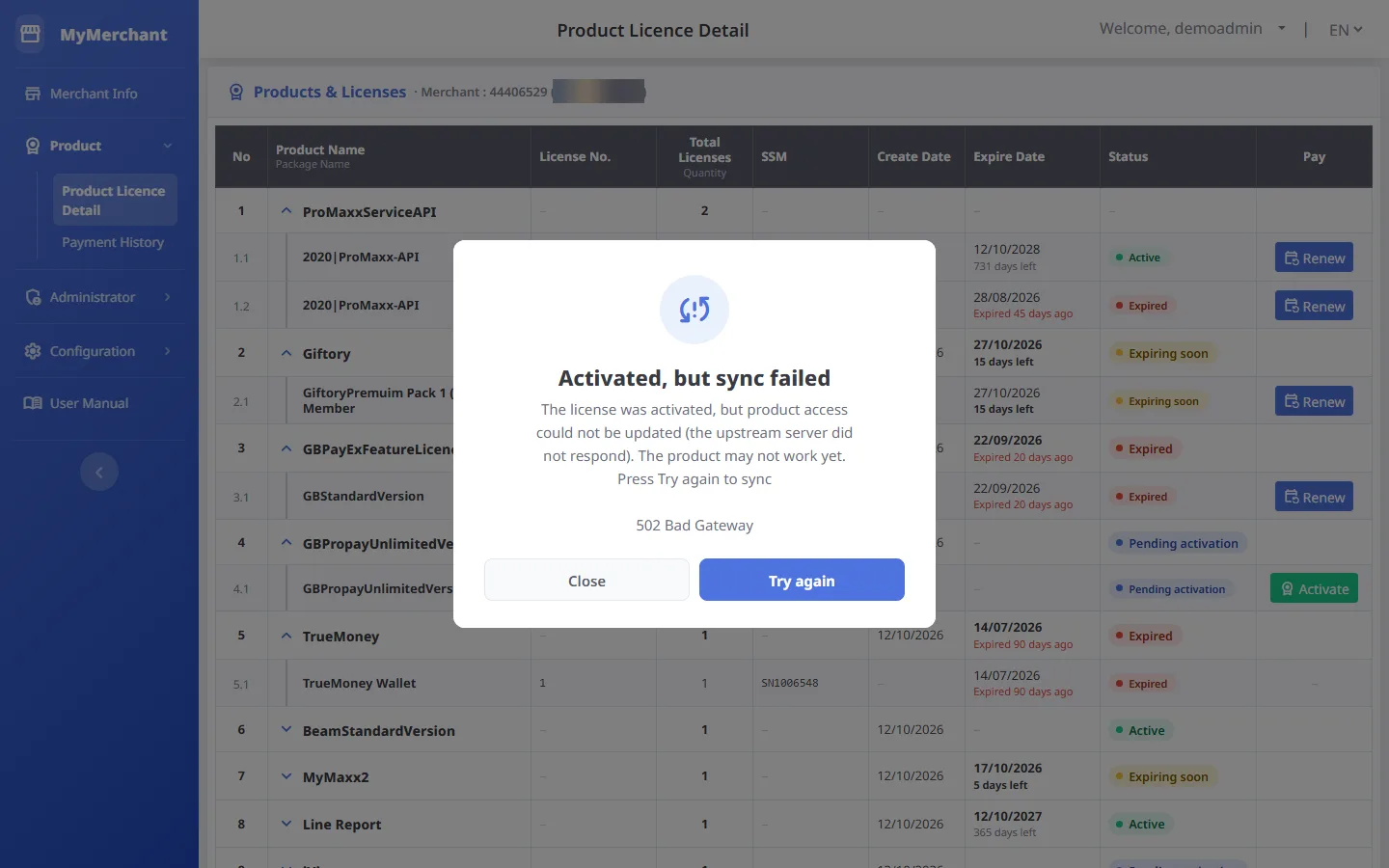
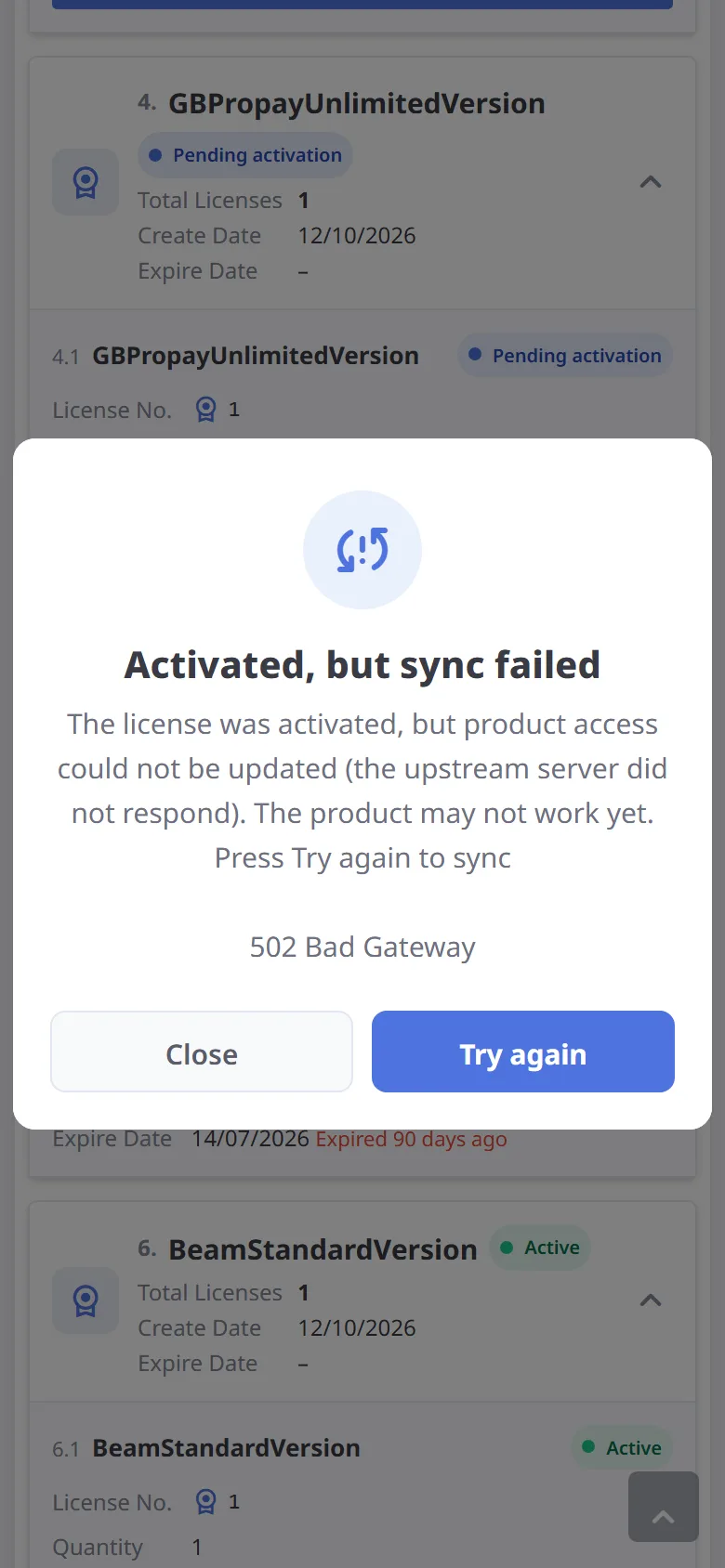
Activated, but sync failed
The license is active, but product access could not be updated, so the product may not work yet. Press Try again to sync again (it does not activate twice or use up time). If it still fails, contact support.
-
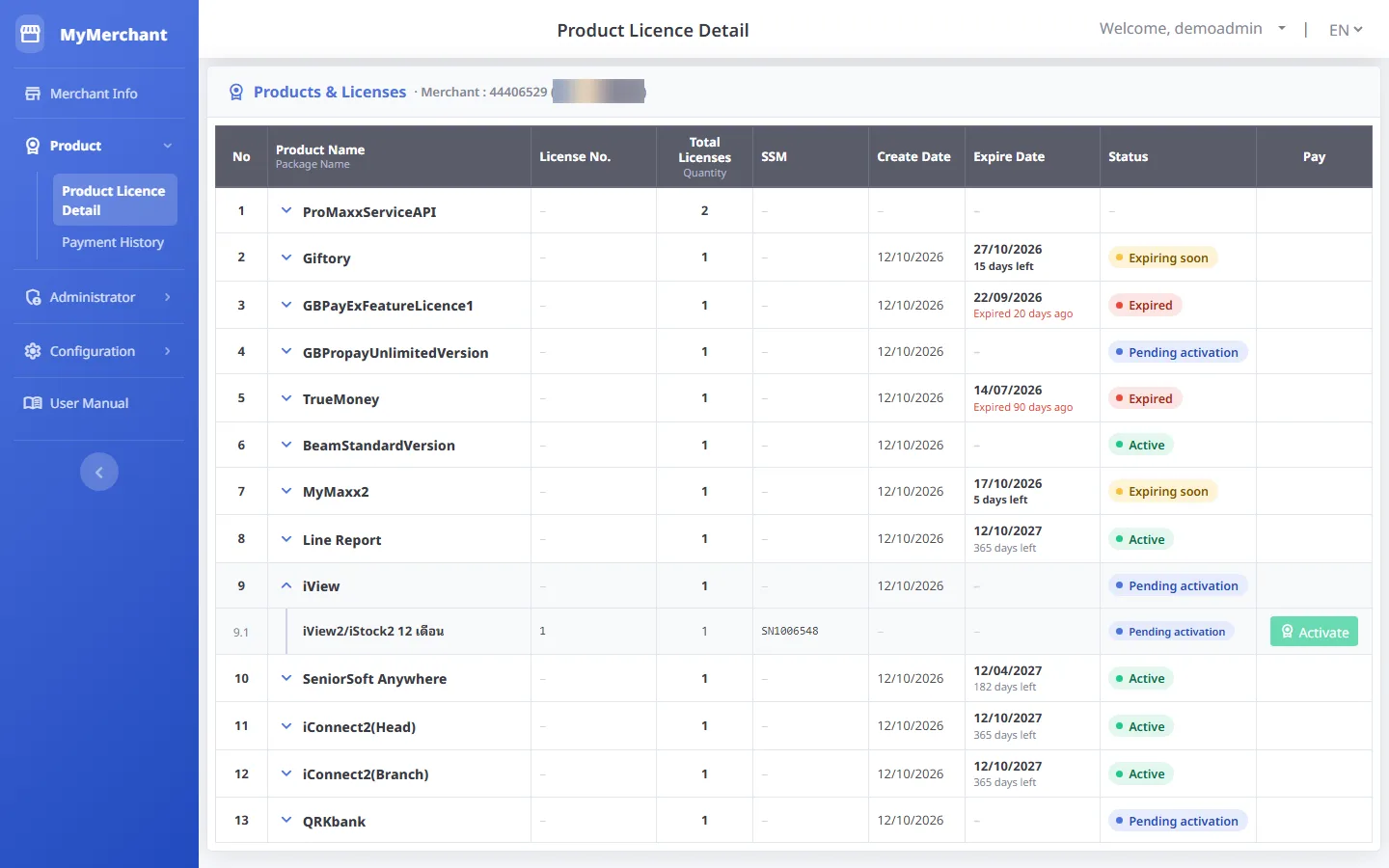
Products activated by our staff
For some products (e.g. iView, iConnect2) the Activate button is disabled; hover it for a hint. Contact SeniorSoft support to activate them.
Payment history
Product → Payment History · all invoices of the store, newest first
-
Payment list
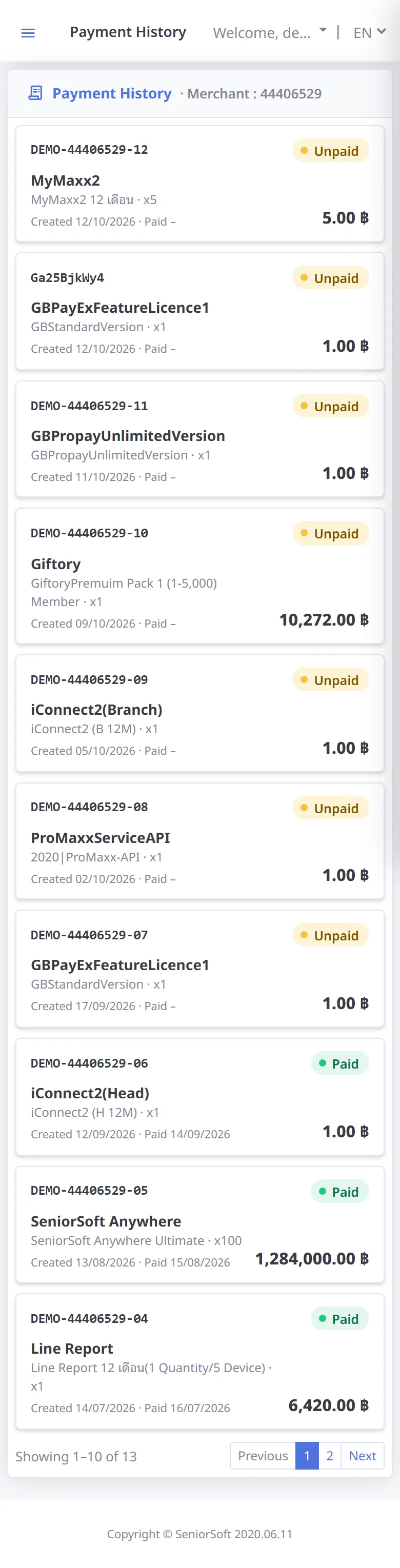
Shows Billing No., product / package, license / SSM, quantity, price, status, payment date and create date, 10 items per page.
Status Meaning Unpaid An invoice was created (e.g. by pressing Renew) but not paid yet; price = package price × quantity Paid Payment received; shows the payment date and the amount actually paid 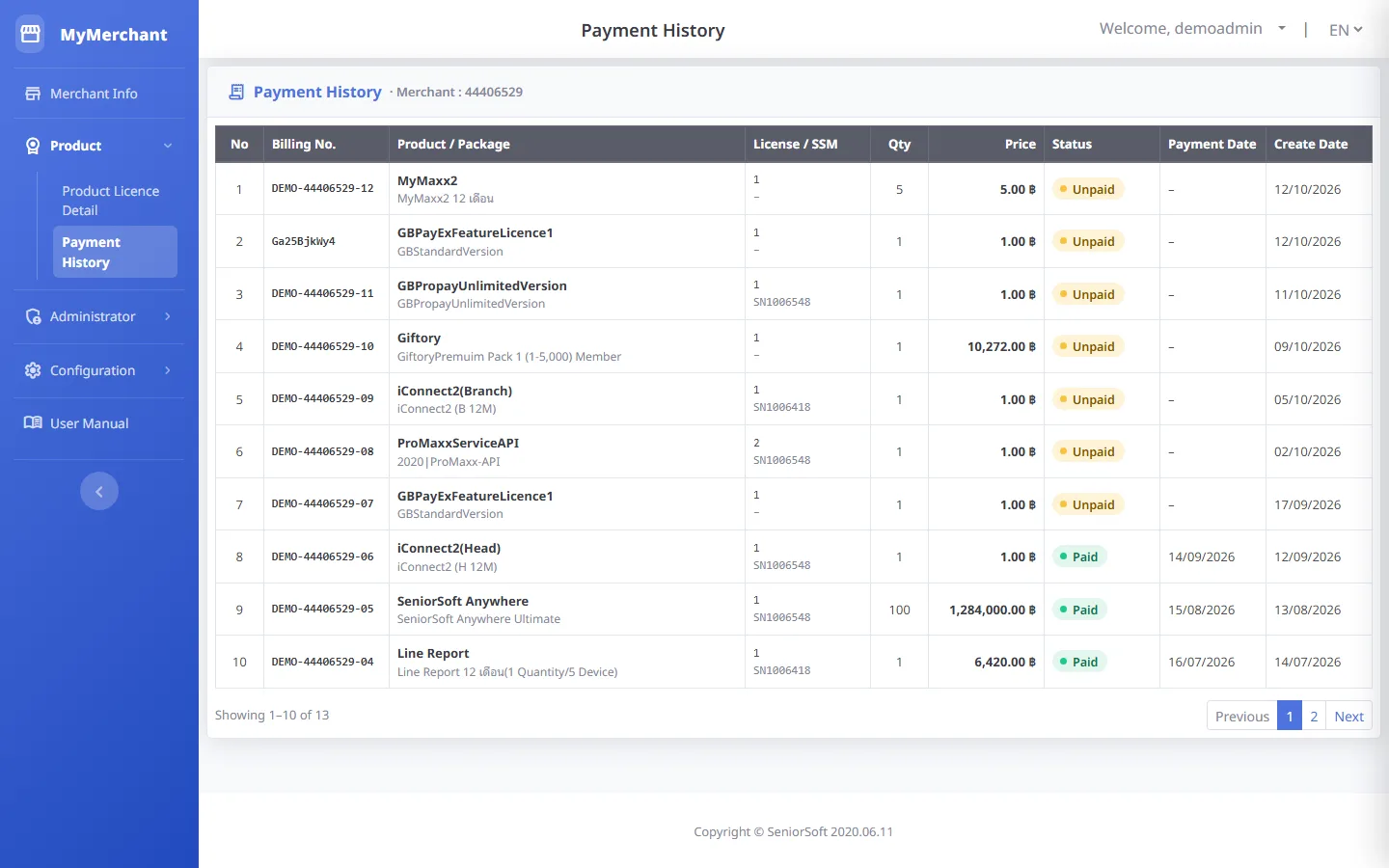
-
View details
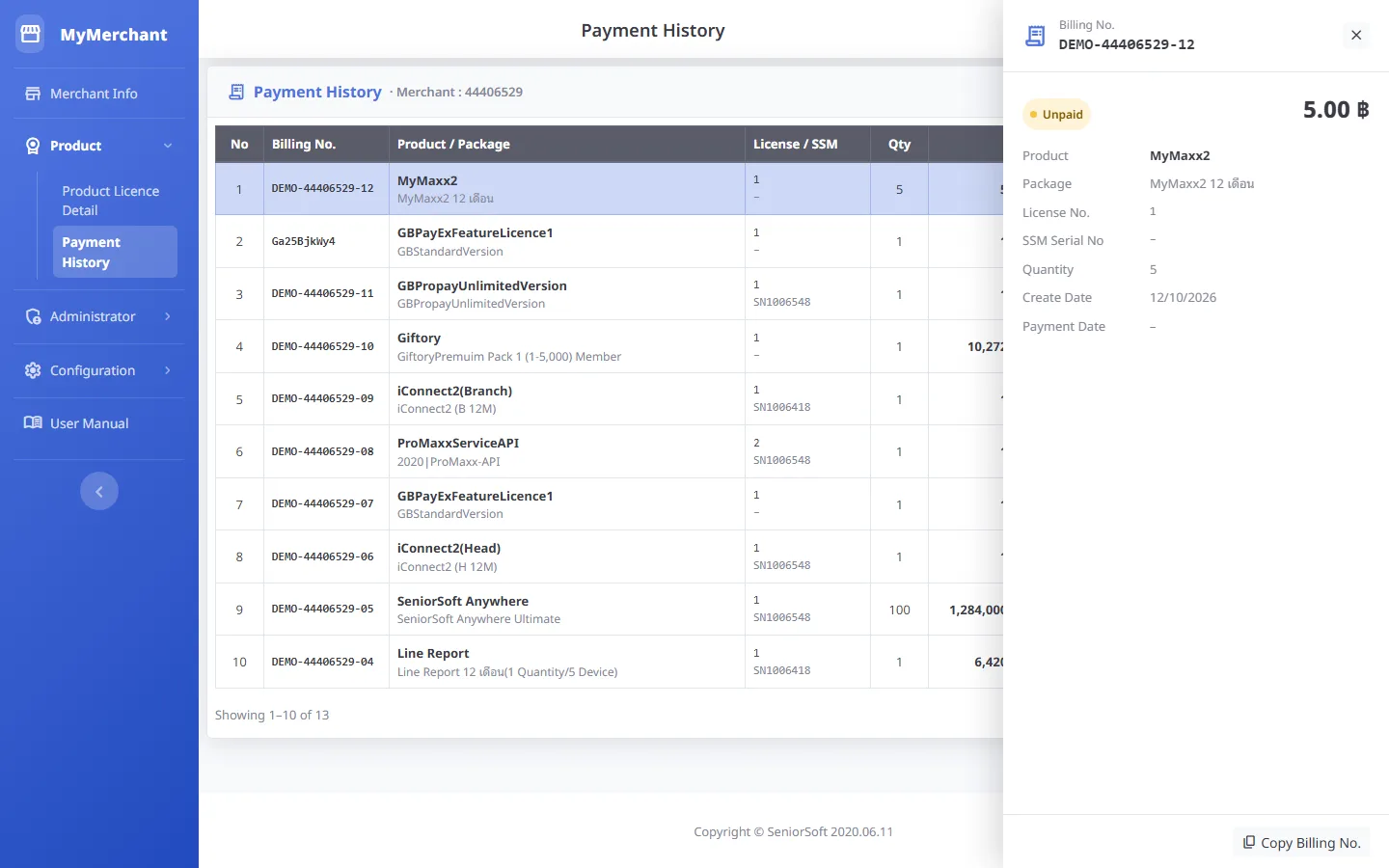
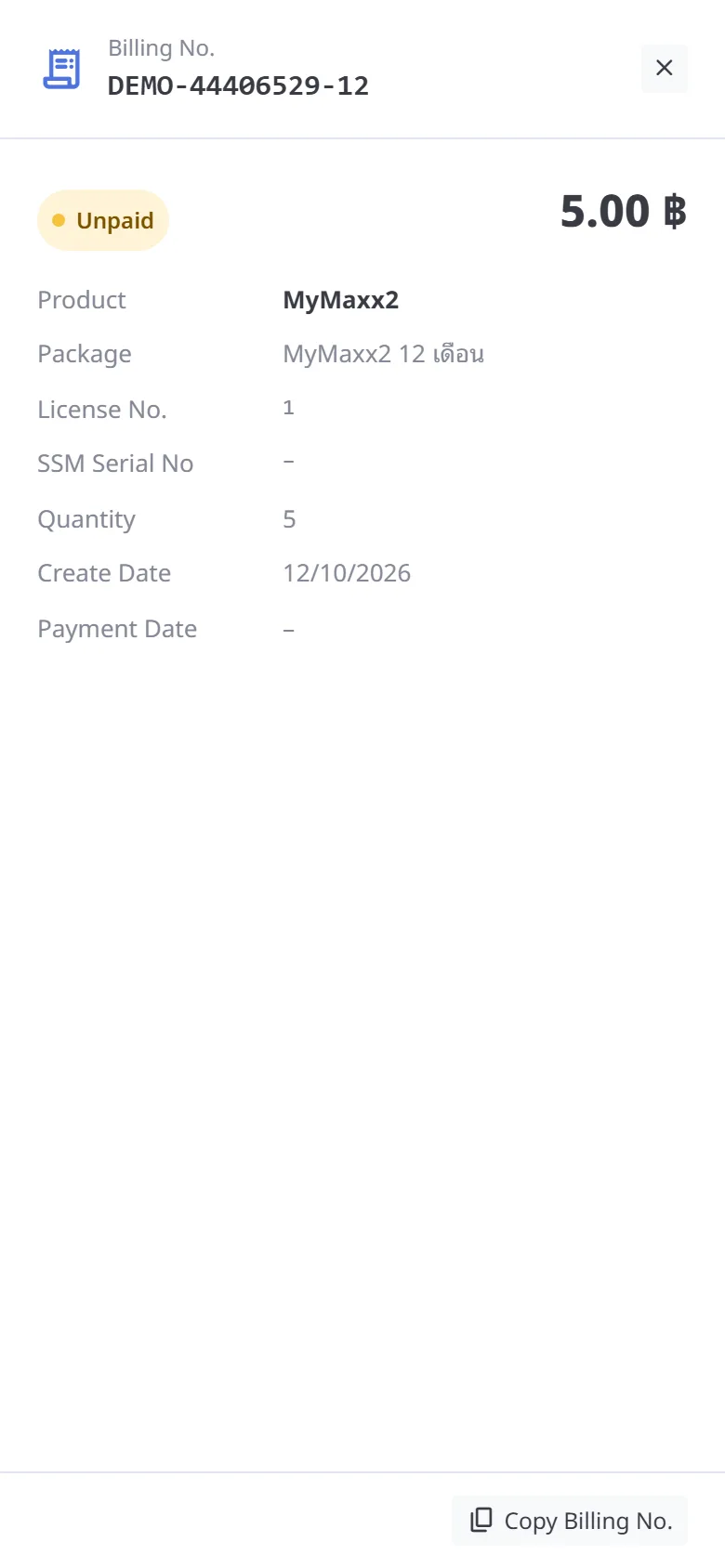
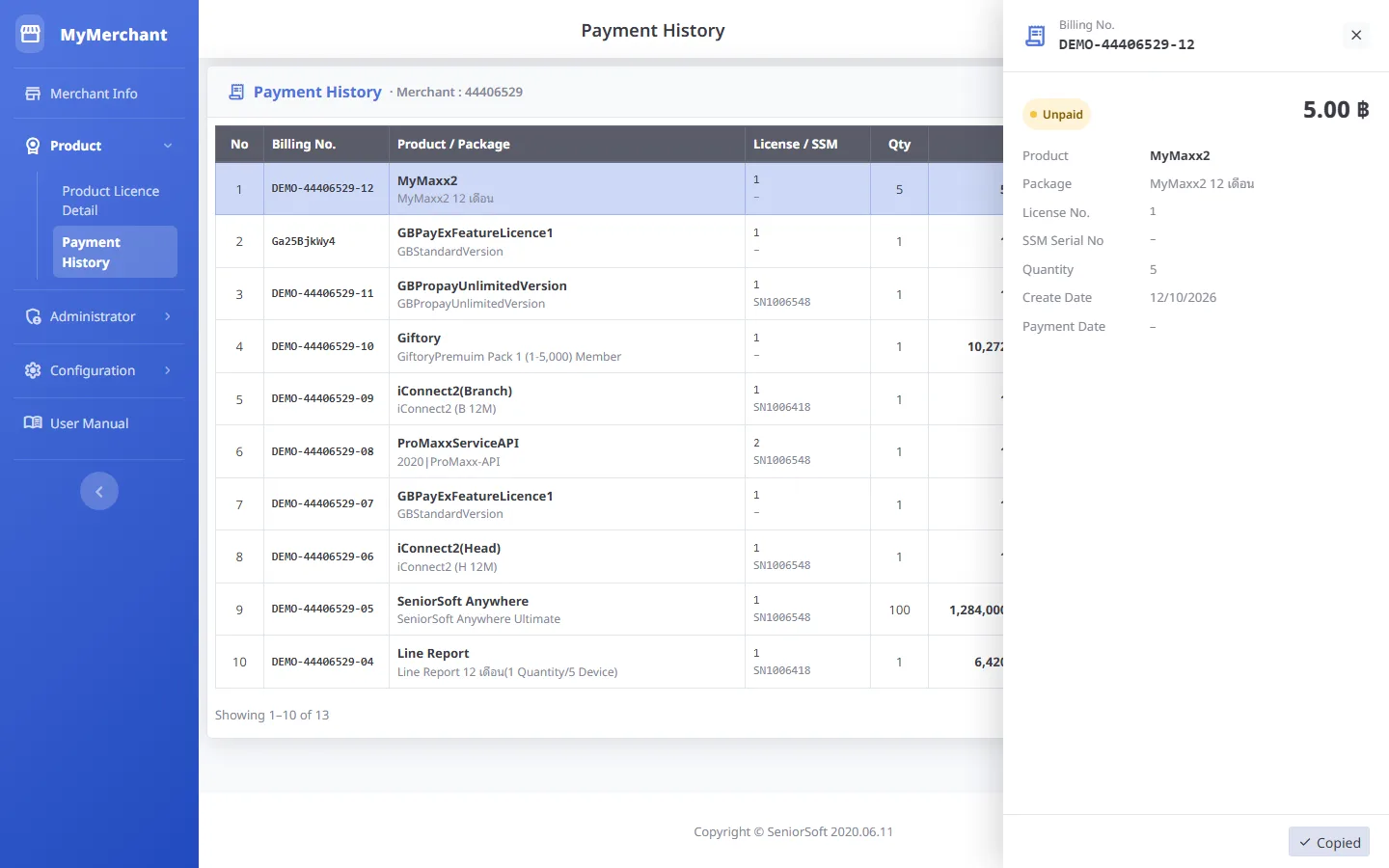
Click an item to open the detail panel on the right (full screen on mobile) with payment status, amount and dates. Close it with close or Esc.
-
Copy the Billing No.
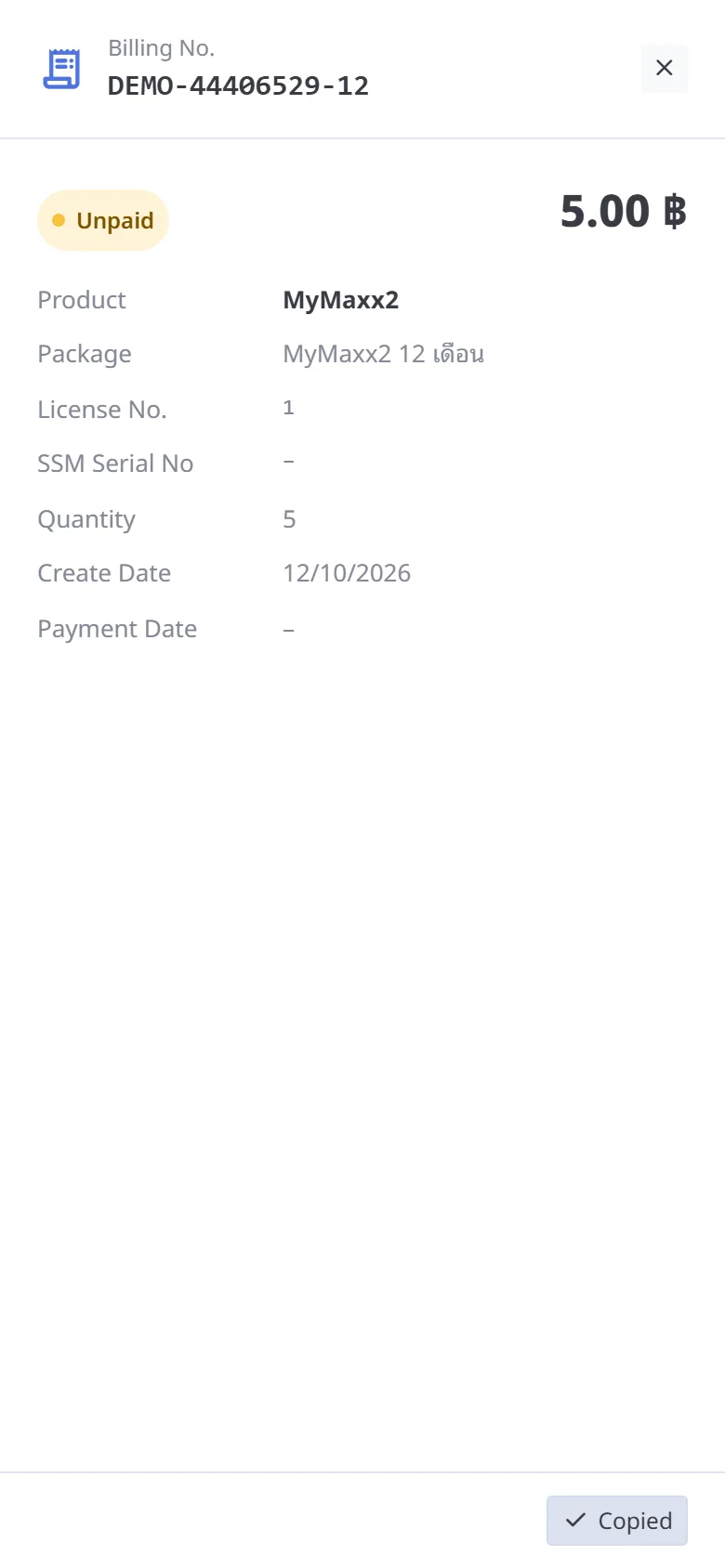
Press Copy Billing No. at the bottom of the panel to use the number when contacting support.
Secret Code
Administrator → Secret Code · manage the secrets other systems use to connect to your store
-
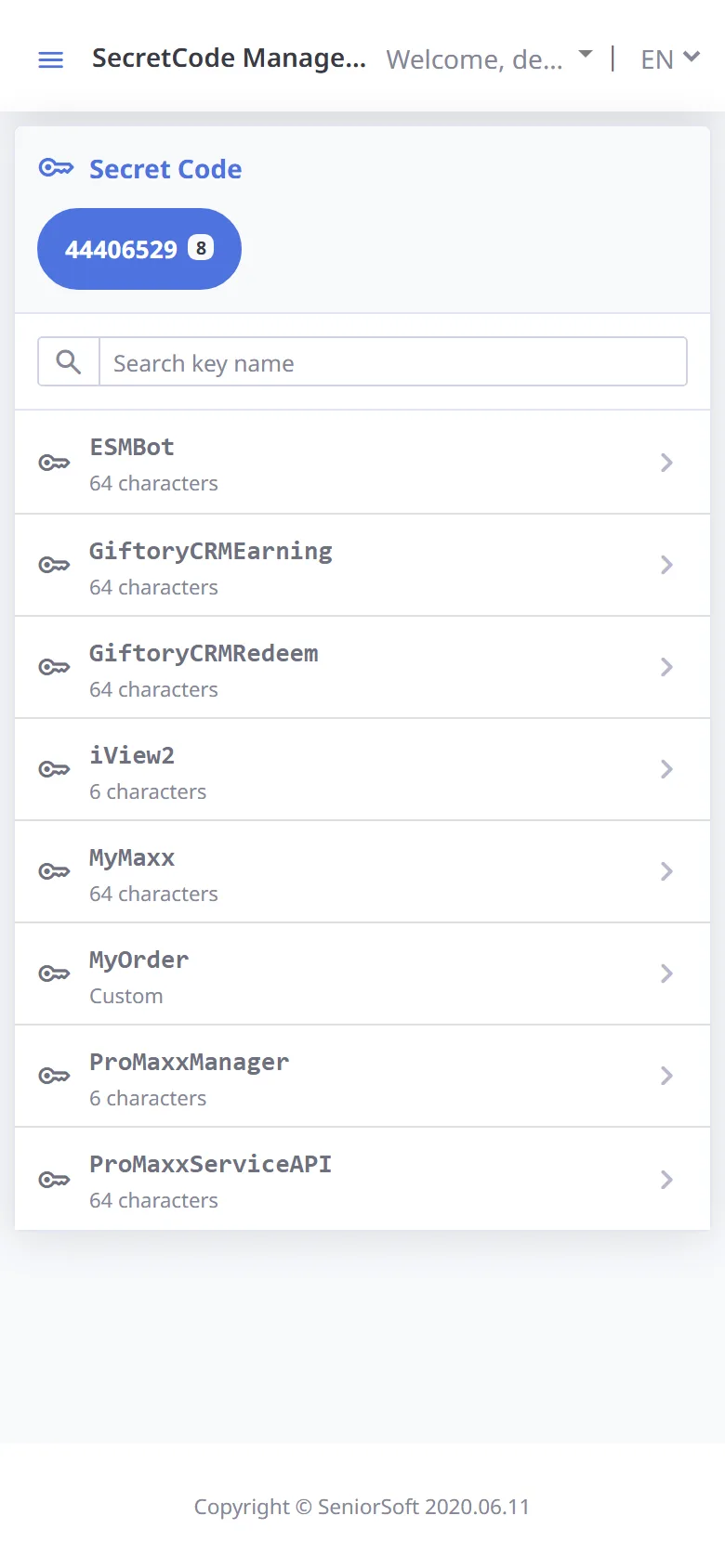
Key list
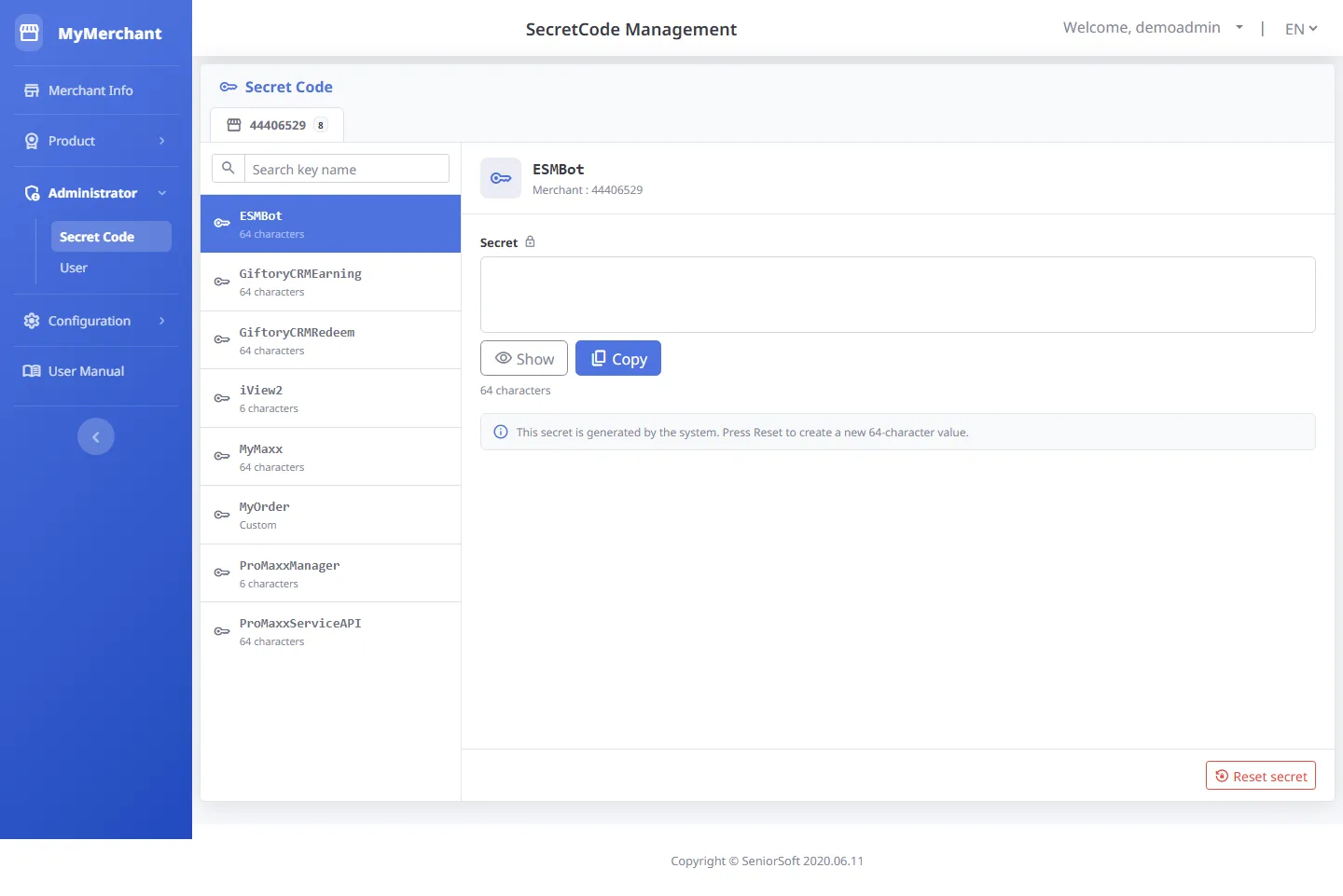
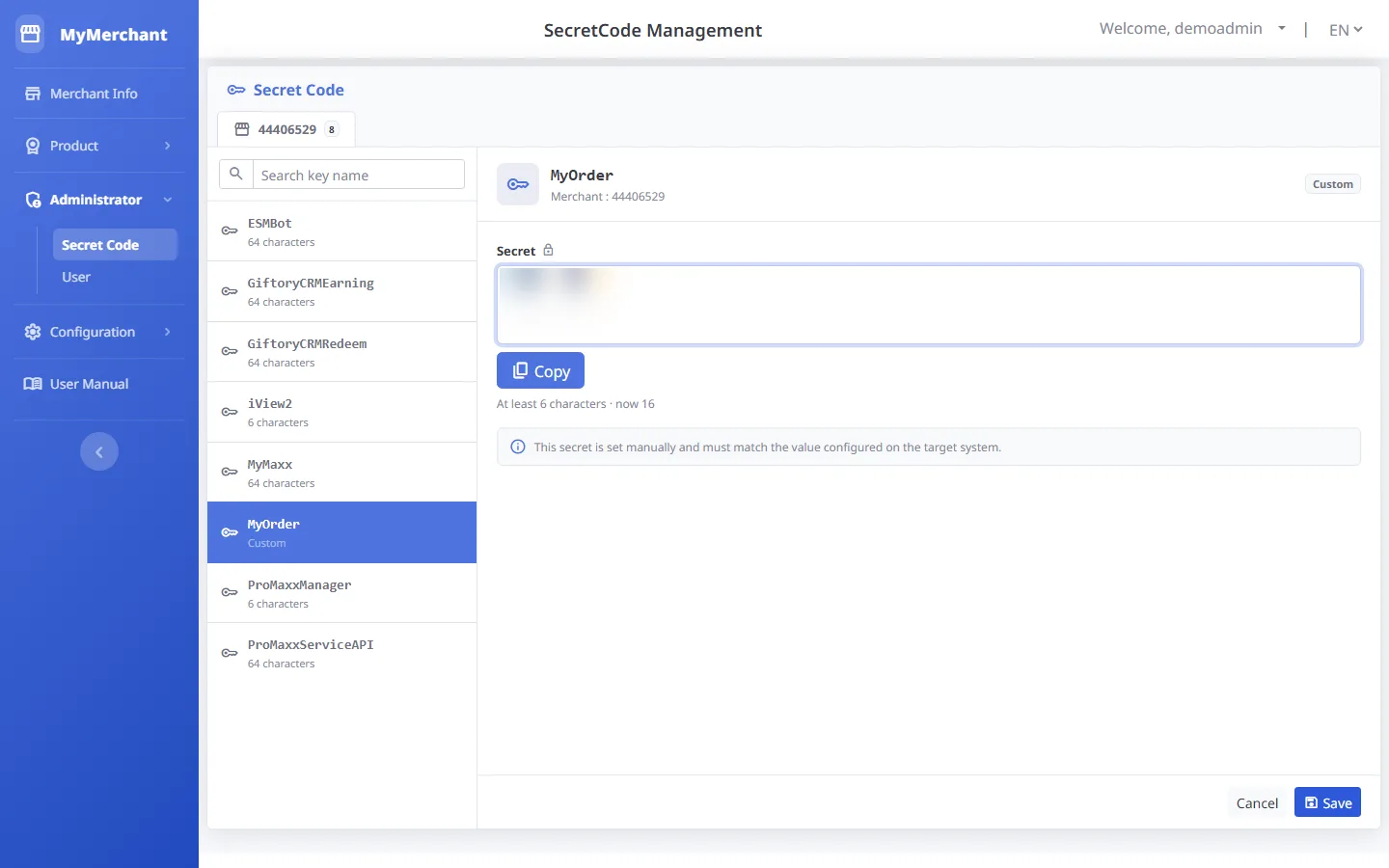
The left side lists the store's keys; use the search box to find one. A key marked warning has a custom secret — check that it matches the target system.
-
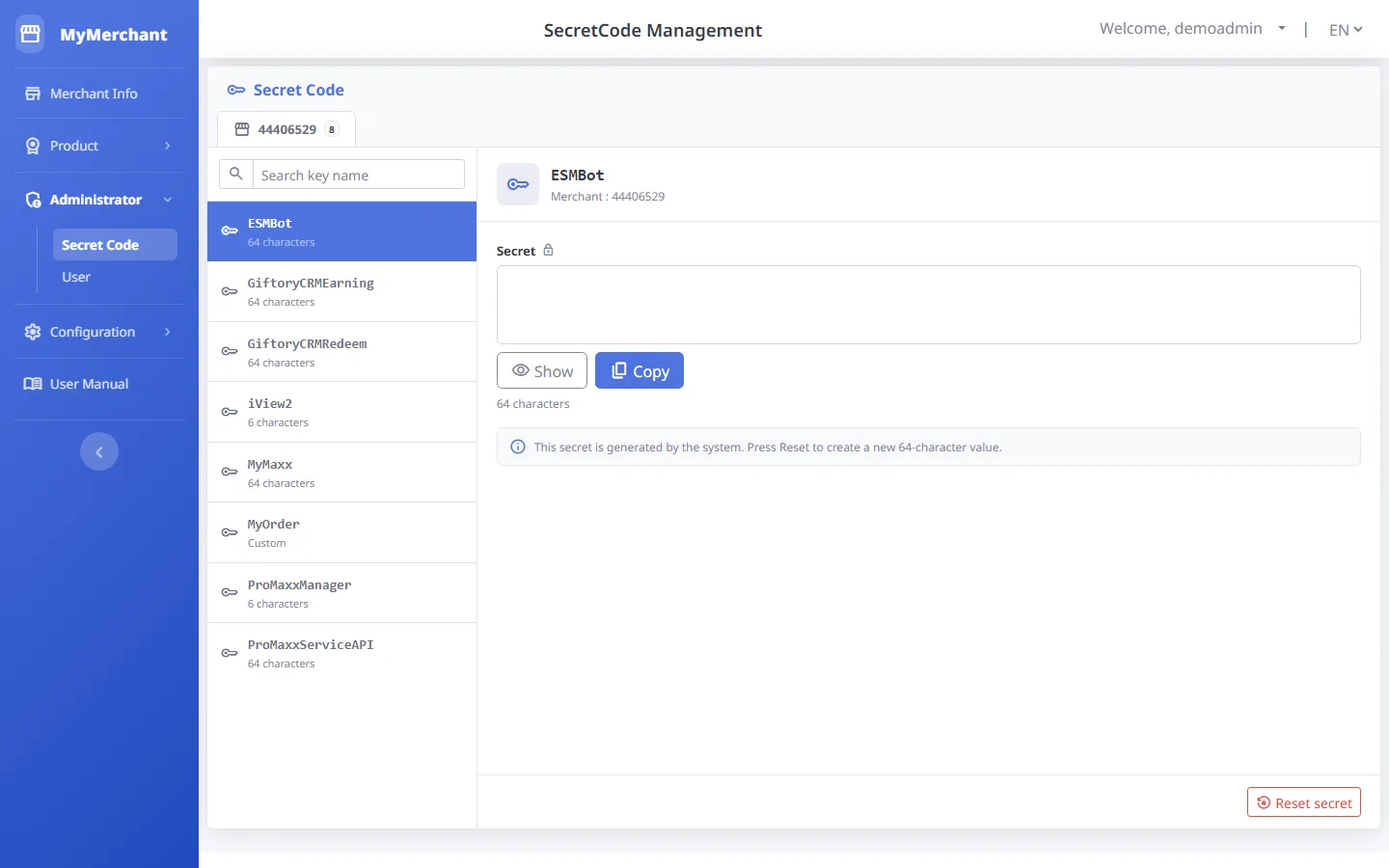
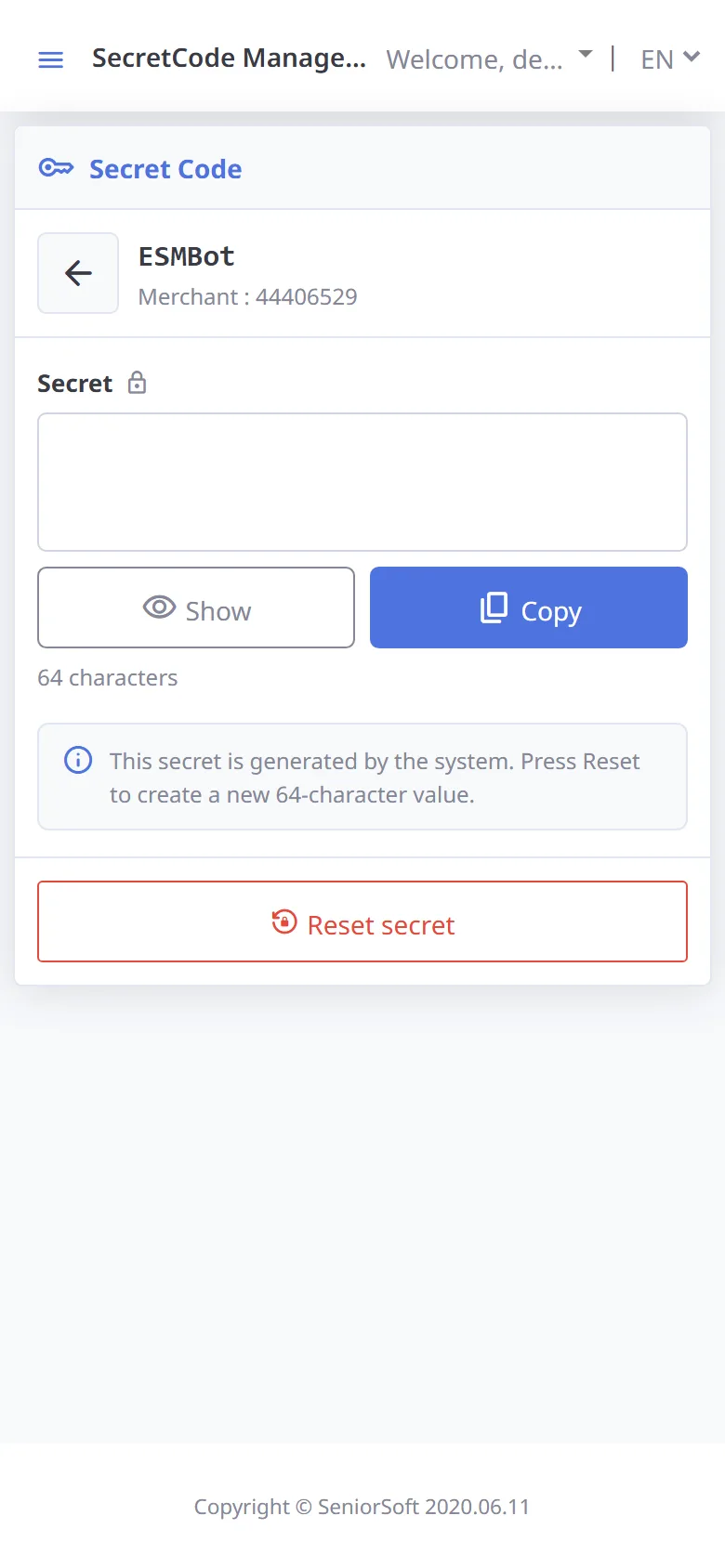
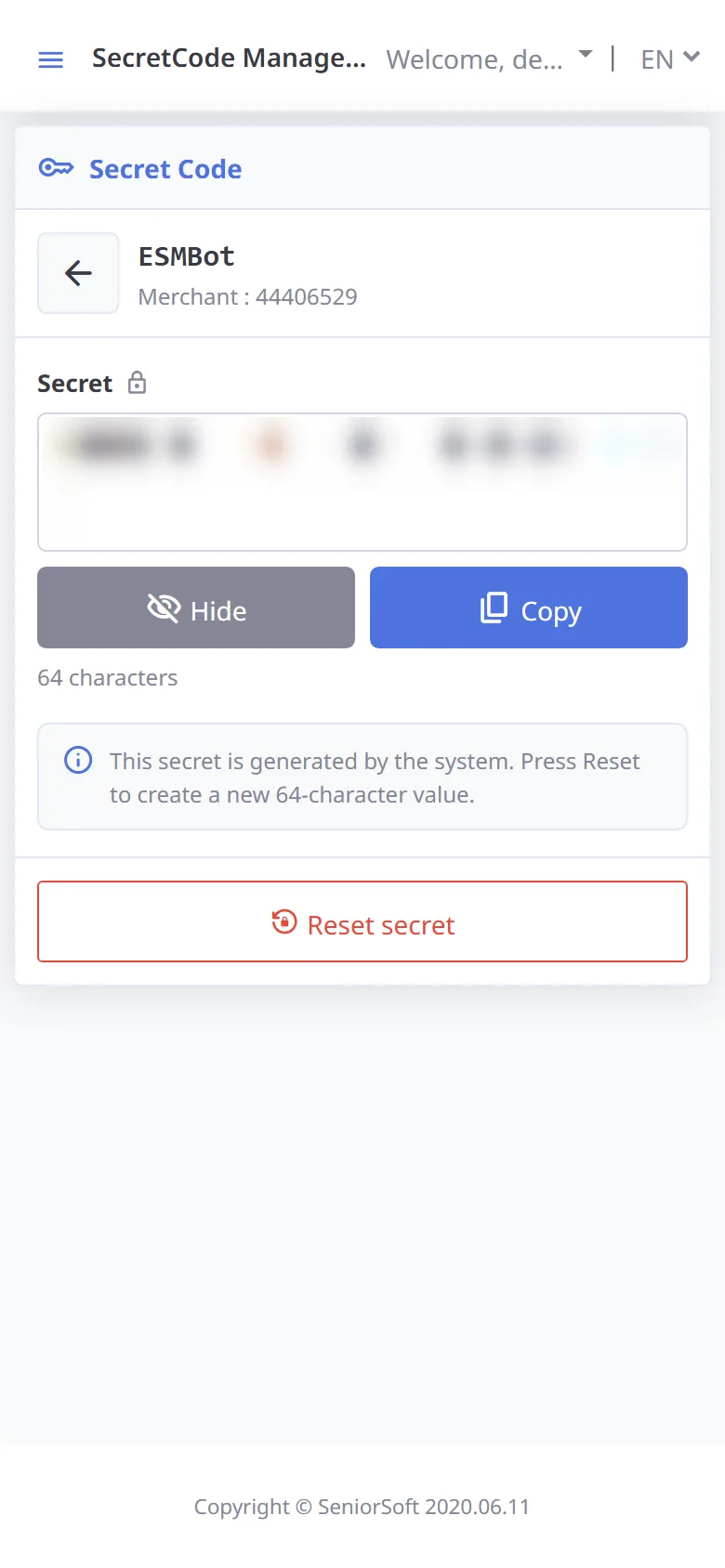
The secret is hidden
Select a key; the secret is shown as dots so people nearby cannot see it.
-
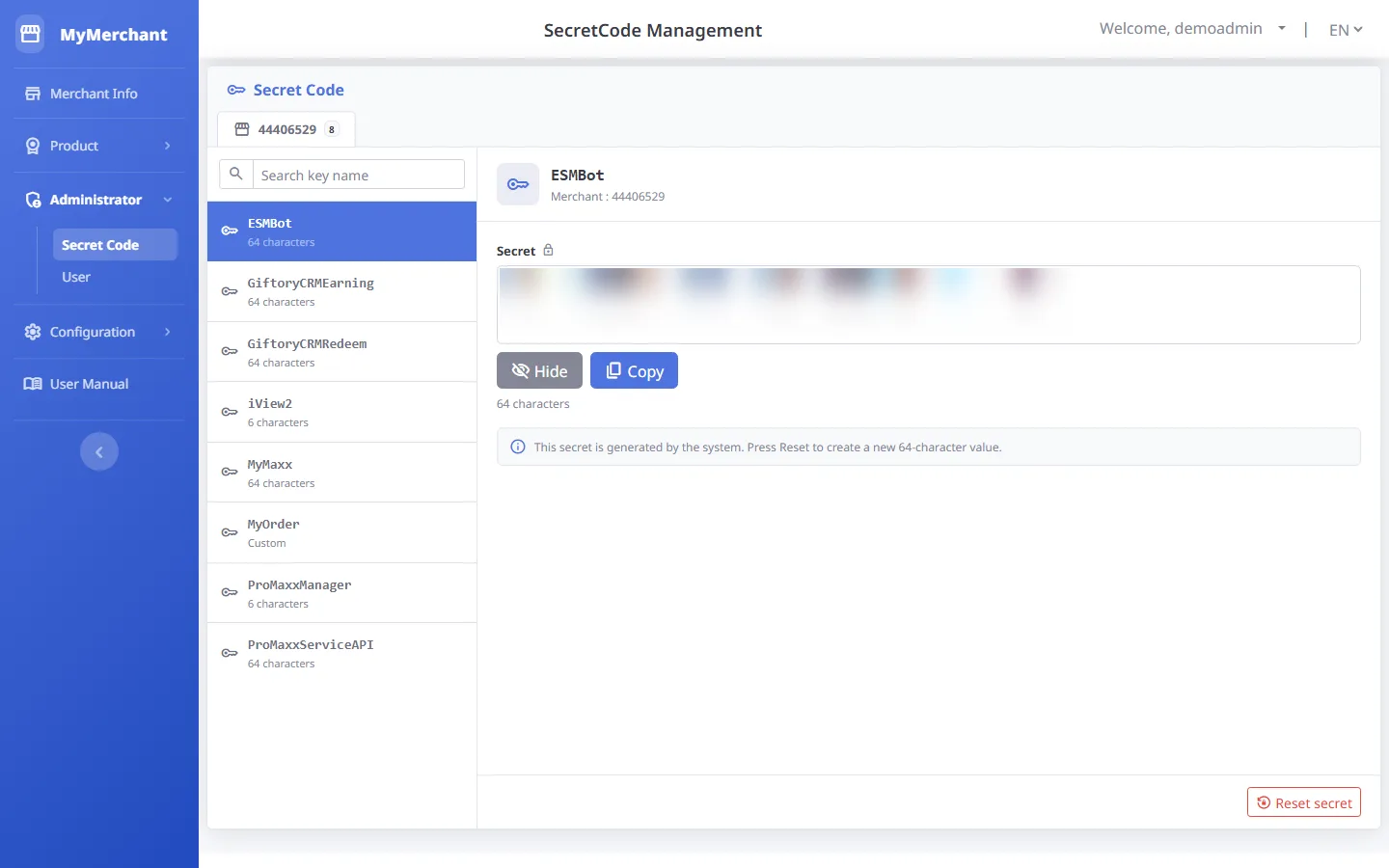
Show / copy the secret
Press Show to see the value, or Copy to paste it into the target system (blurred in this picture).
-
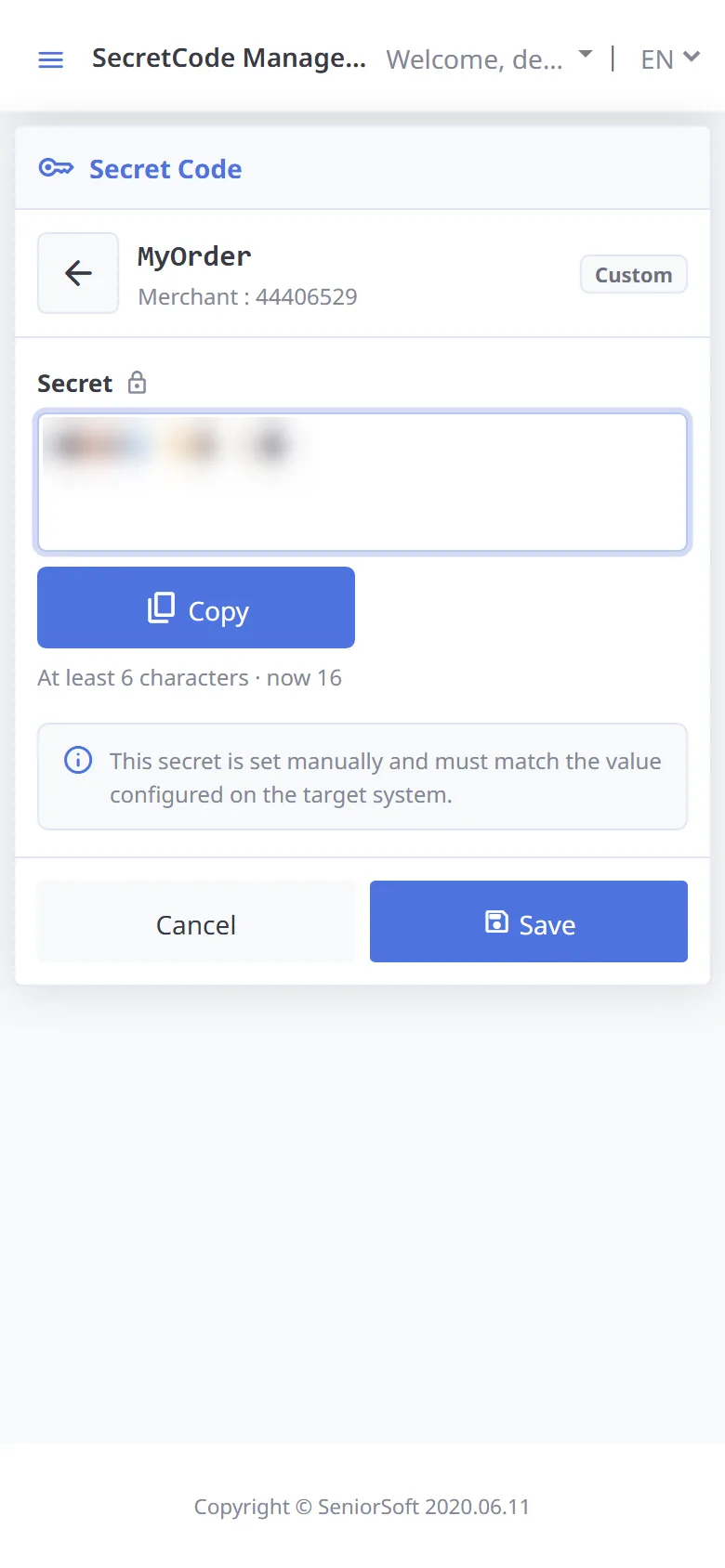
Edit a custom secret
A key labelled Custom can be edited (at least 6 characters); press Save. Press Esc or Cancel to stop.
-
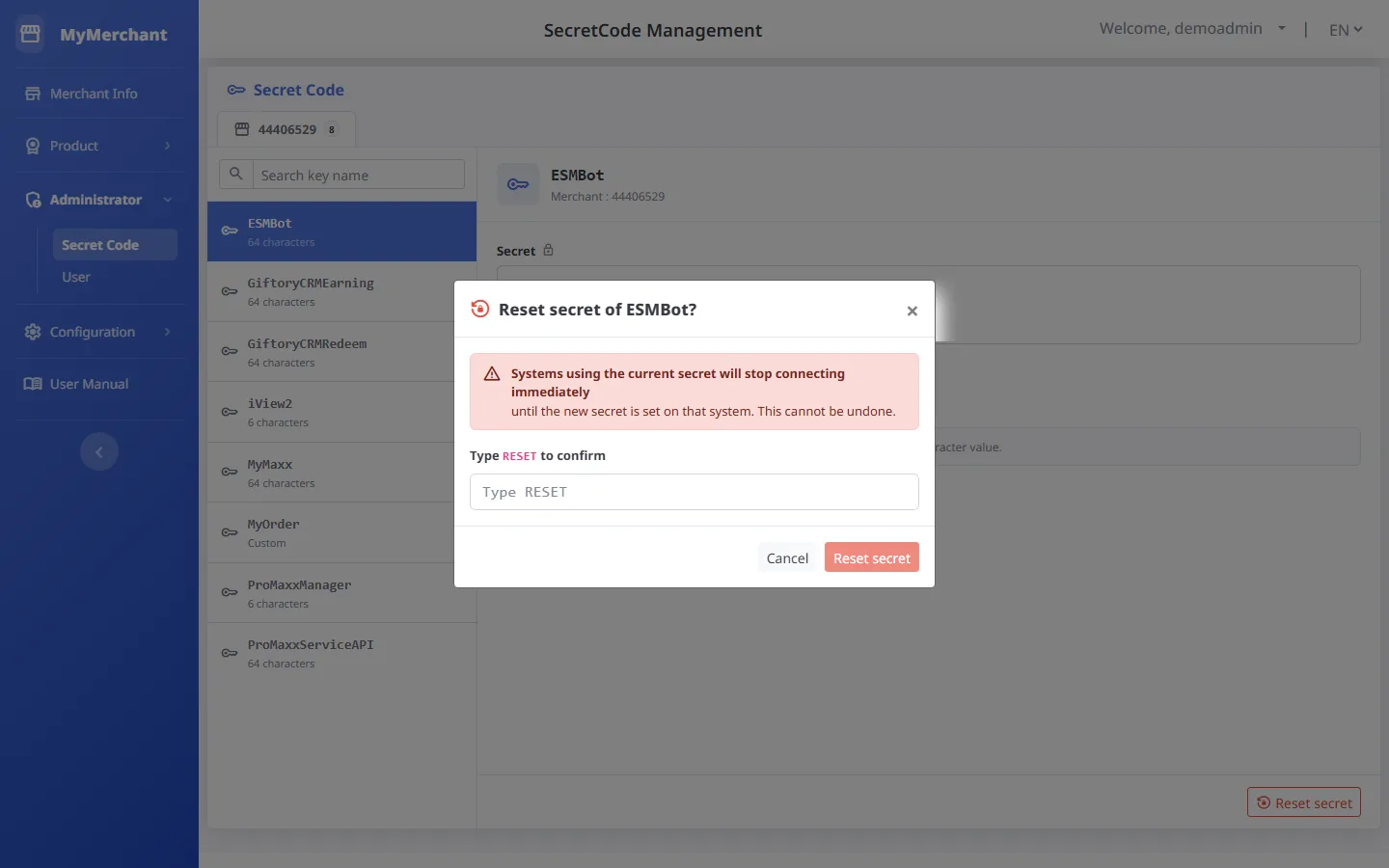
Reset secret
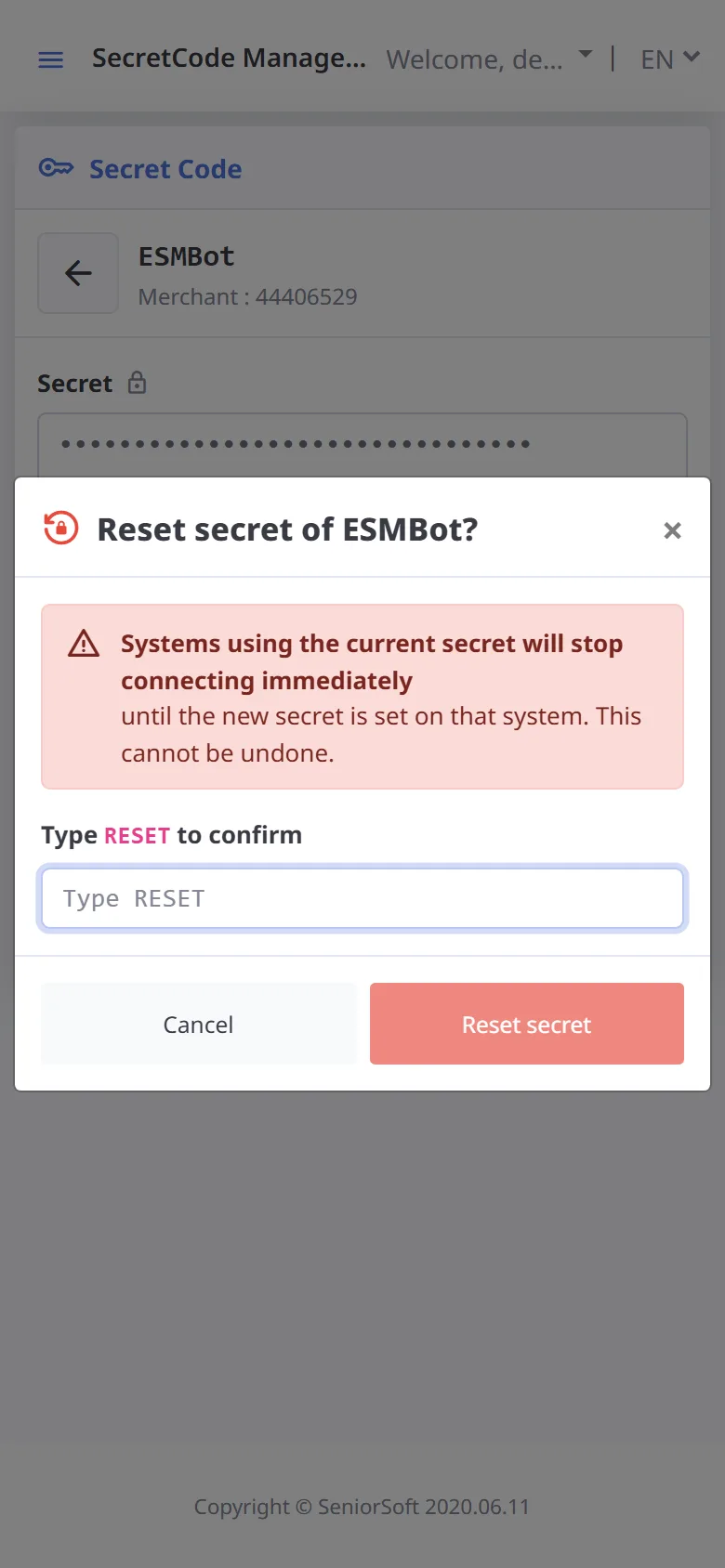
For a system-generated key, press Reset secret to create a new 64-character value. Systems using the old value stop connecting until the new value is set there.
-
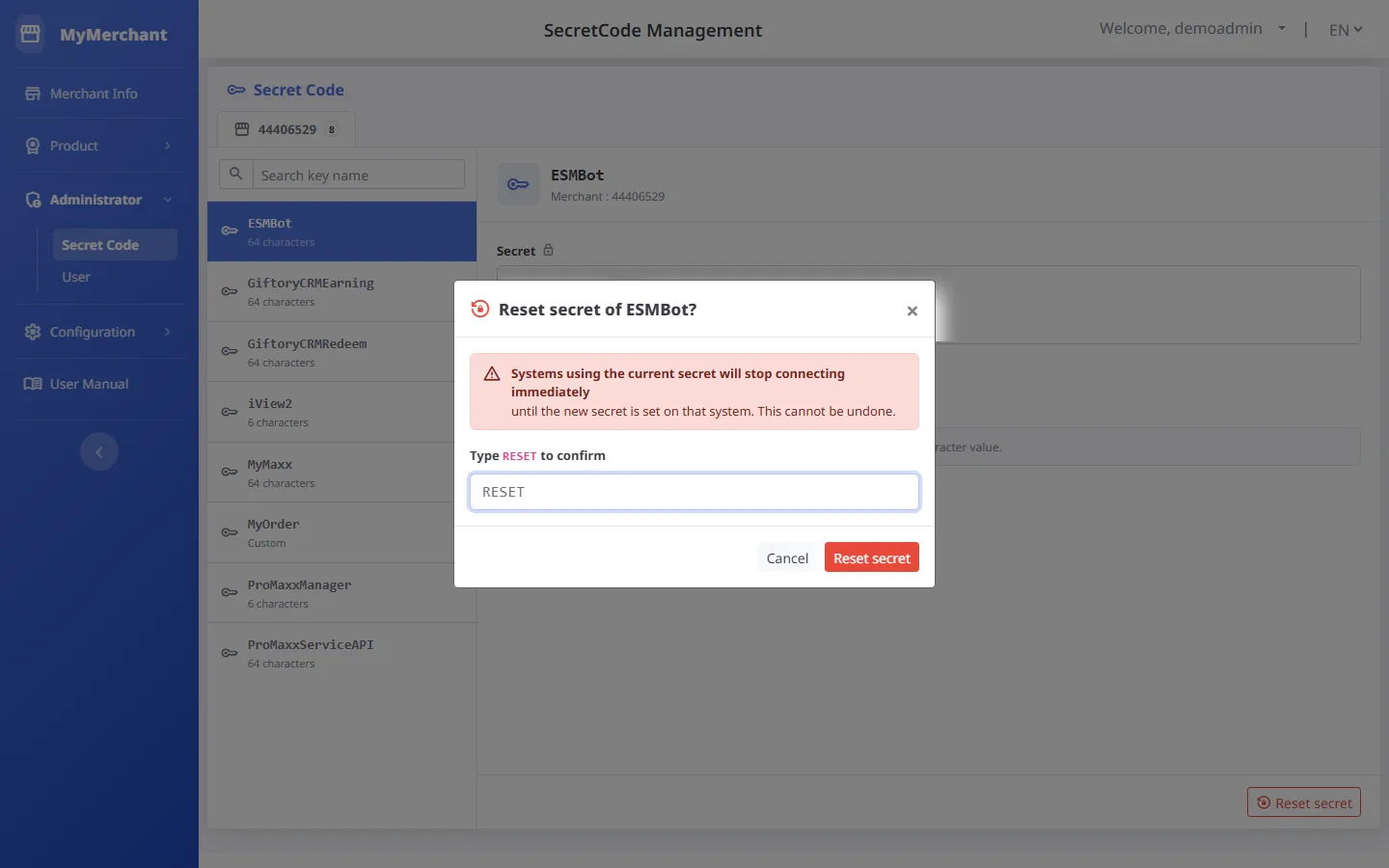
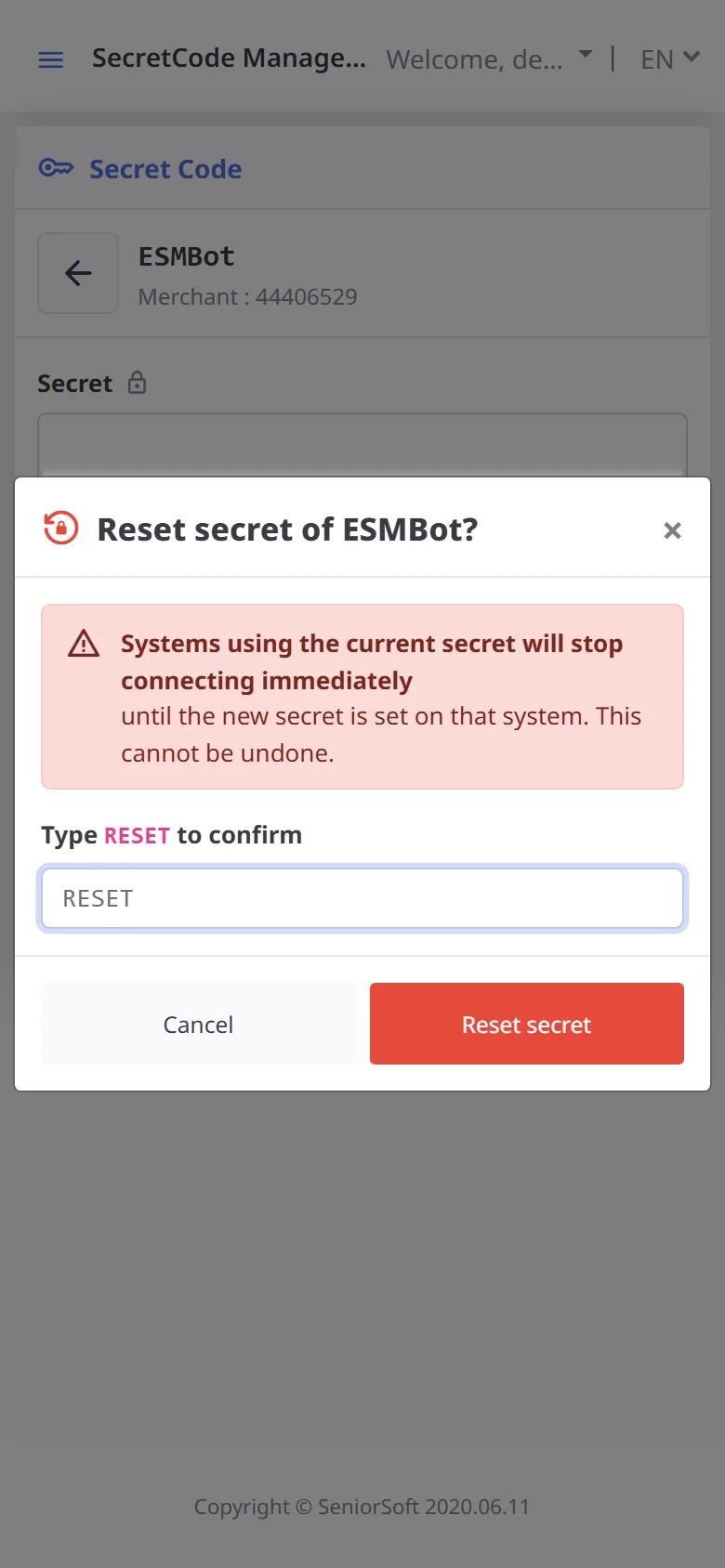
Confirm by typing RESET
Type RESET in capital letters to enable the Reset secret button.
Users and roles
Administrator → User · manage staff accounts, roles and the products they can use
-
Roles (main role) and menus they can open
The main role decides which MyMerchant menus an account can open. Roles other than Owner / Admin are for the store's other products (e.g. POS, ProMaxx); in MyMerchant they can only open Settlement and Profile.
Menu Owner
(store owner)Admin Other roles
Manager, Cashier, Editor, Invoice, Officer, ChoccoSubScription, ProMaxxSubScriptionMerchant Info check_circle check_circle block Product License / Renew / Activate check_circle check_circle block Payment History check_circle check_circle block Secret Code check_circle check_circle block User check_circle check_circle block EPayment check_circle check_circle block Settlement TrueMoney check_circle check_circle check_circle Profile / Change password check_circle check_circle check_circle Owner is the account that signs in with the owner's phone number. It is not in the role list and appears as Admin in the user list. -
User list
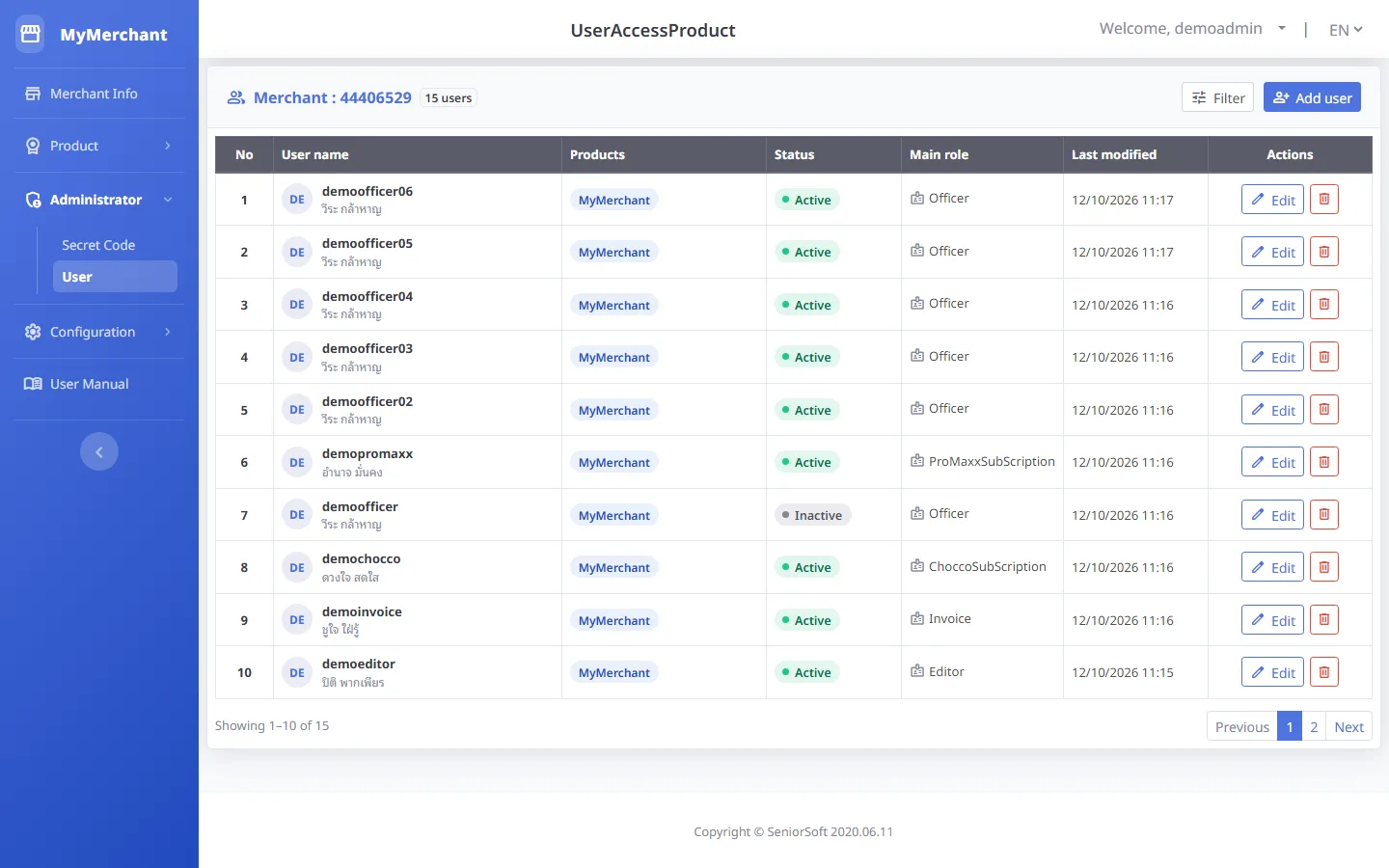
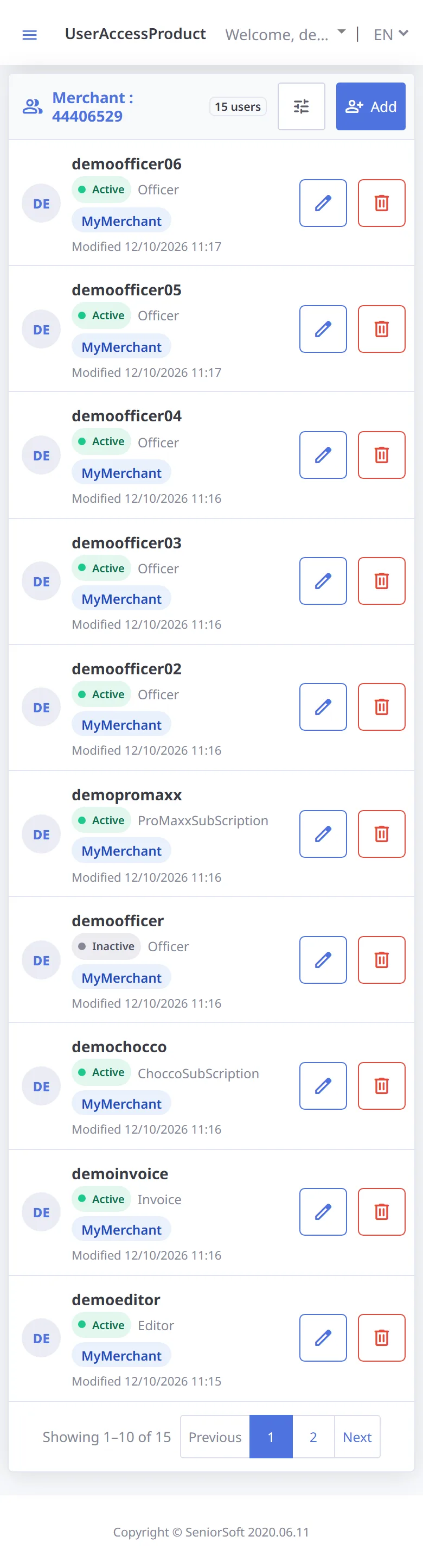
Shows all users of the store with their products, status, main role and last modified date, most recently modified first.
-
Filter the list
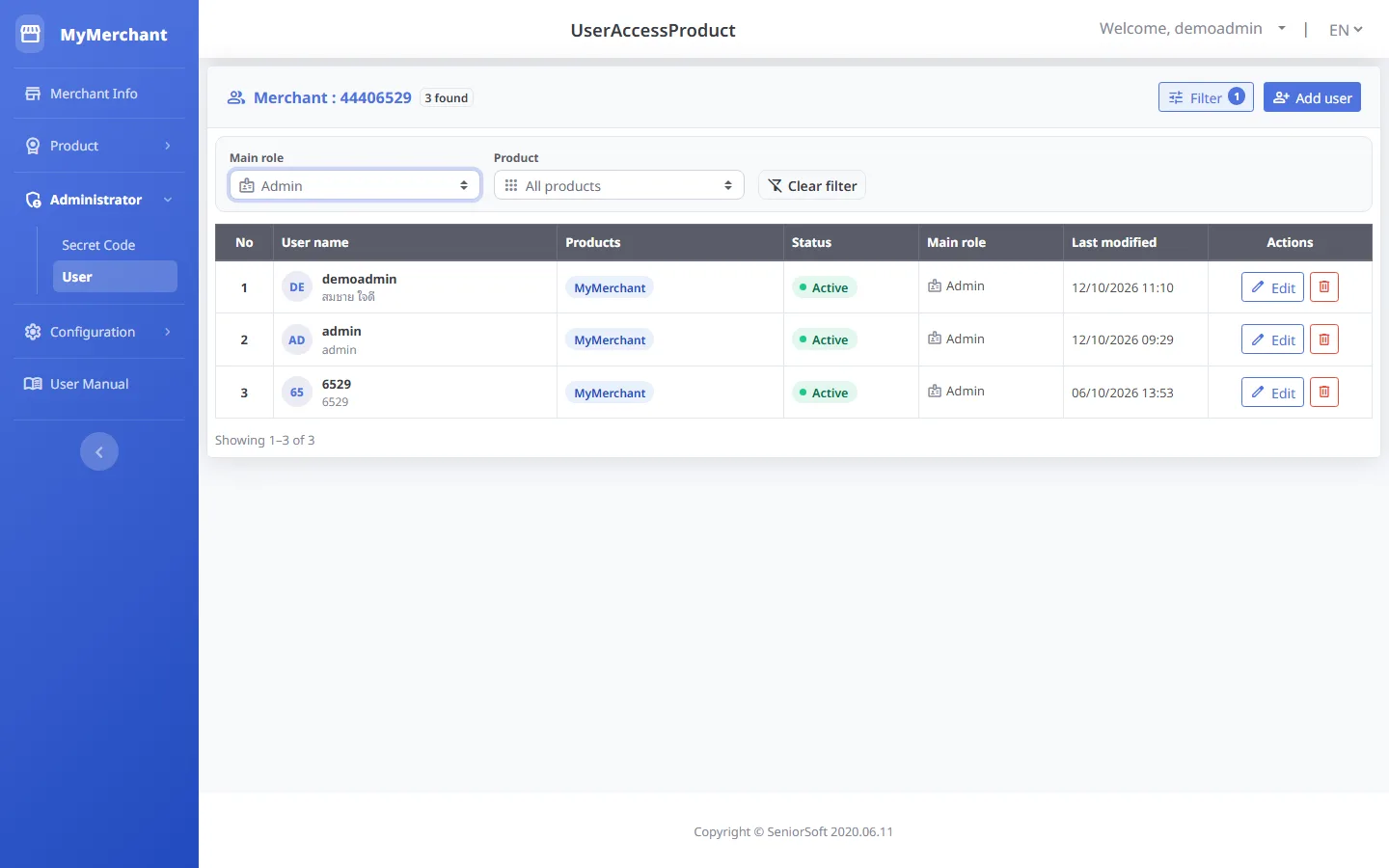
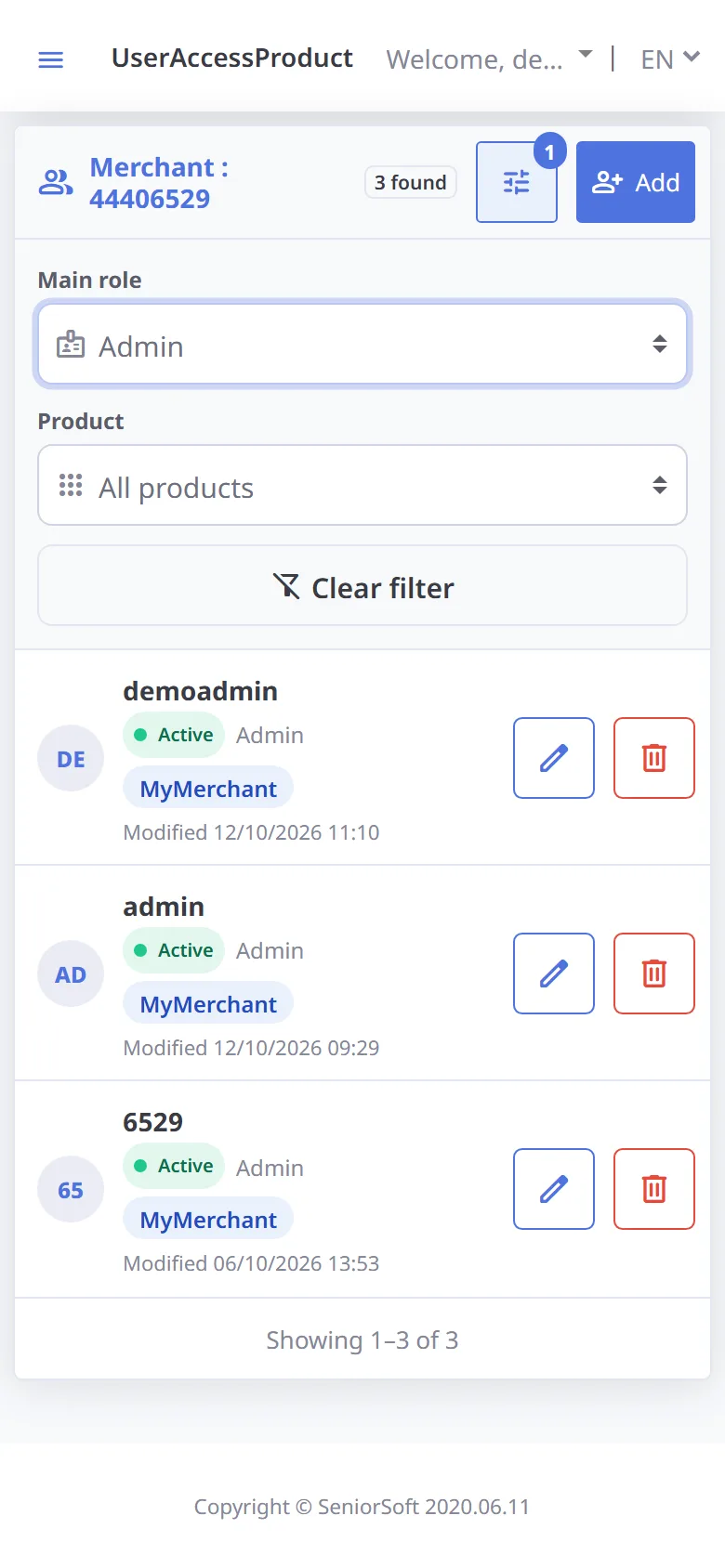
Press Filter and choose a main role or product. Press Clear filter to show everyone again.
-
Add a user
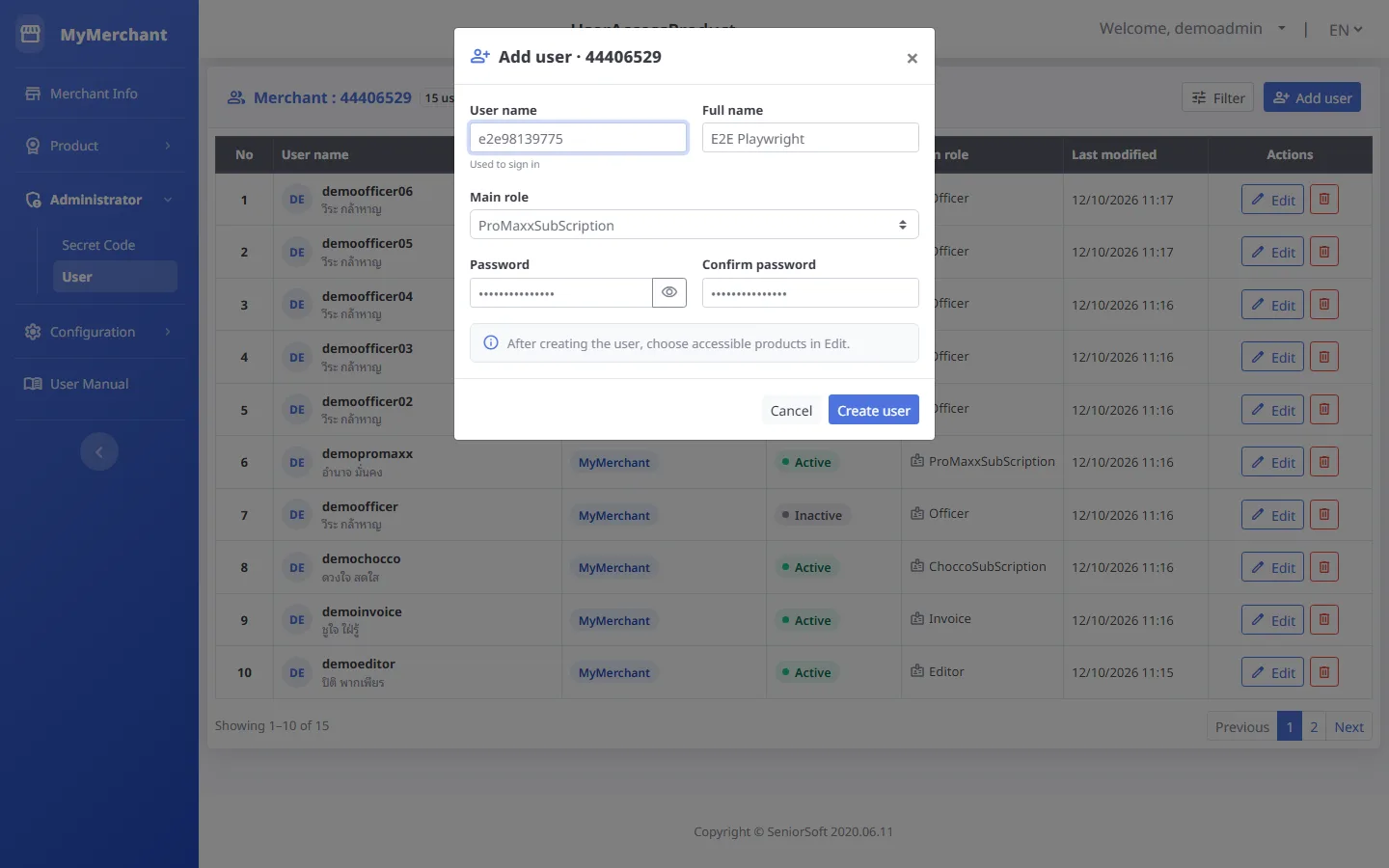
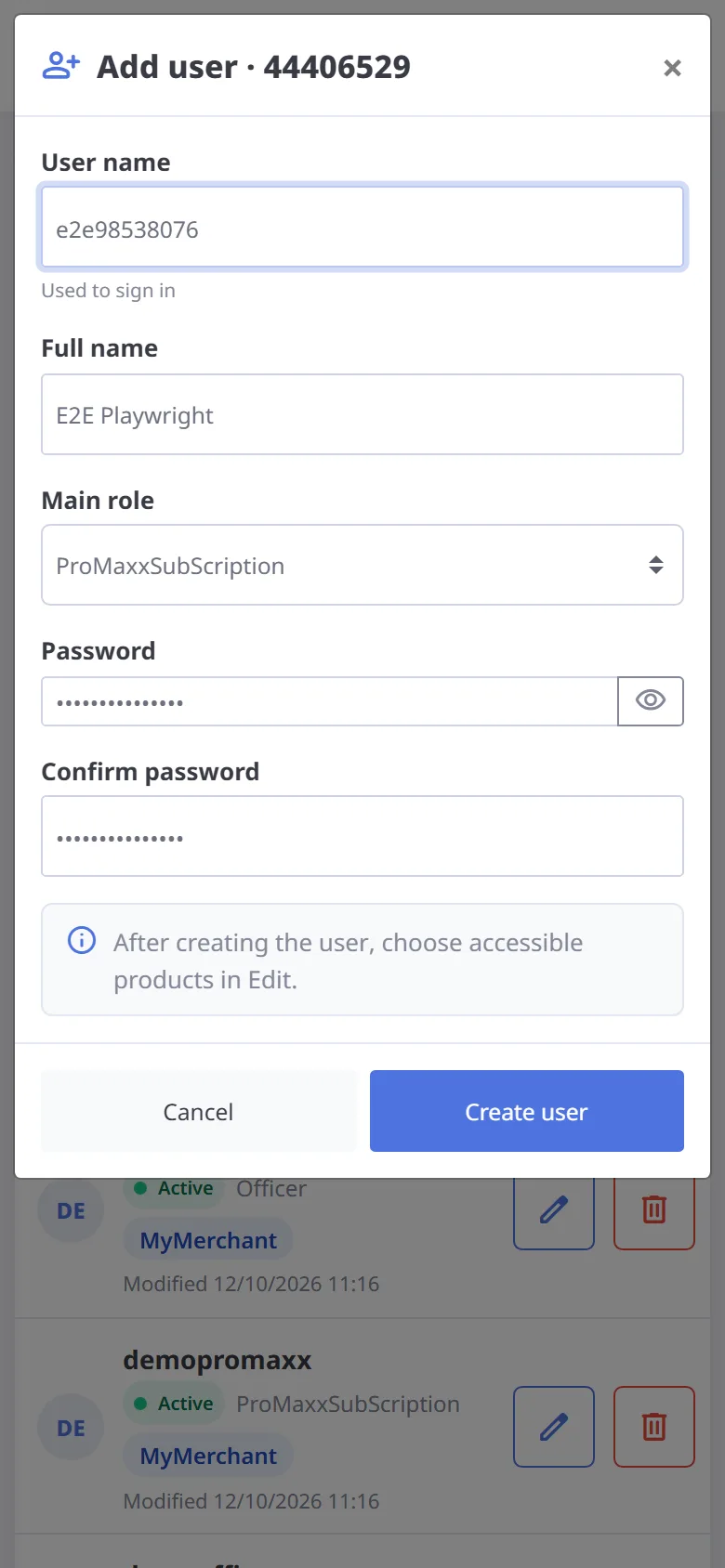
Press Add user, enter a user name (used to sign in; cannot be changed later), full name, main role and the password twice. Create user is enabled when everything is filled in.
-
User created
Press Create user; a notice appears at the top right. The new user has no products yet — press Edit to choose them.
-
User limit reached
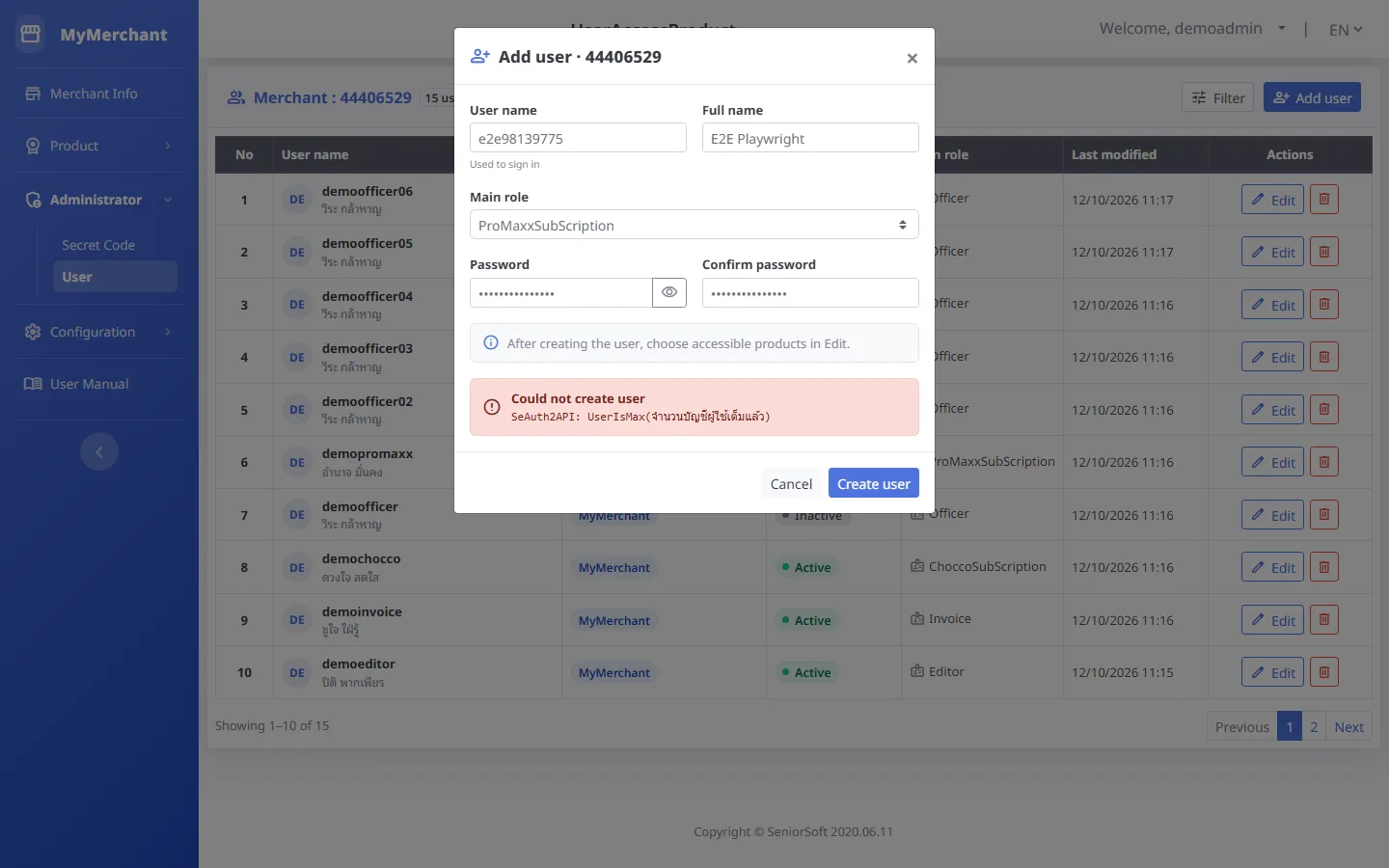
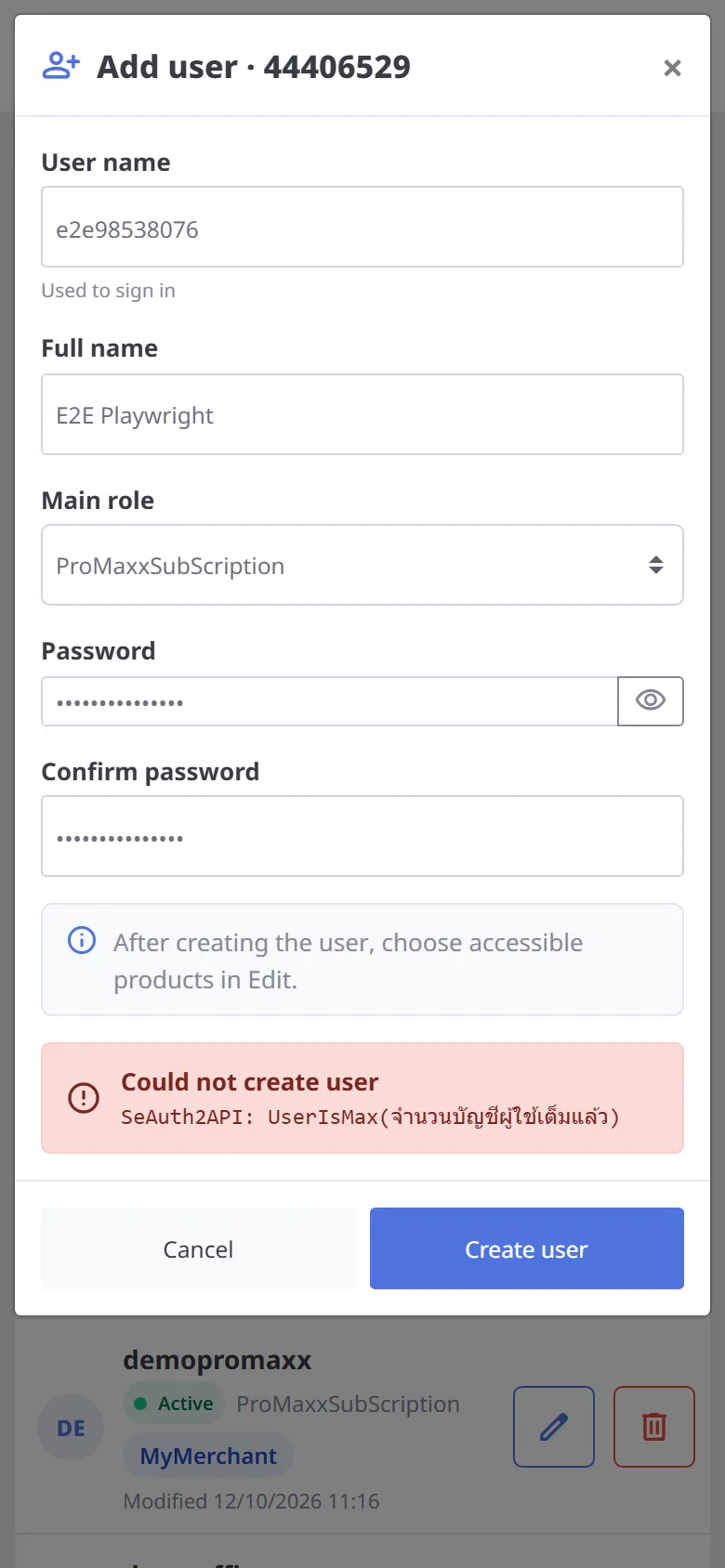
If the store already has the maximum number of users (see Merchant info → Max users), the form shows Could not create user. Delete users you no longer need, or contact support to raise the limit.
-
Edit a user / choose products
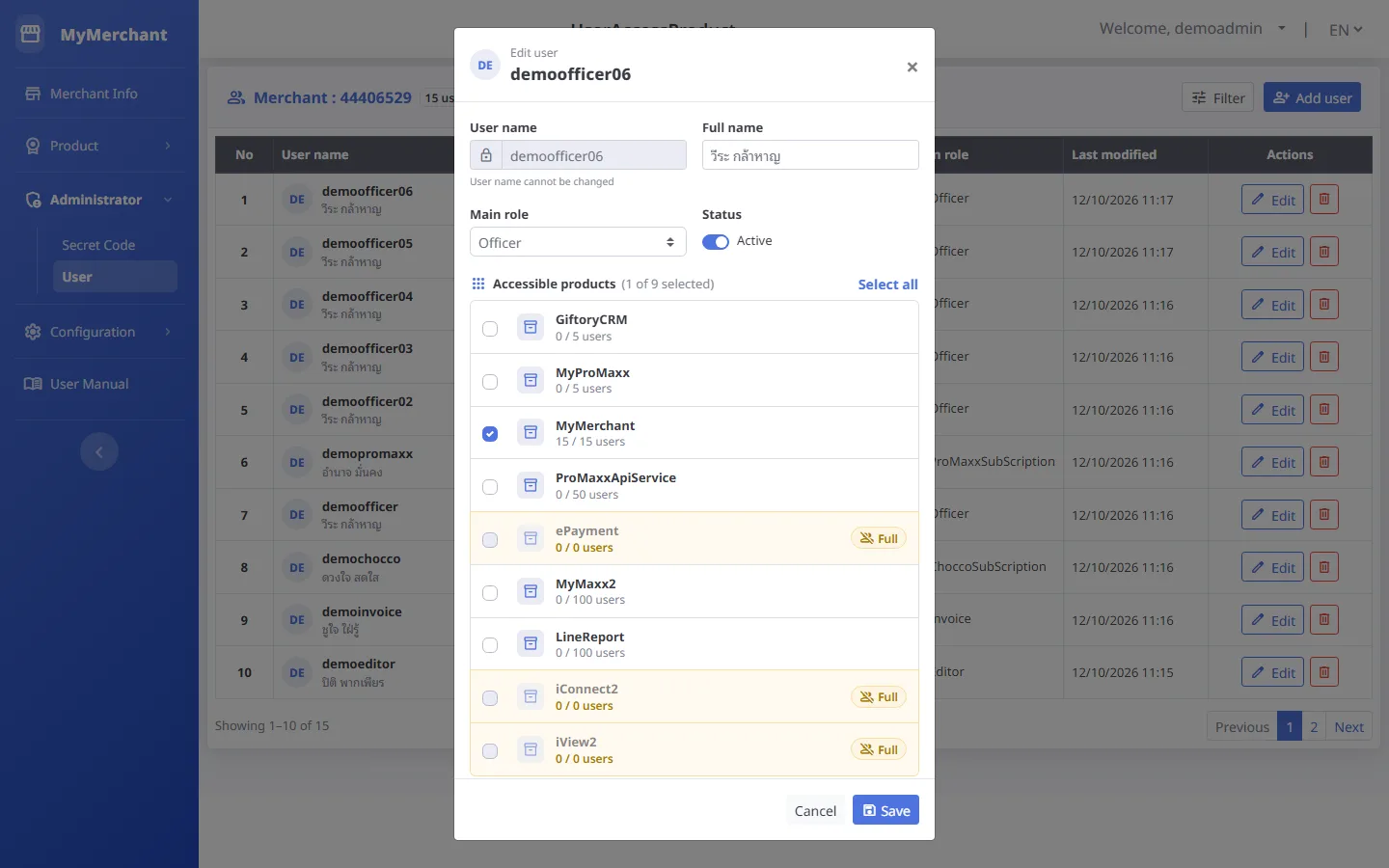
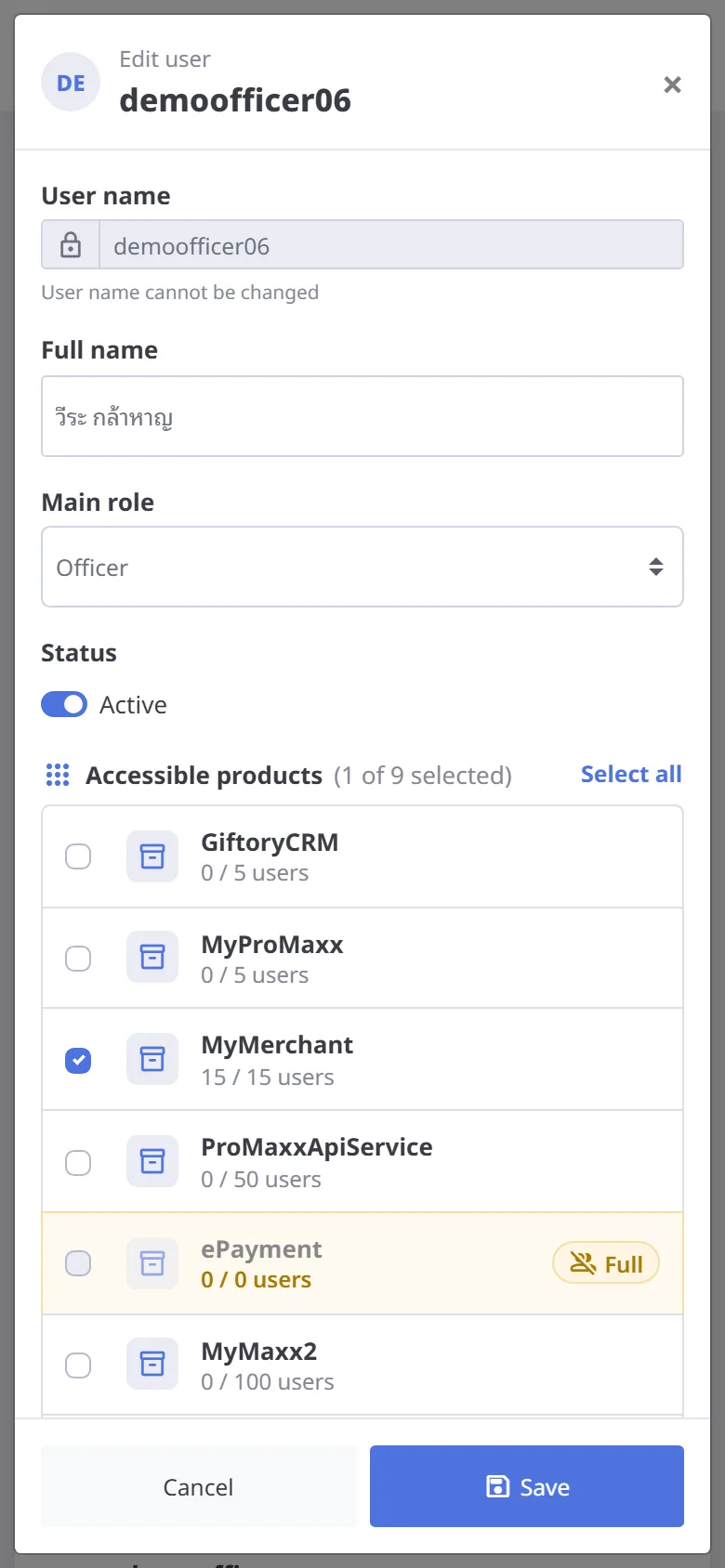
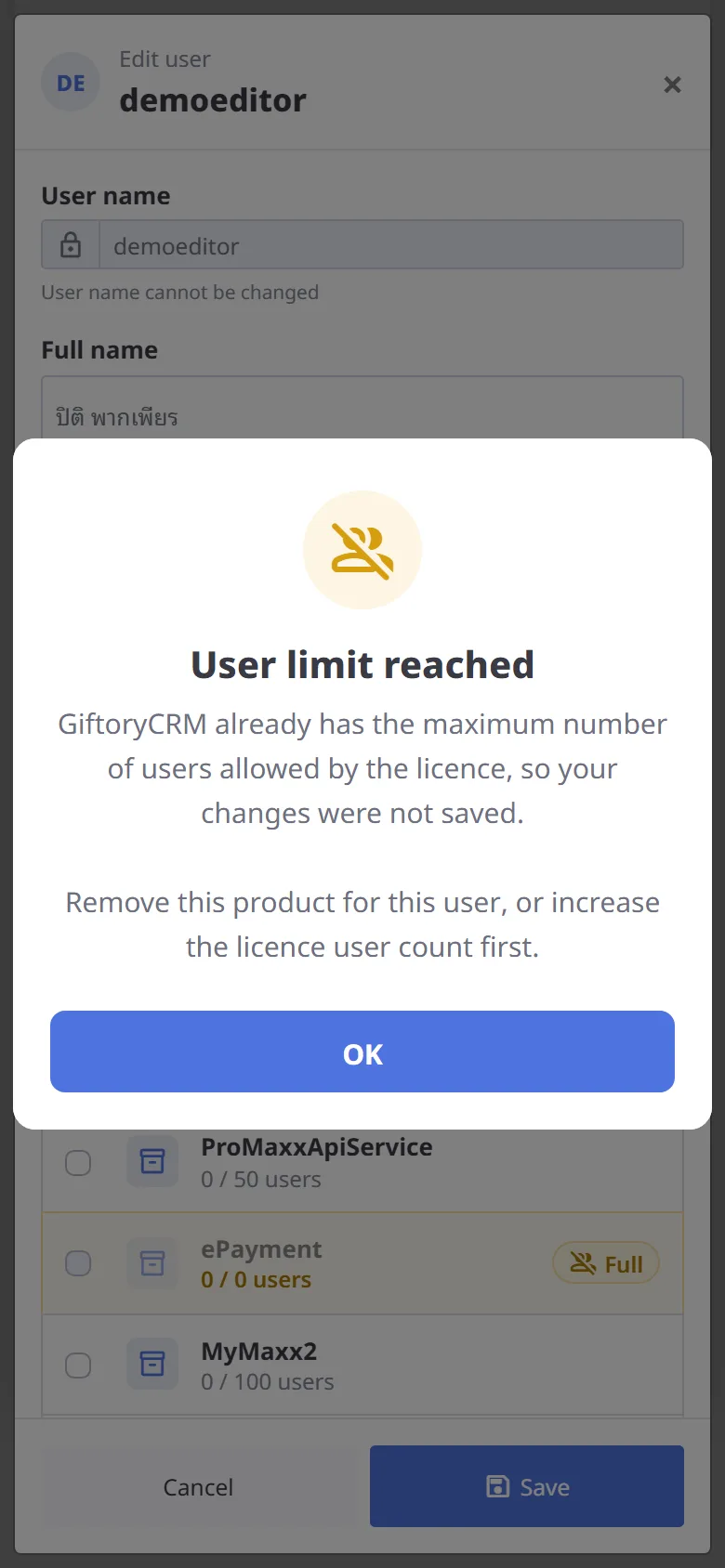
Press Edit to change the name, role, status (Active / Inactive) and tick the products the user can use. Each product shows "x / y users" from its license; a product marked Full cannot be added.
-
Save changes
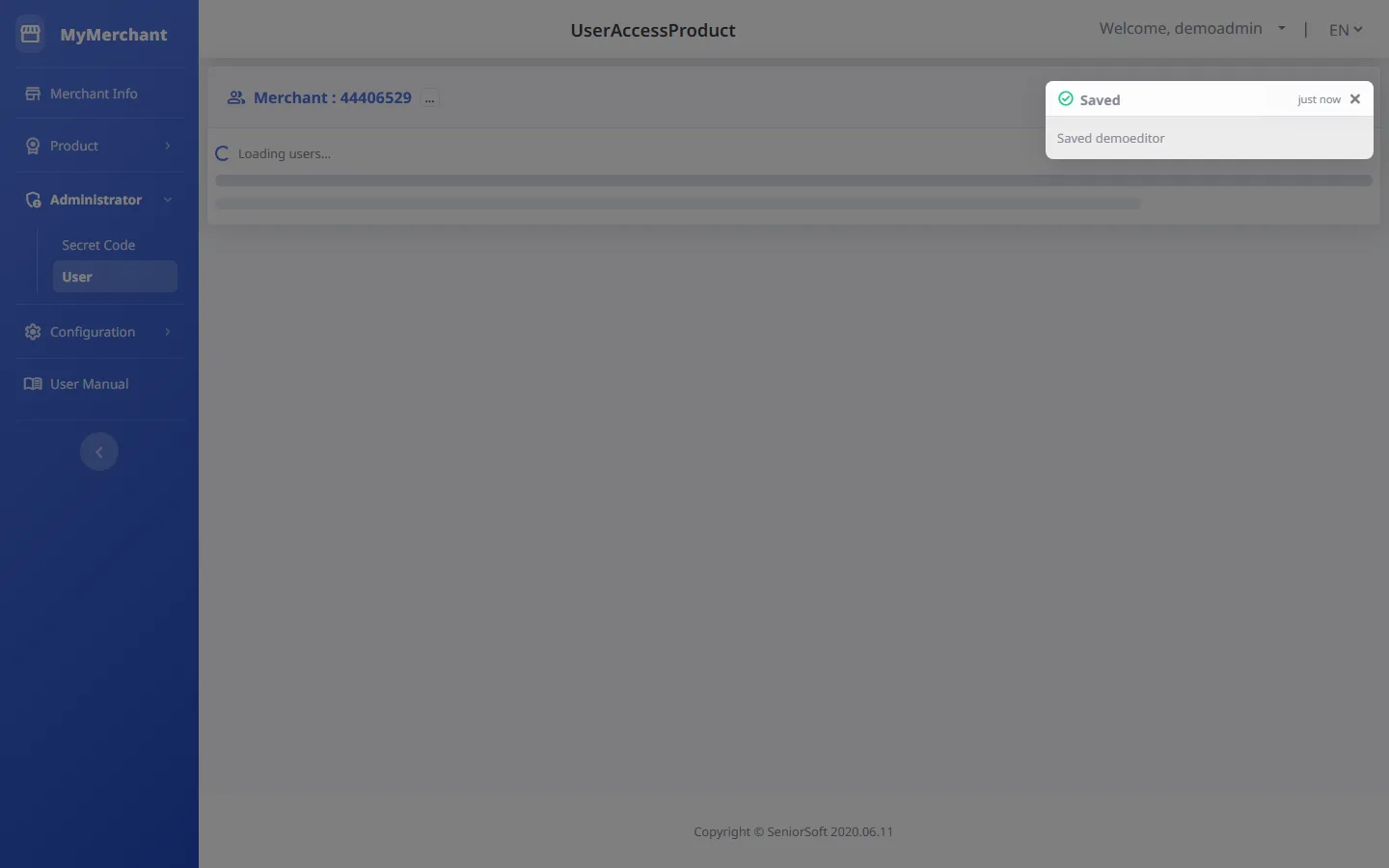
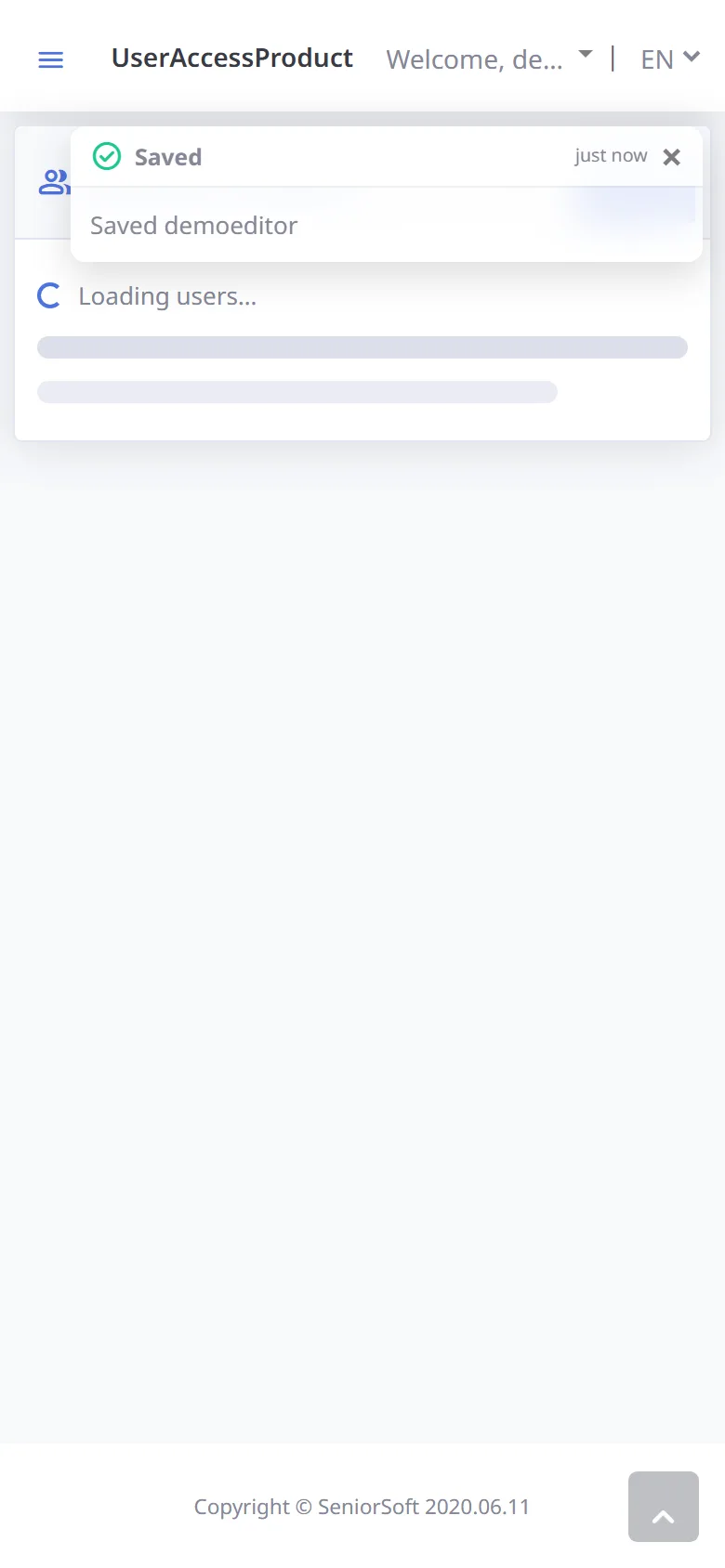
Press Save; a notice appears at the top right.
-
User limit warning
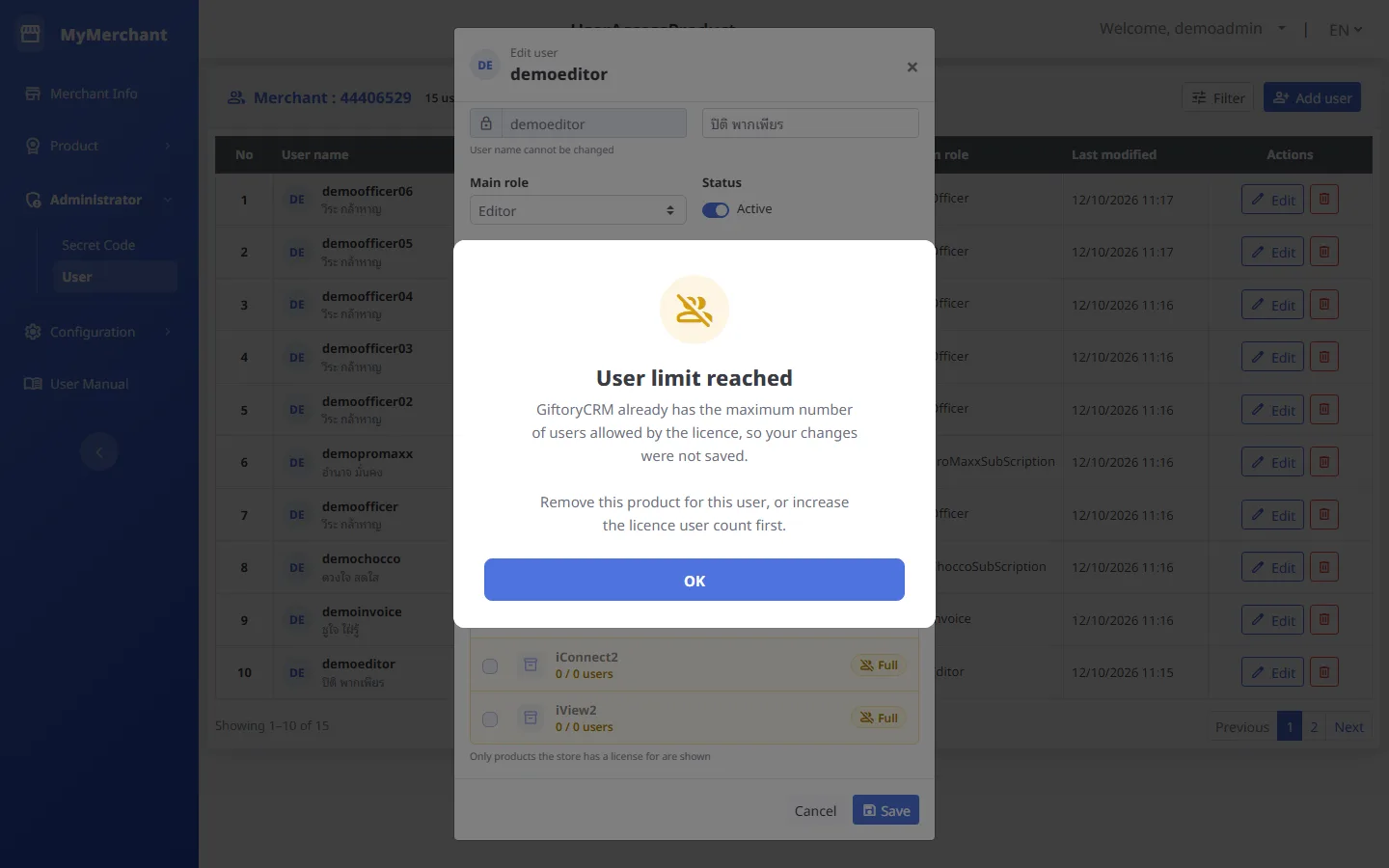
If a product became full while you were editing, nothing is saved and the full product is named. Remove that product from this user, or add more users to the license first.
-
Delete a user
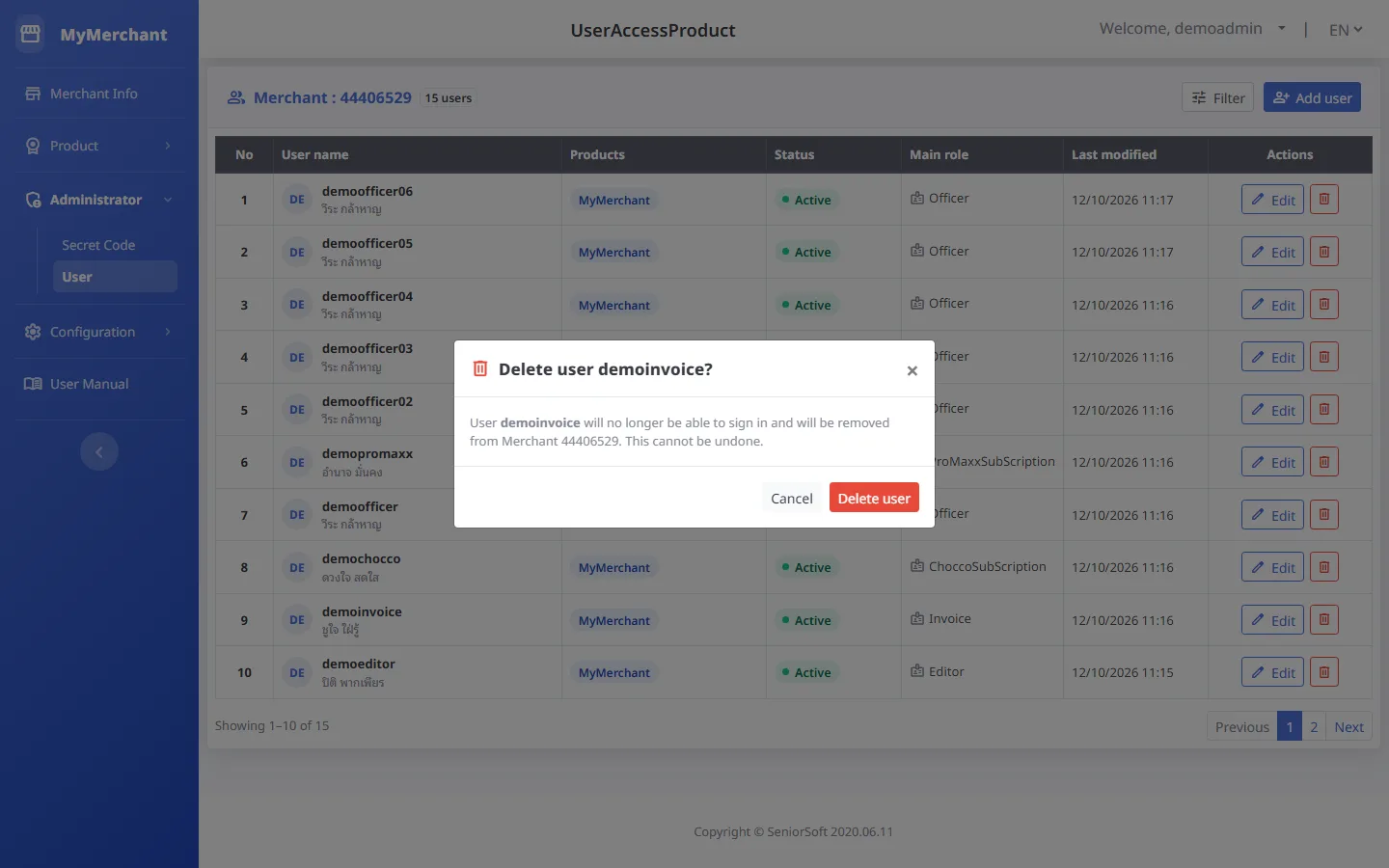
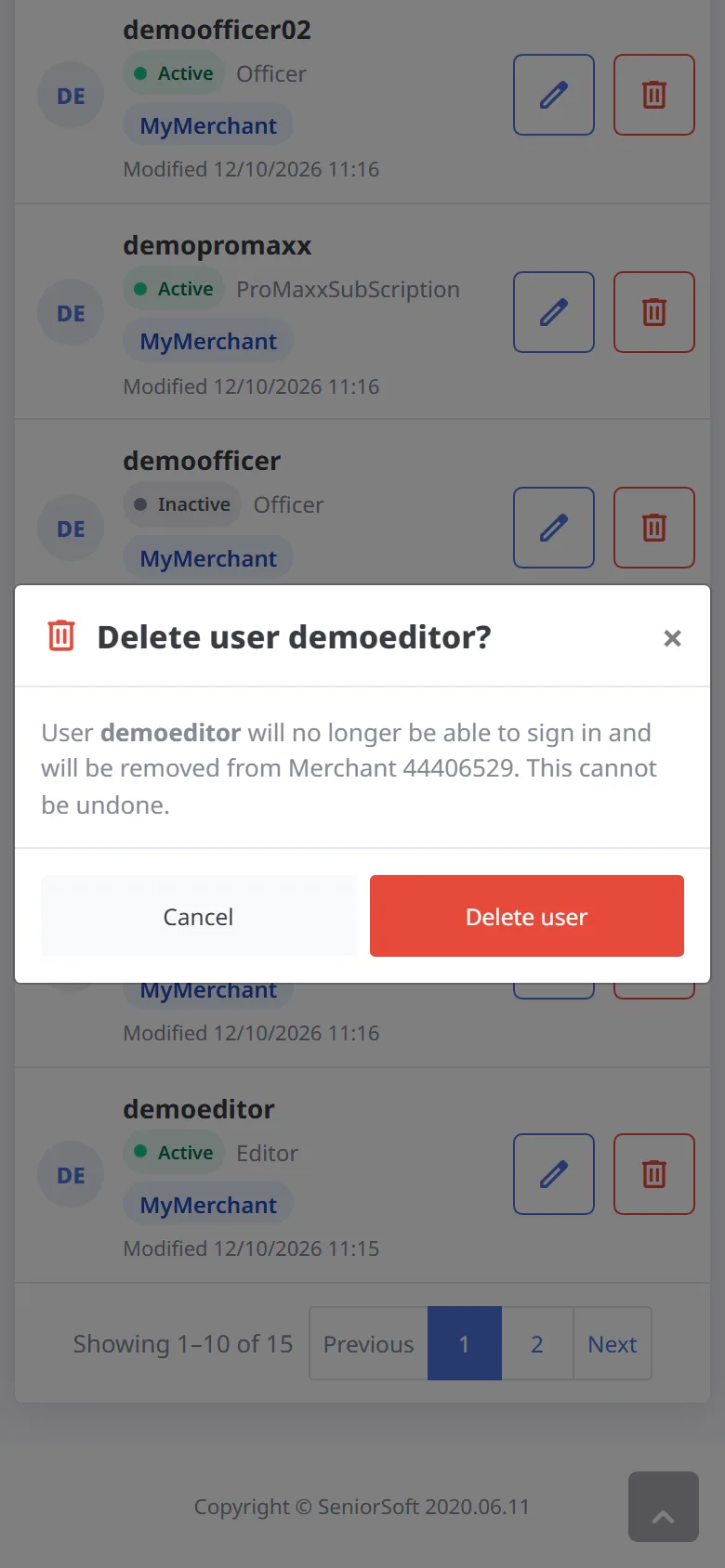
Press the bin button; you are asked to confirm with the user name. Press Delete user to confirm — this cannot be undone. To suspend someone temporarily, set the status to Inactive instead.
-
User deleted
A notice appears at the top right and the user is removed from the list.
EPayment settings
Configuration → EPayment · connection details for GB Pay, True Money, KBank and Beam Lighthouse
-
Choose a payment channel
Use the tabs at the top to choose a channel. The number next to the name is how many key sets it has. Only channels your store has are shown.
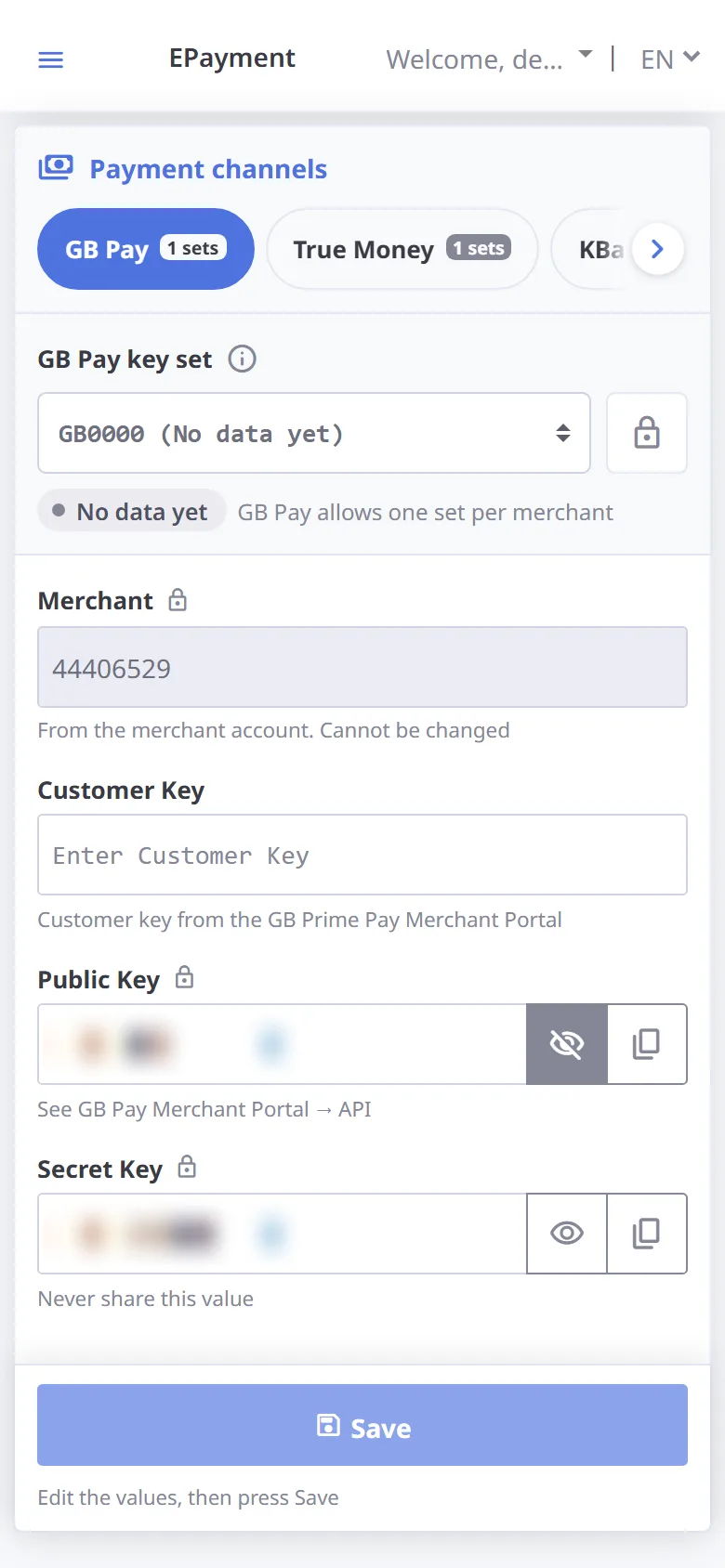
Channel Fields Key sets GB Pay Customer Key · Public Key lock · Secret Key lock One set only True Money Ref1 (also used for Settlement) · Ref2 · Ref3 Several sets KBank MID · Partner Shop ID Several sets Beam Lighthouse Merchant ID · Partner Shop ID · API Key lock Several sets The first set of every channel (set 0000) is the main set and cannot be deleted · lock = secret field, value hidden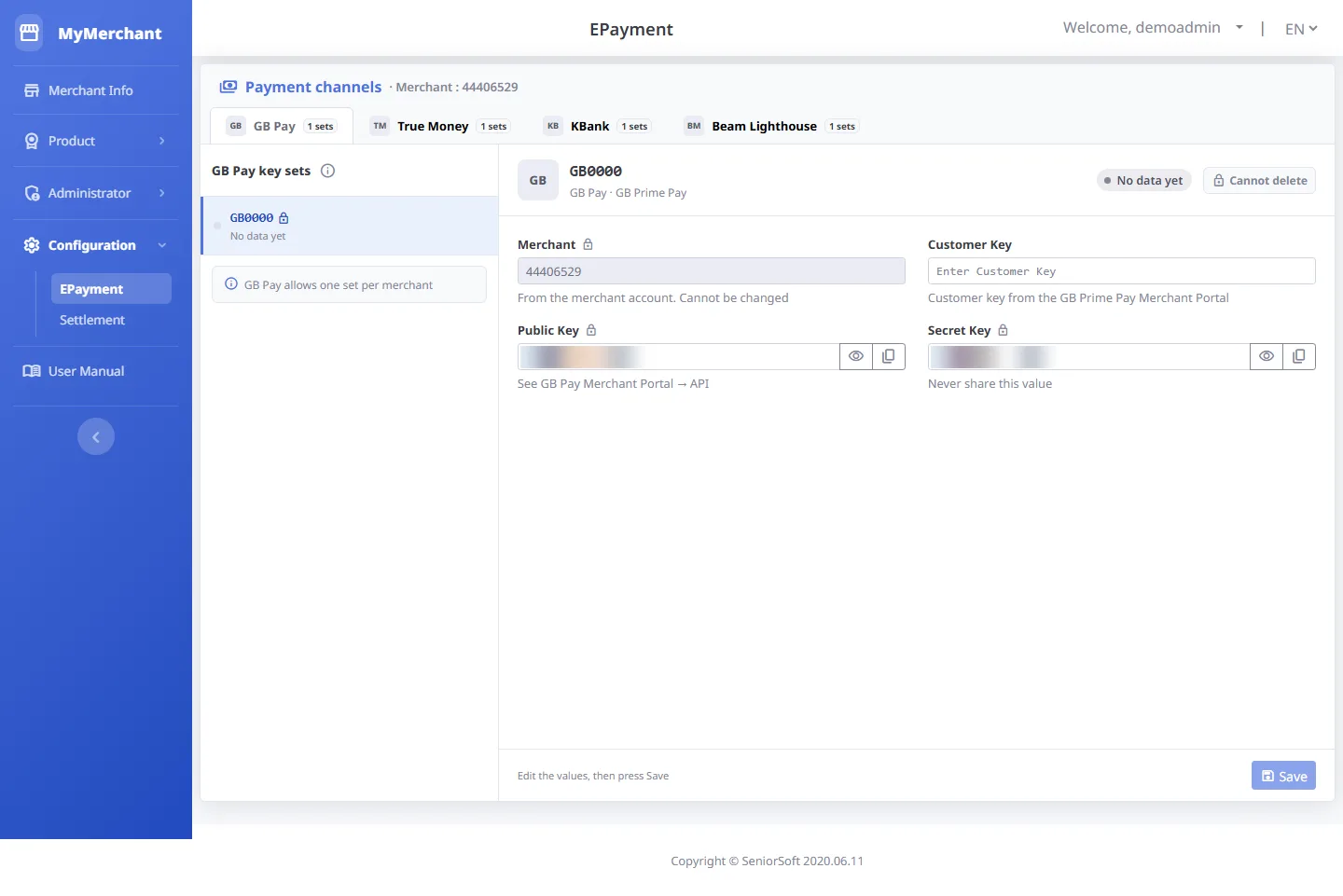
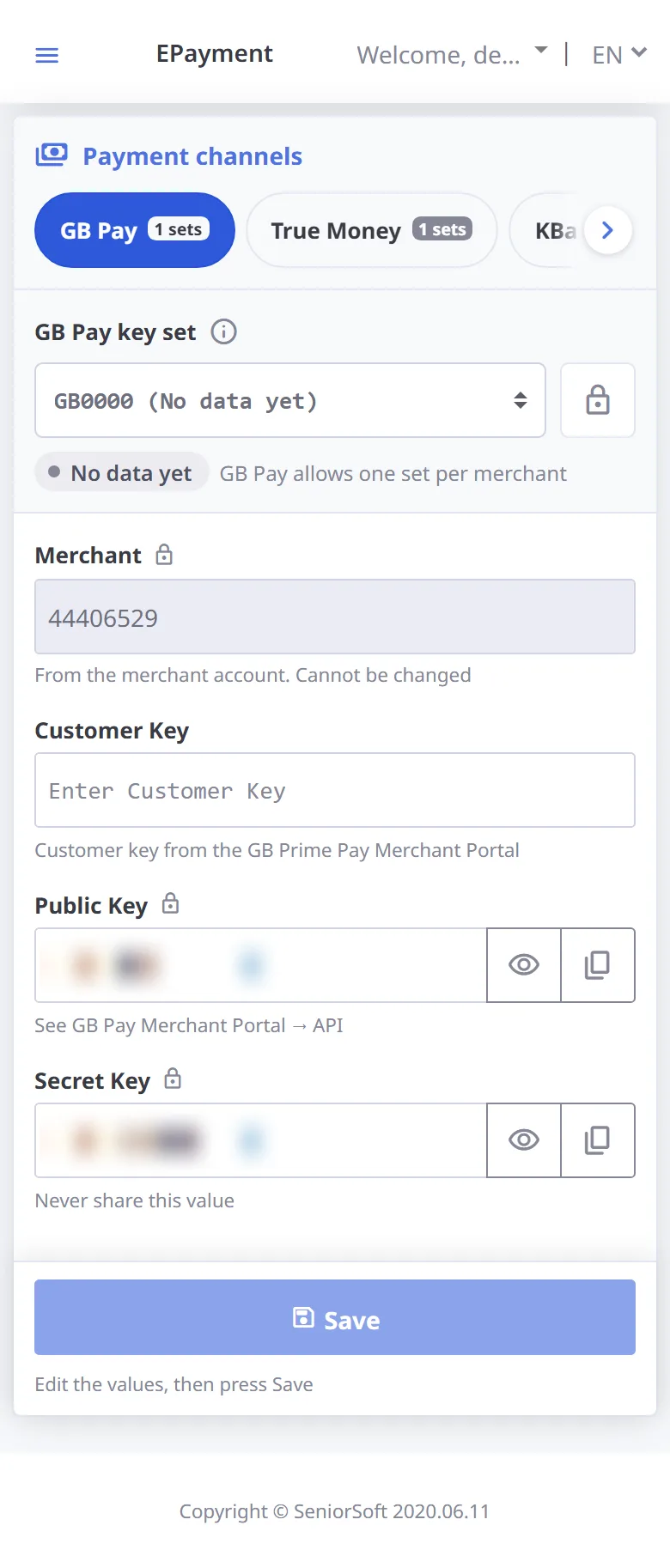
-
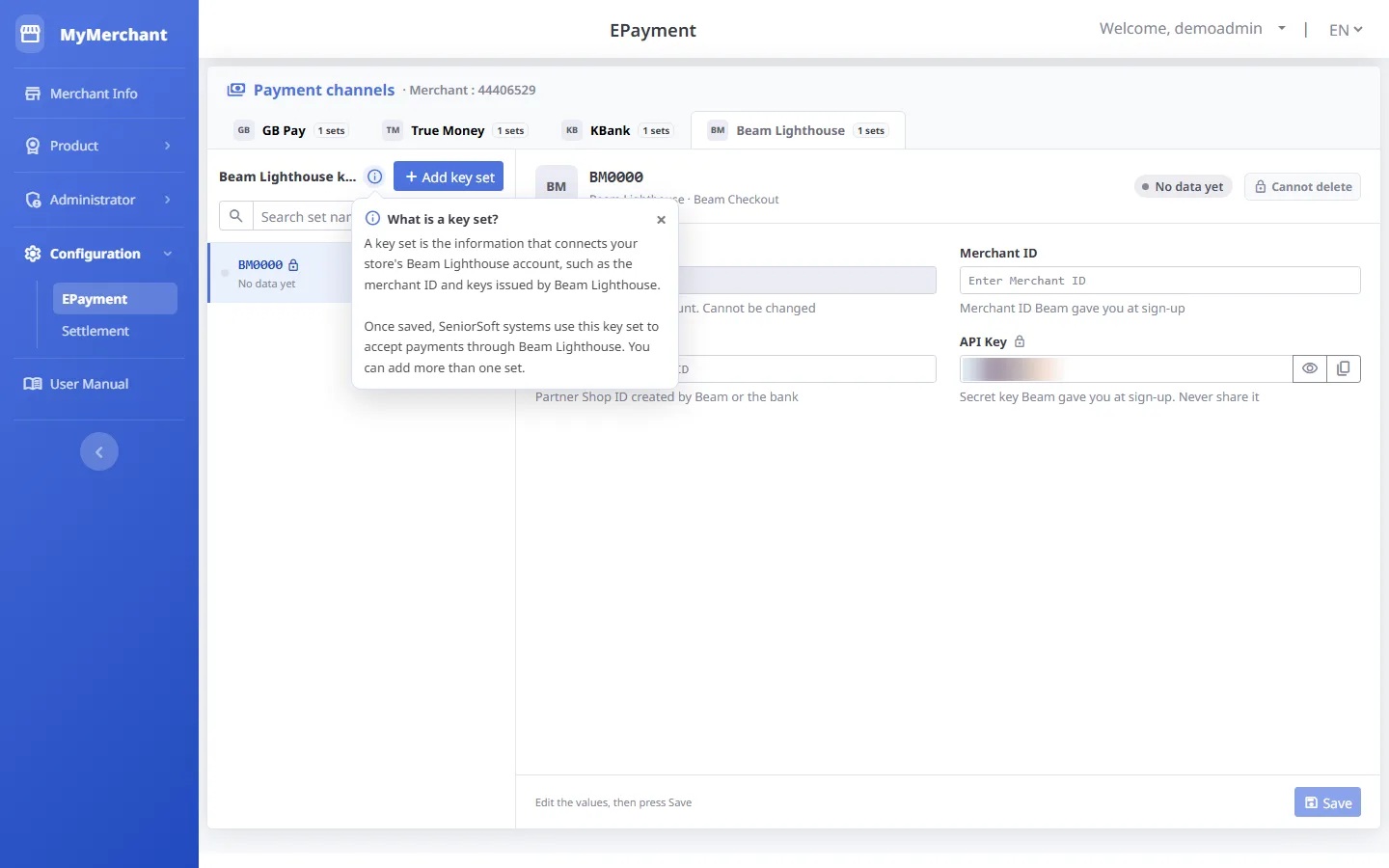
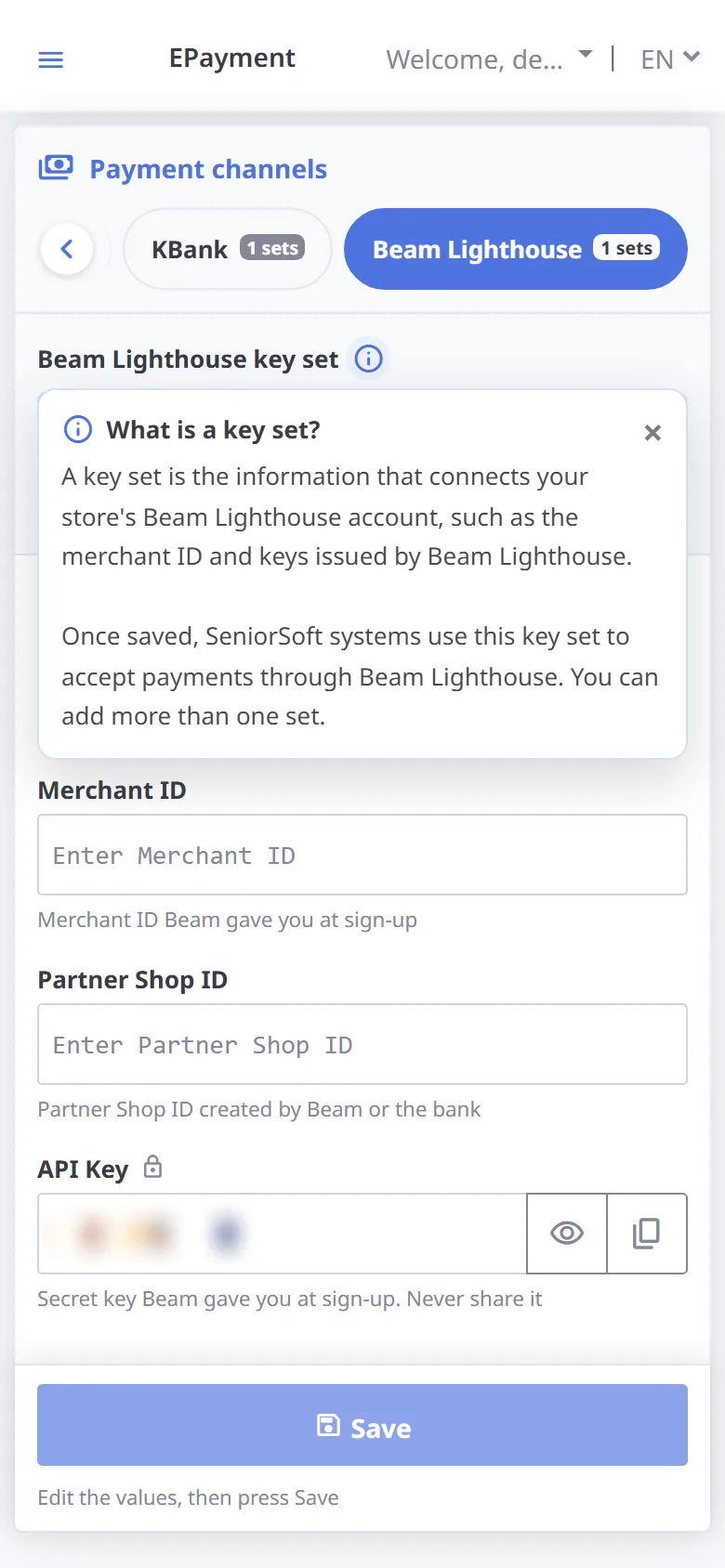
What is a key set?
Press info next to the key set list title to read the explanation. A key set is the information that connects your store's account with the payment provider.
-
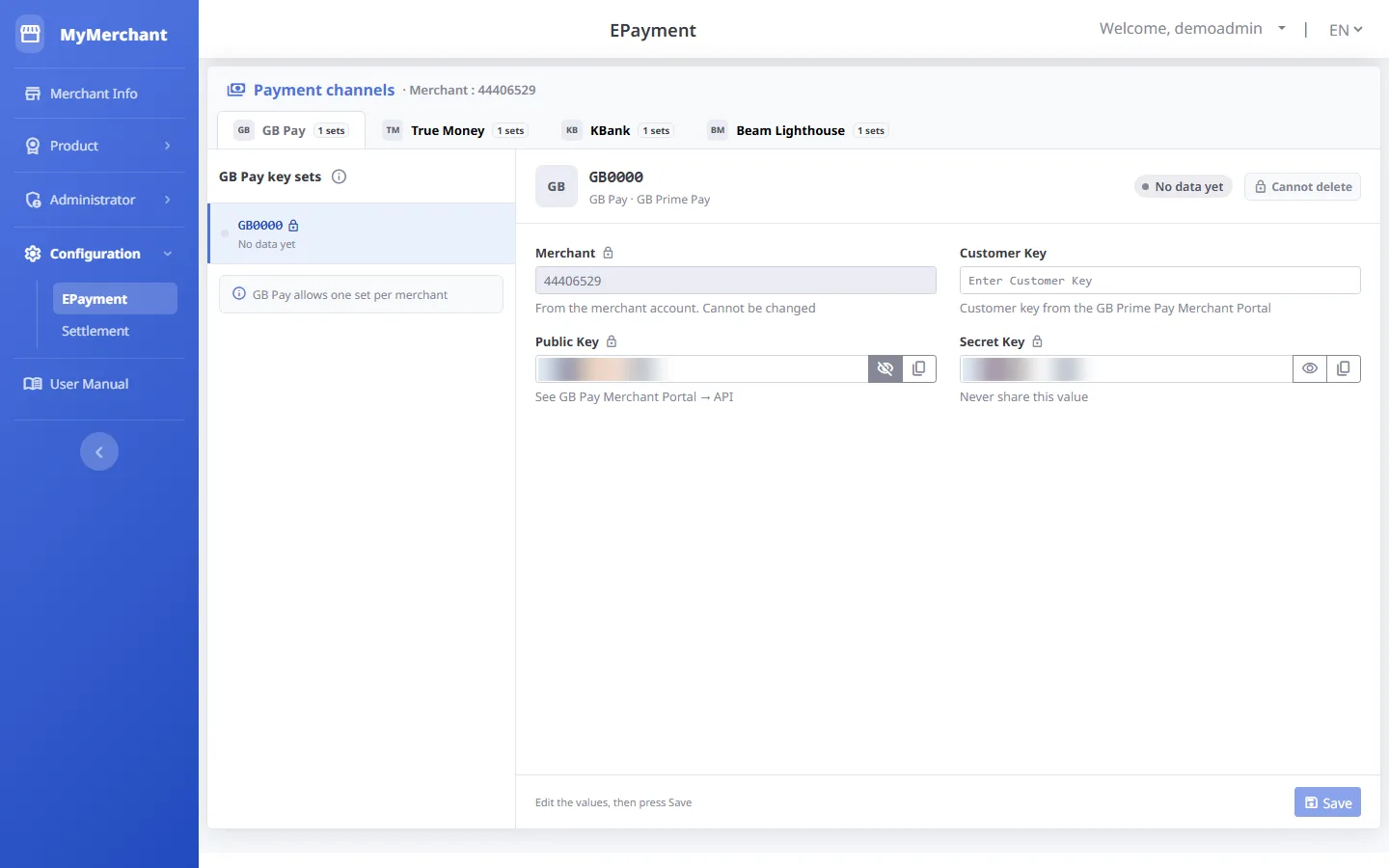
Secret fields
Fields marked lock hide their value. Press the eye to show / hide it, or the copy button. Never share these values (blurred in the picture).
-
Add a key set
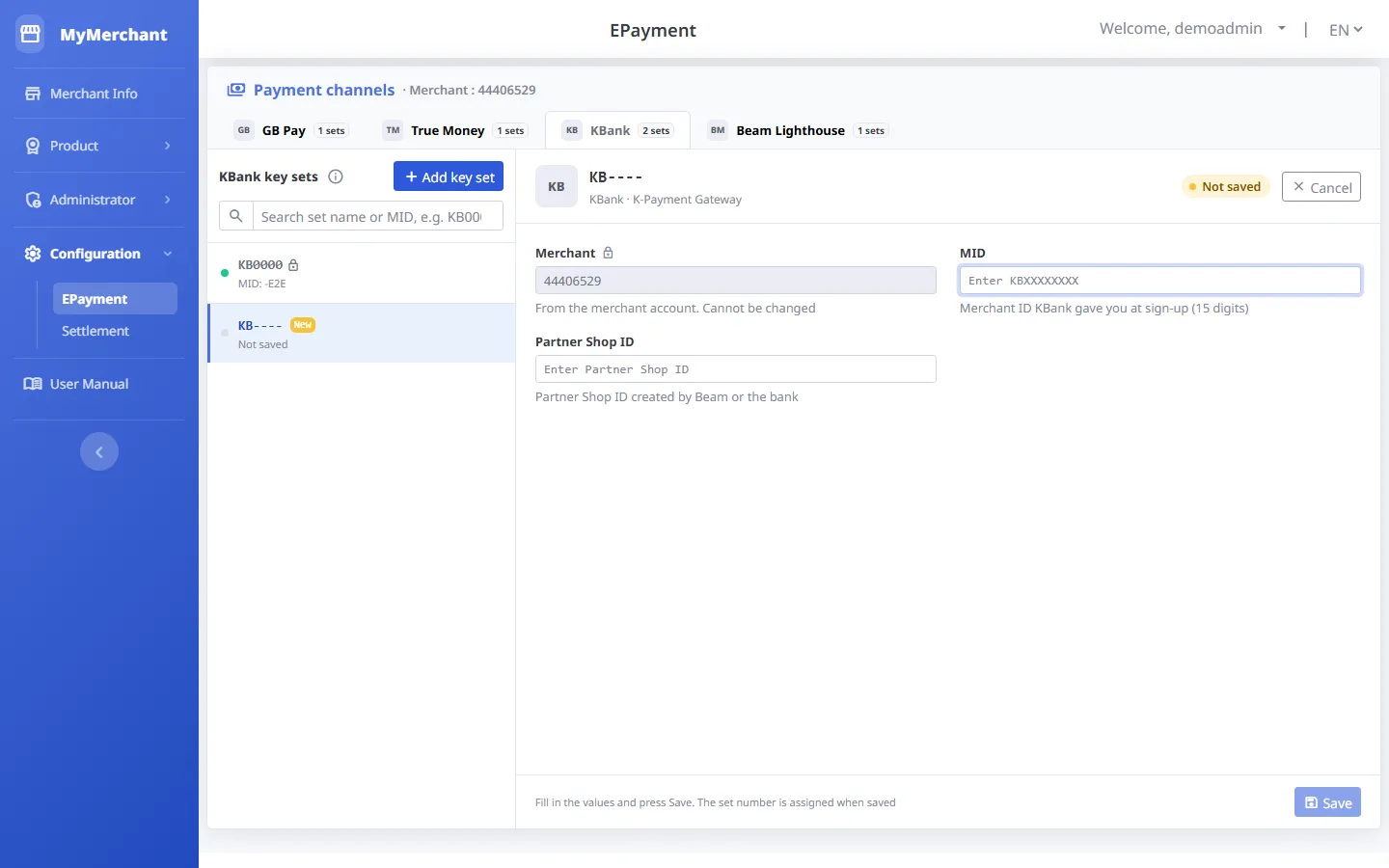
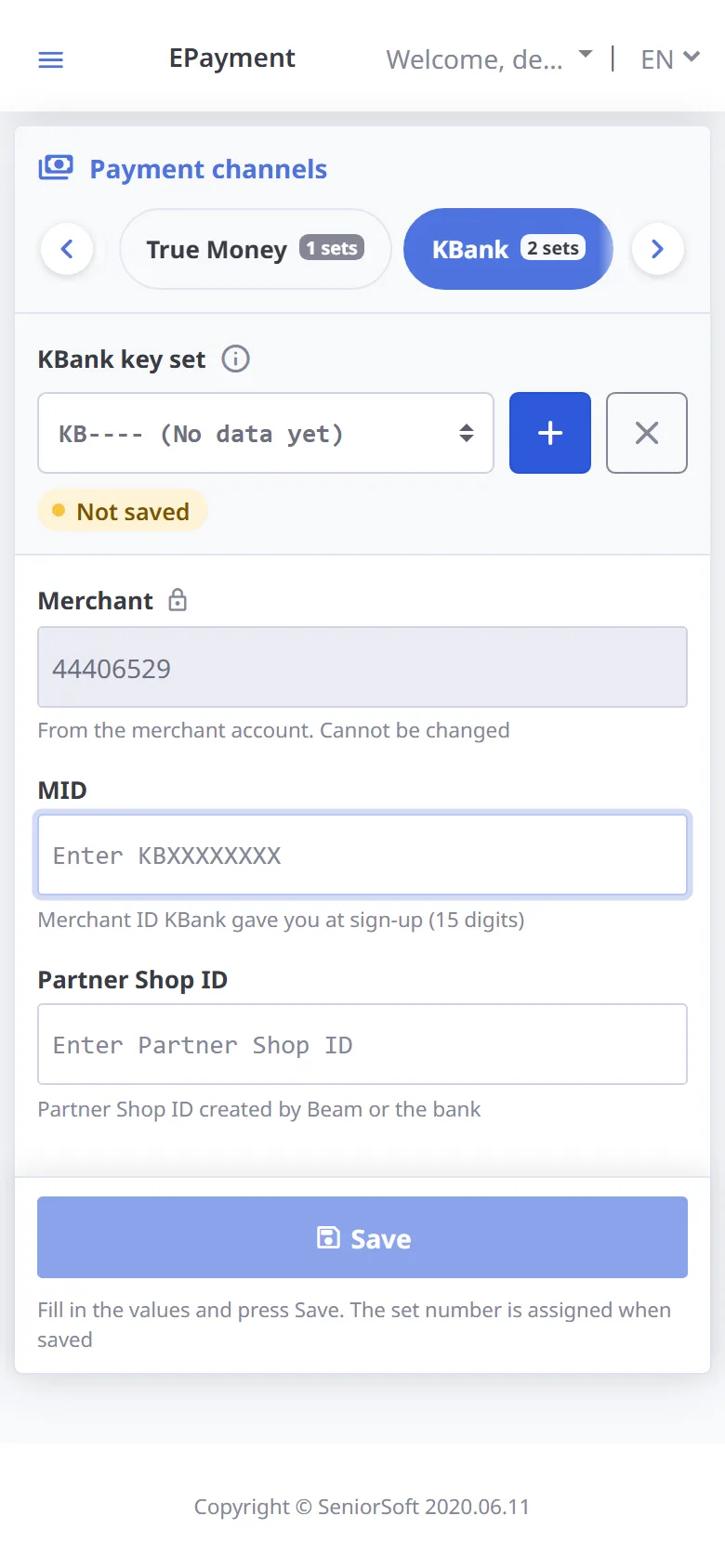
Press Add key set to get a draft set (labelled New, name still ----). Only one draft at a time; press Cancel if you do not need it.
-
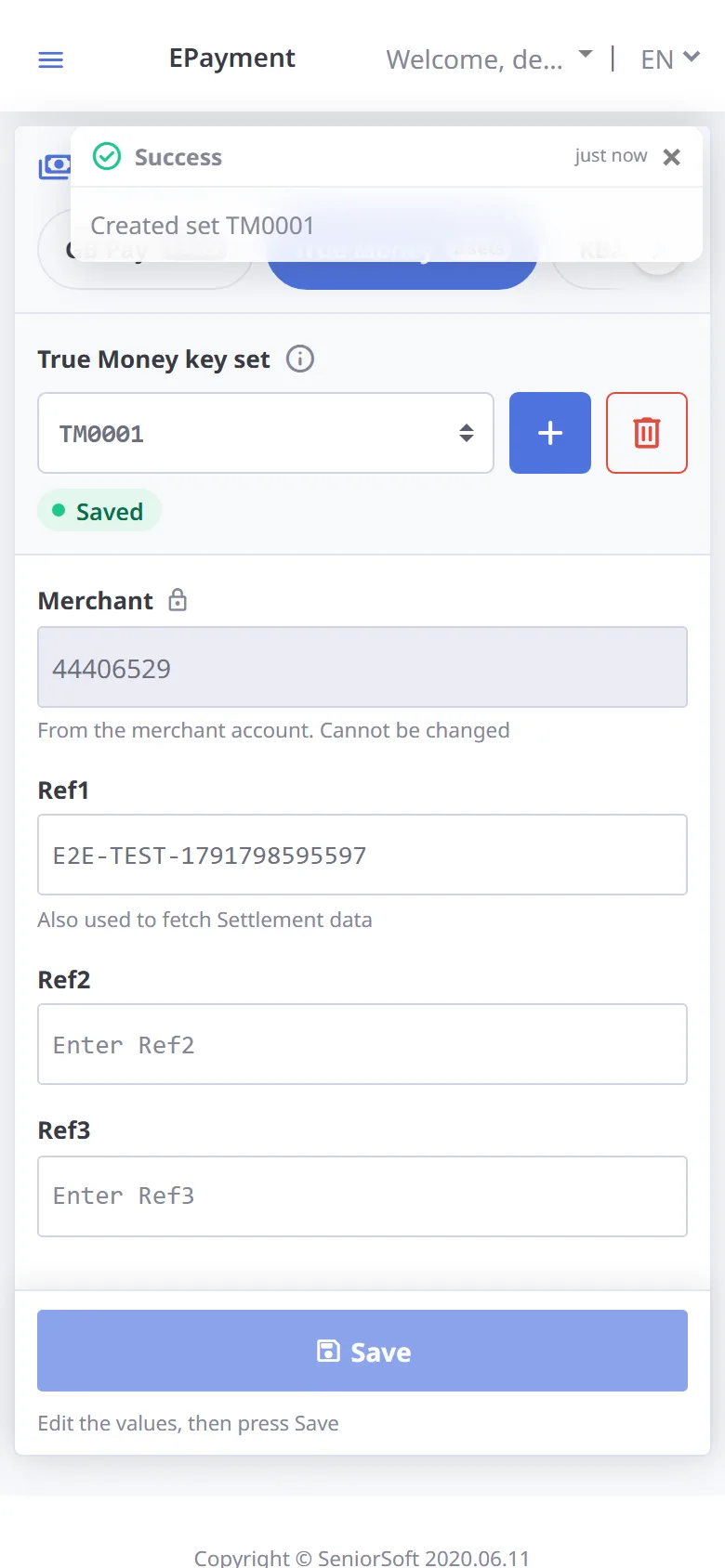
Save the new set
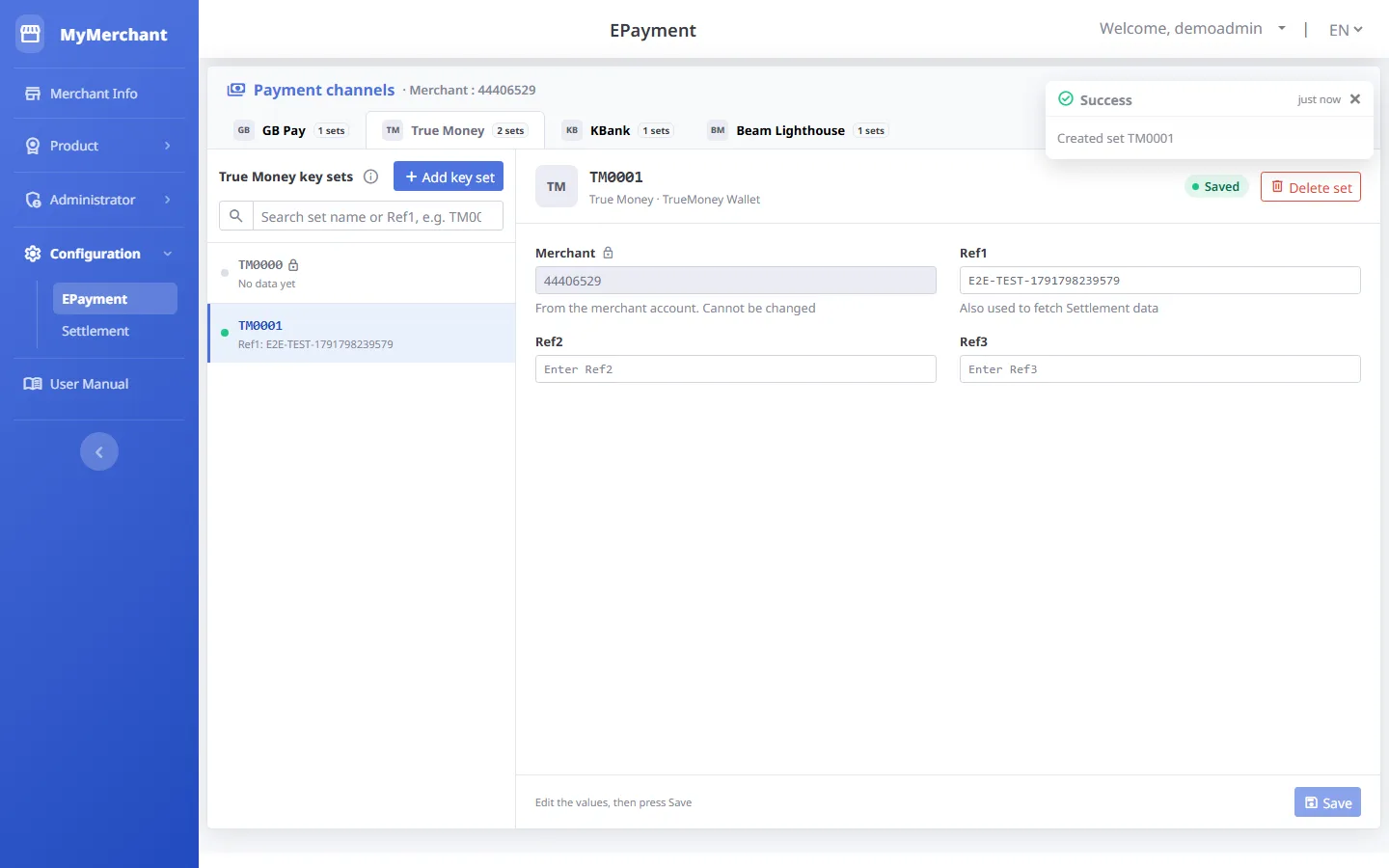
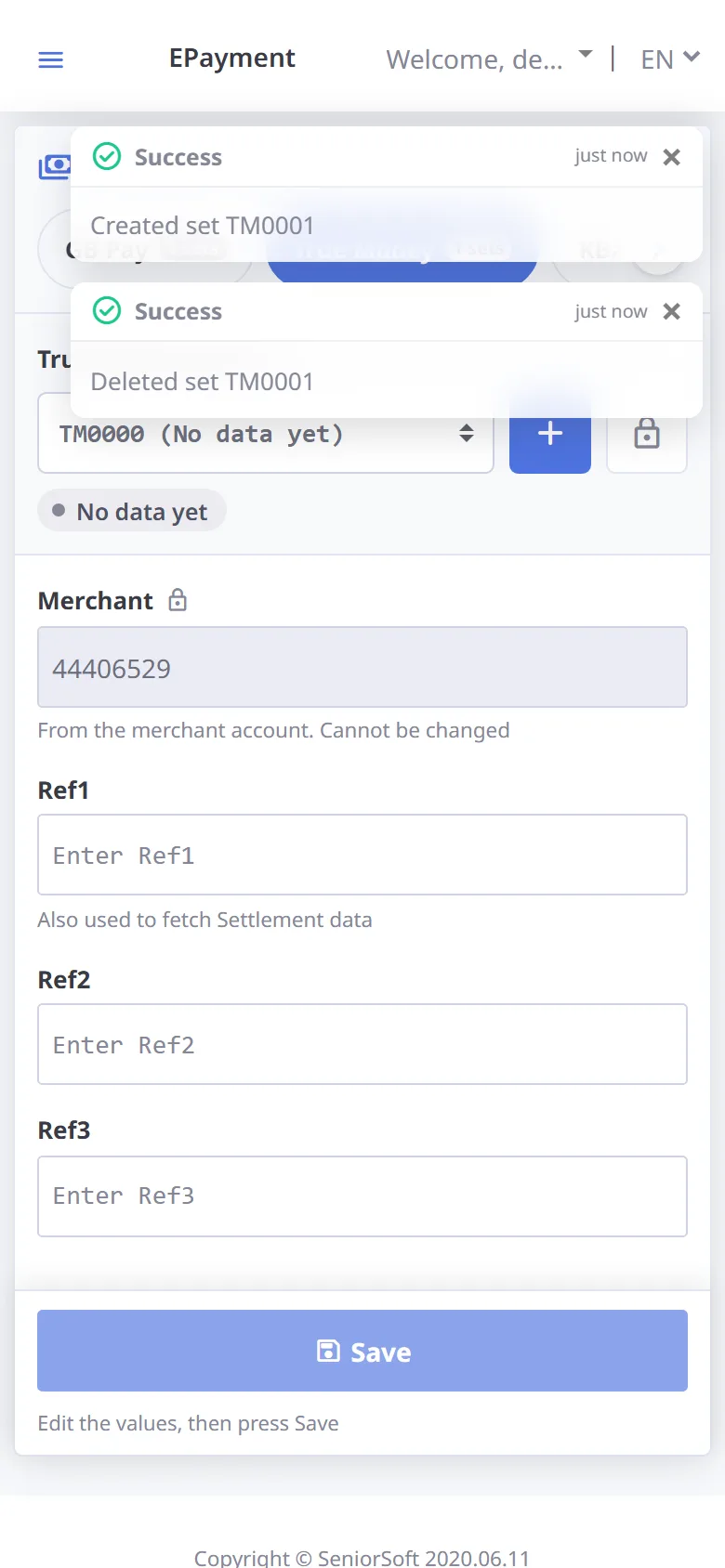
Fill in the values and press Save. A set number is assigned (e.g. TM0001) and a notice appears at the top right.
-
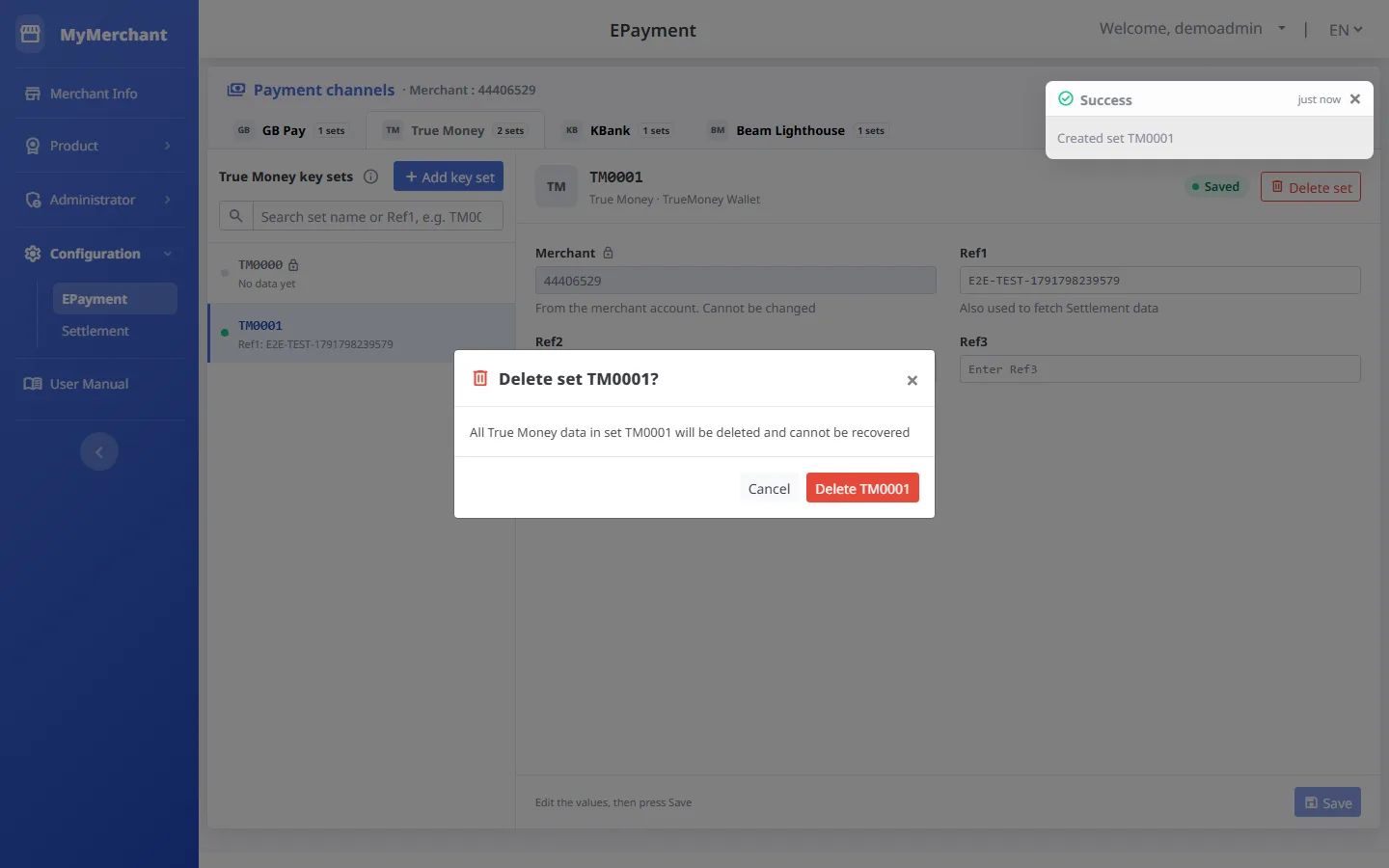
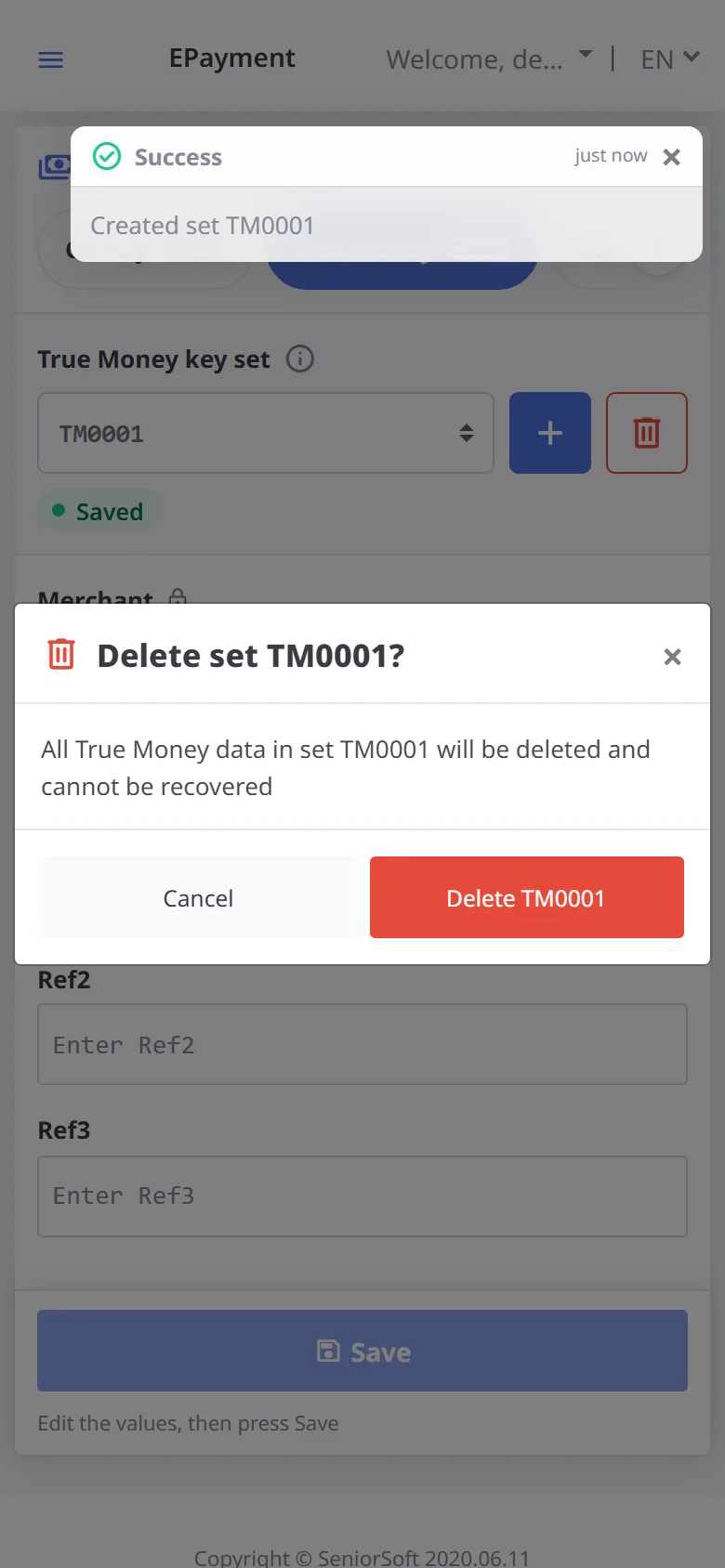
Delete a key set: confirmation
Select the set and press Delete set. You are asked to confirm with the set name. After deleting, systems using this set can no longer take payments, and it cannot be recovered.
-
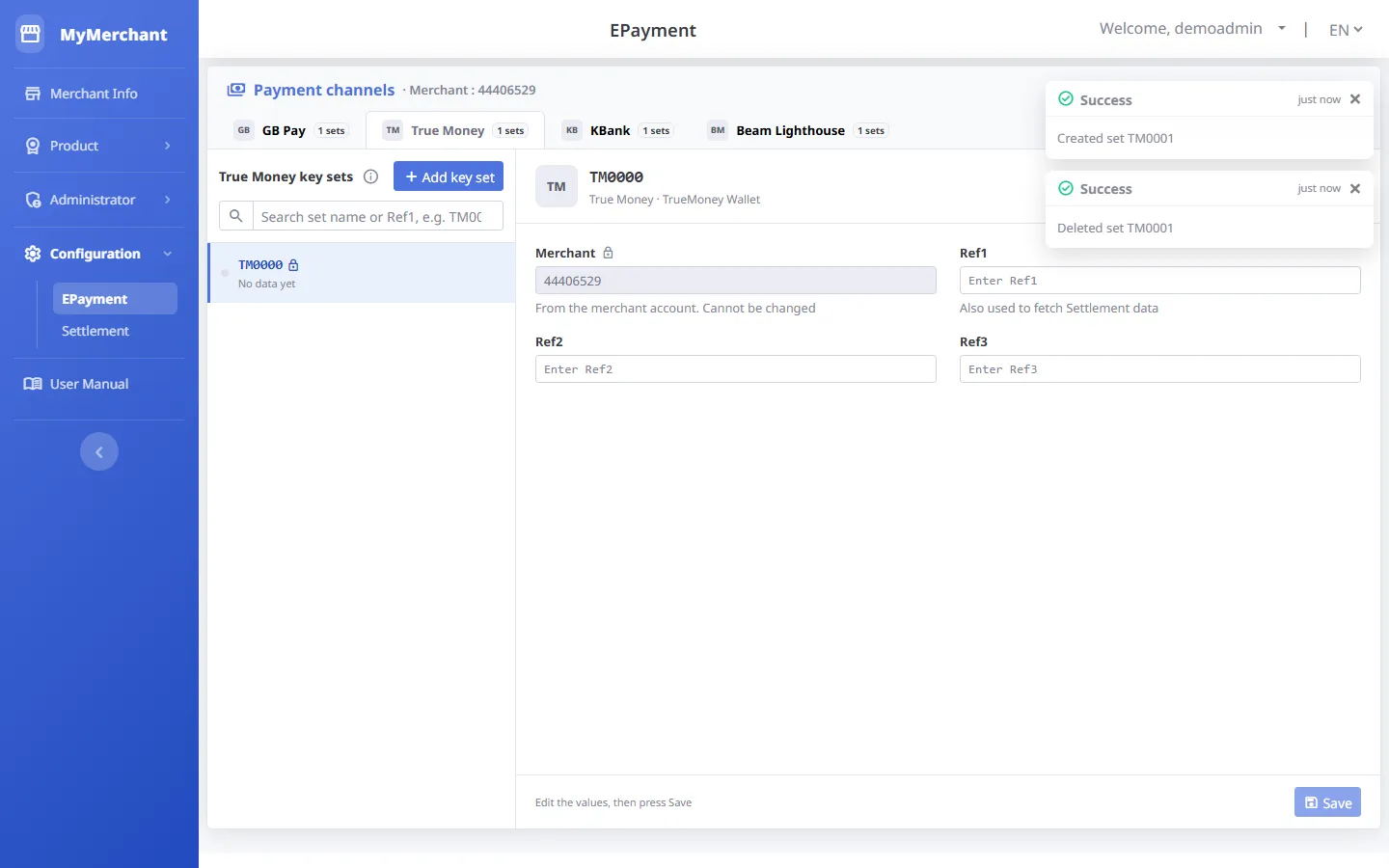
Set deleted
A notice appears at the top right and the set is removed from the list.
-
Delete failed
If the set cannot be deleted, the reason is shown in the confirmation box and the set stays as it is.
-
Leaving without saving
If you change a value without saving, "You have unsaved changes" appears at the bottom, and the browser asks before you close or leave the page so your changes are not lost.
Settlement TrueMoney
Configuration → Settlement · every role can open it
-
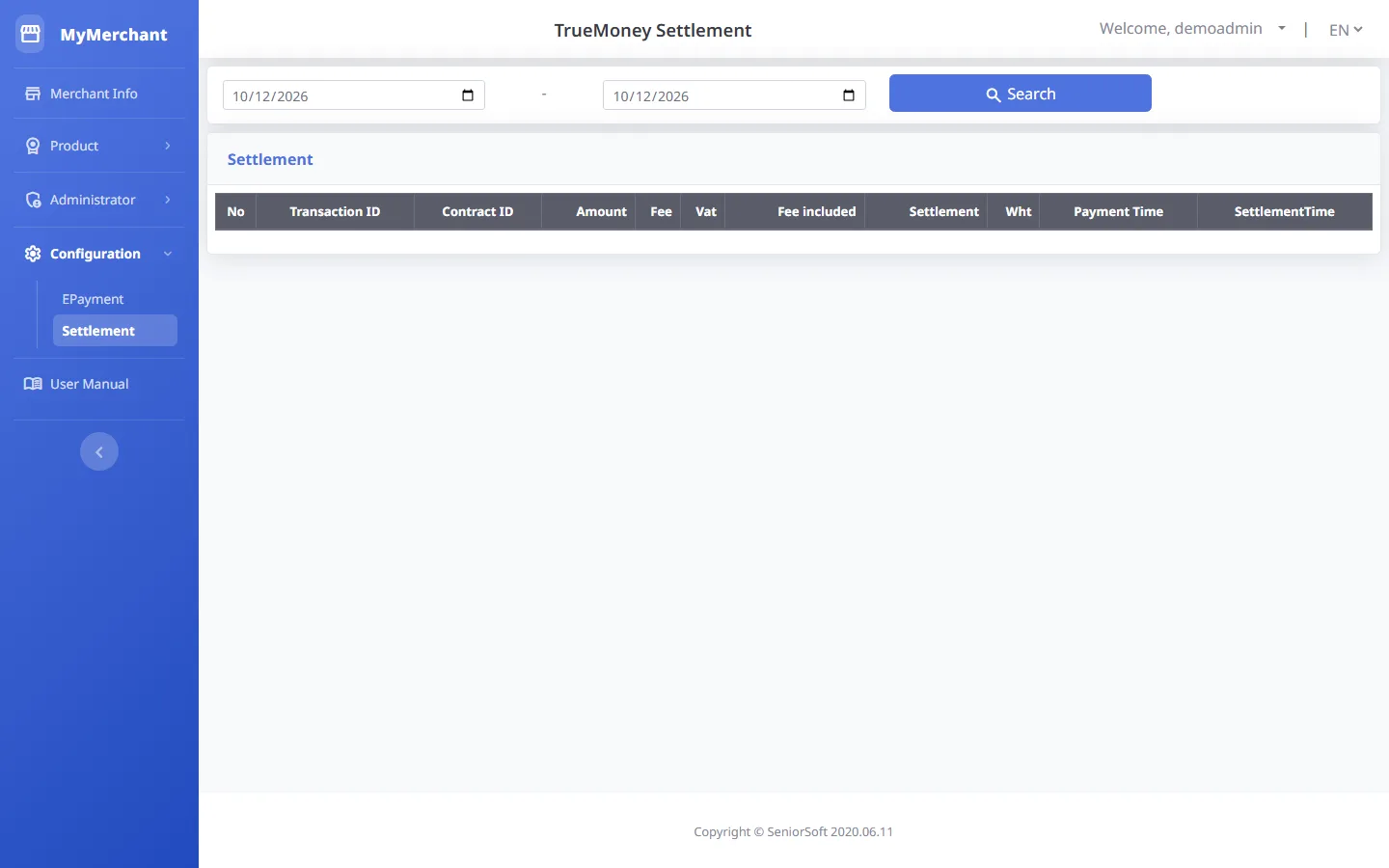
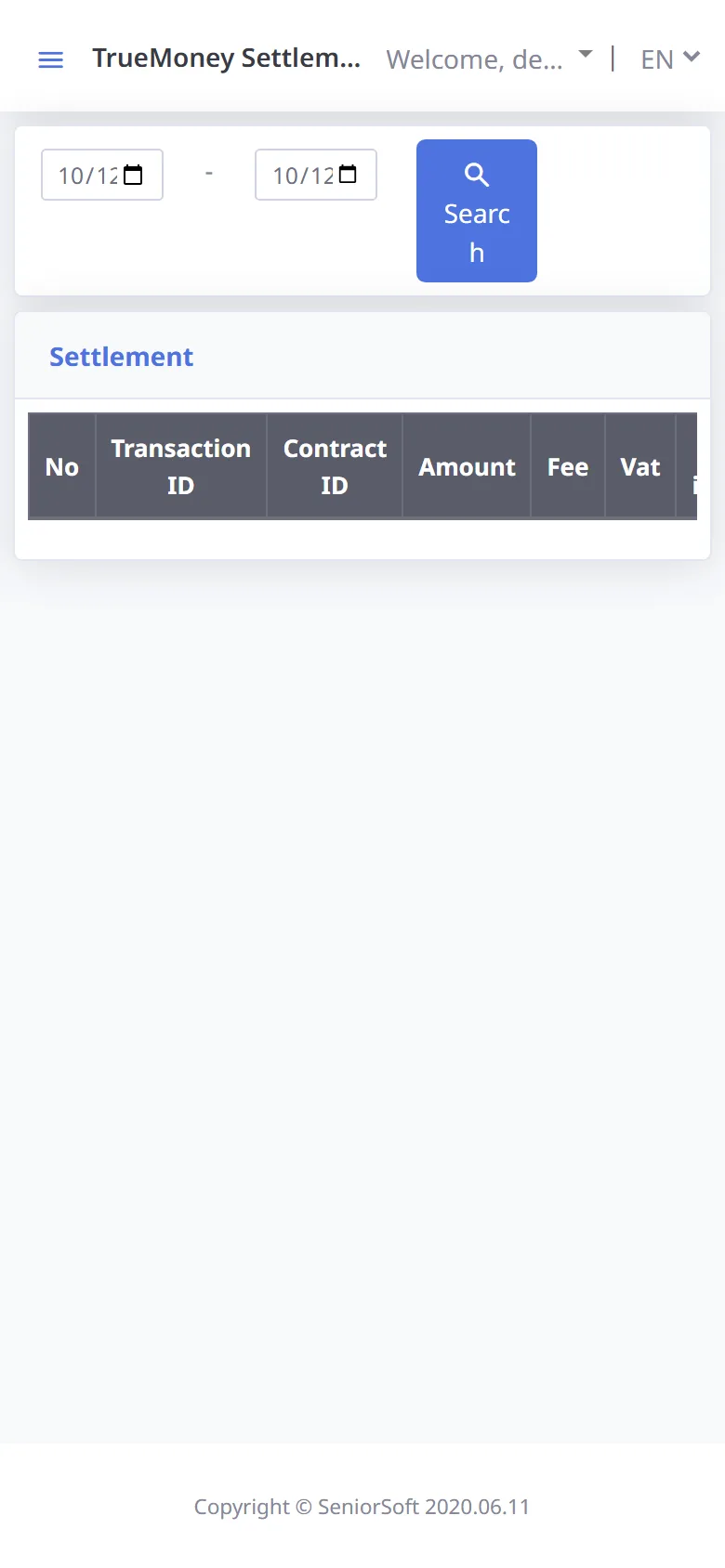
TrueMoney settlement
Choose a date range (today by default) and press Search to see transactions, fees, VAT and settlement amounts. It uses Ref1 of True Money in EPayment settings.
Profile
Press your user name at the top right → Profile · every role can open it
-
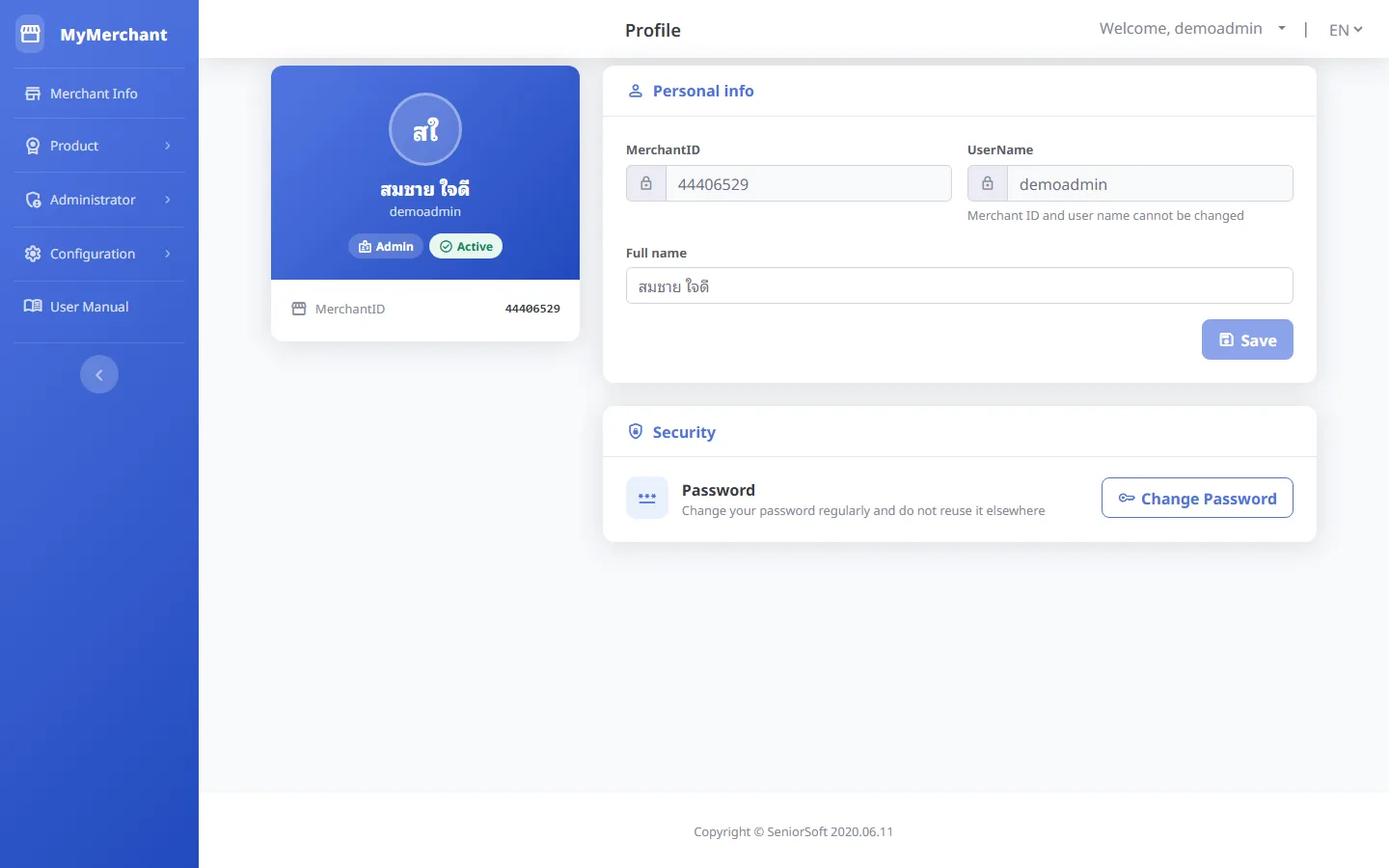
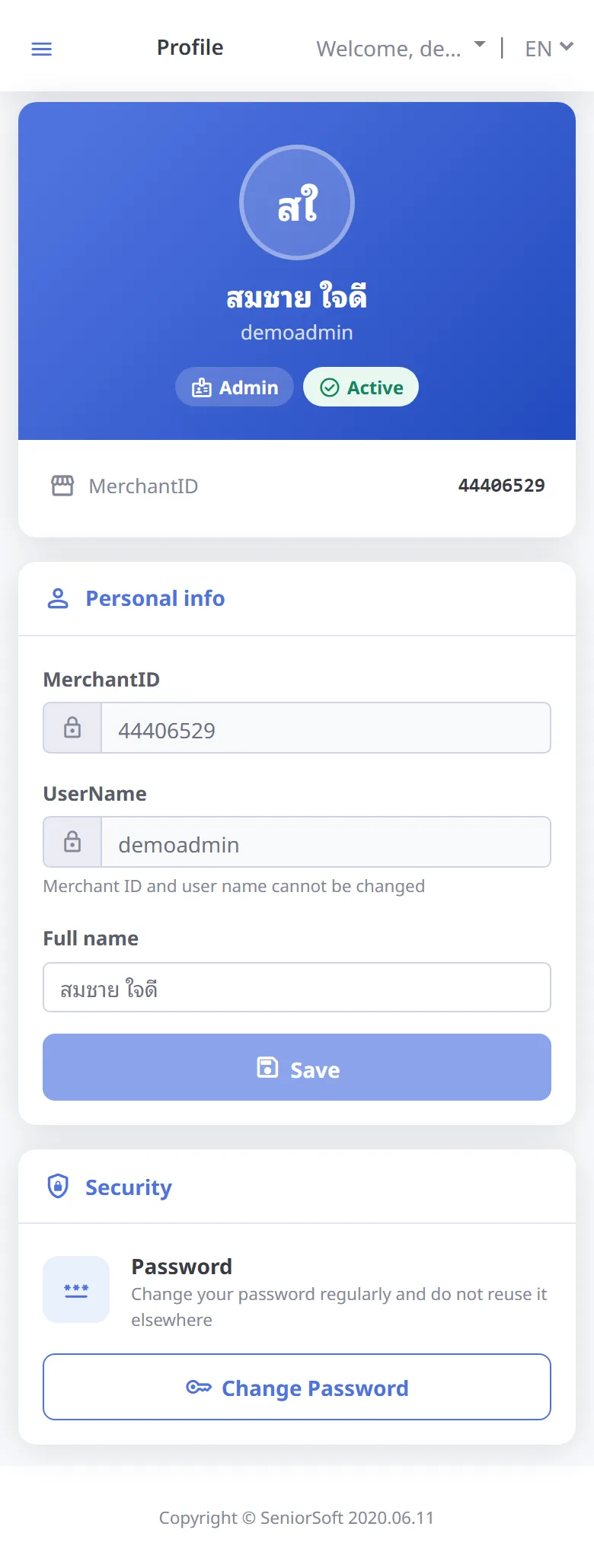
Edit your name
Merchant ID and user name cannot be changed; only the full name. Press Save.
-
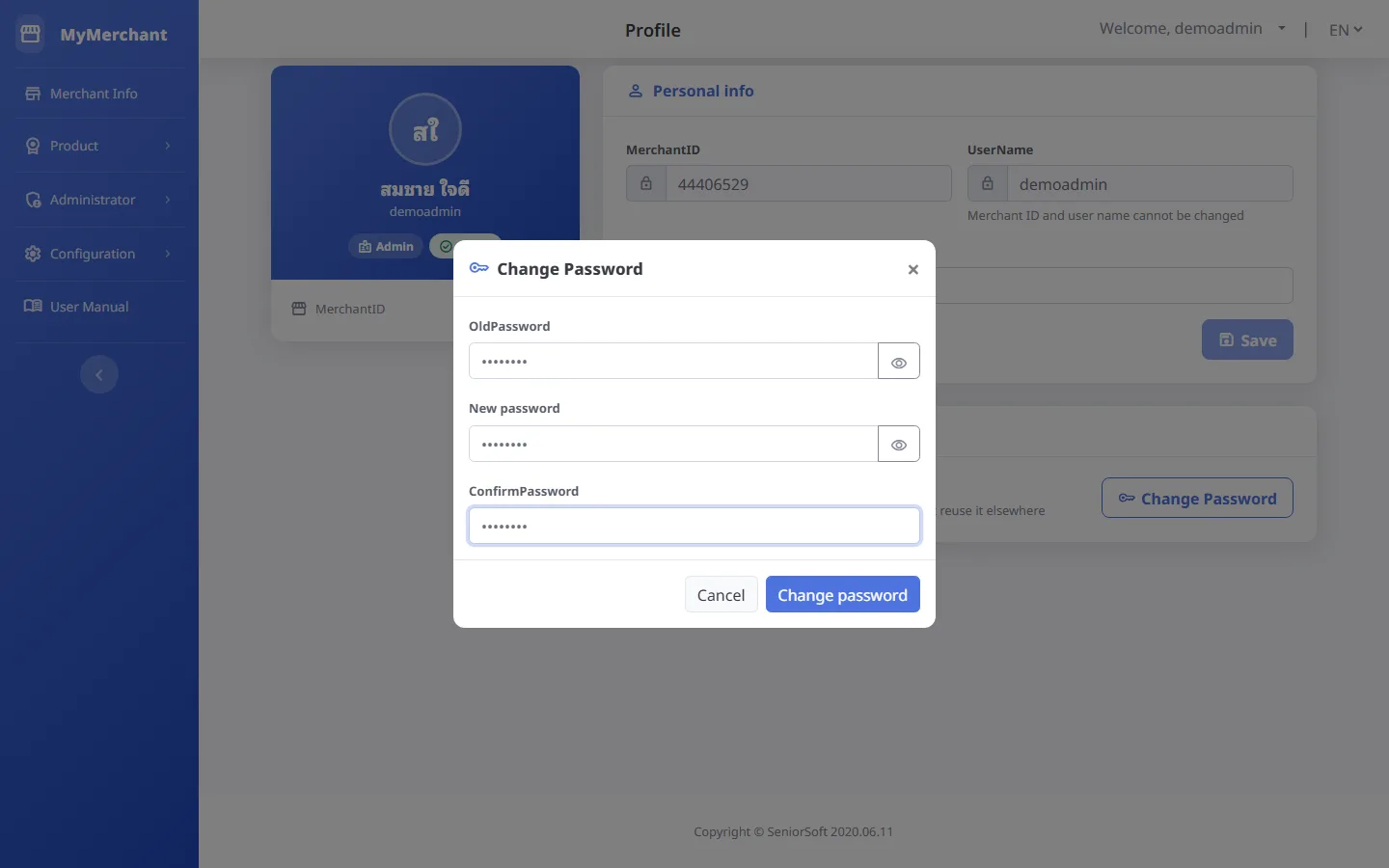
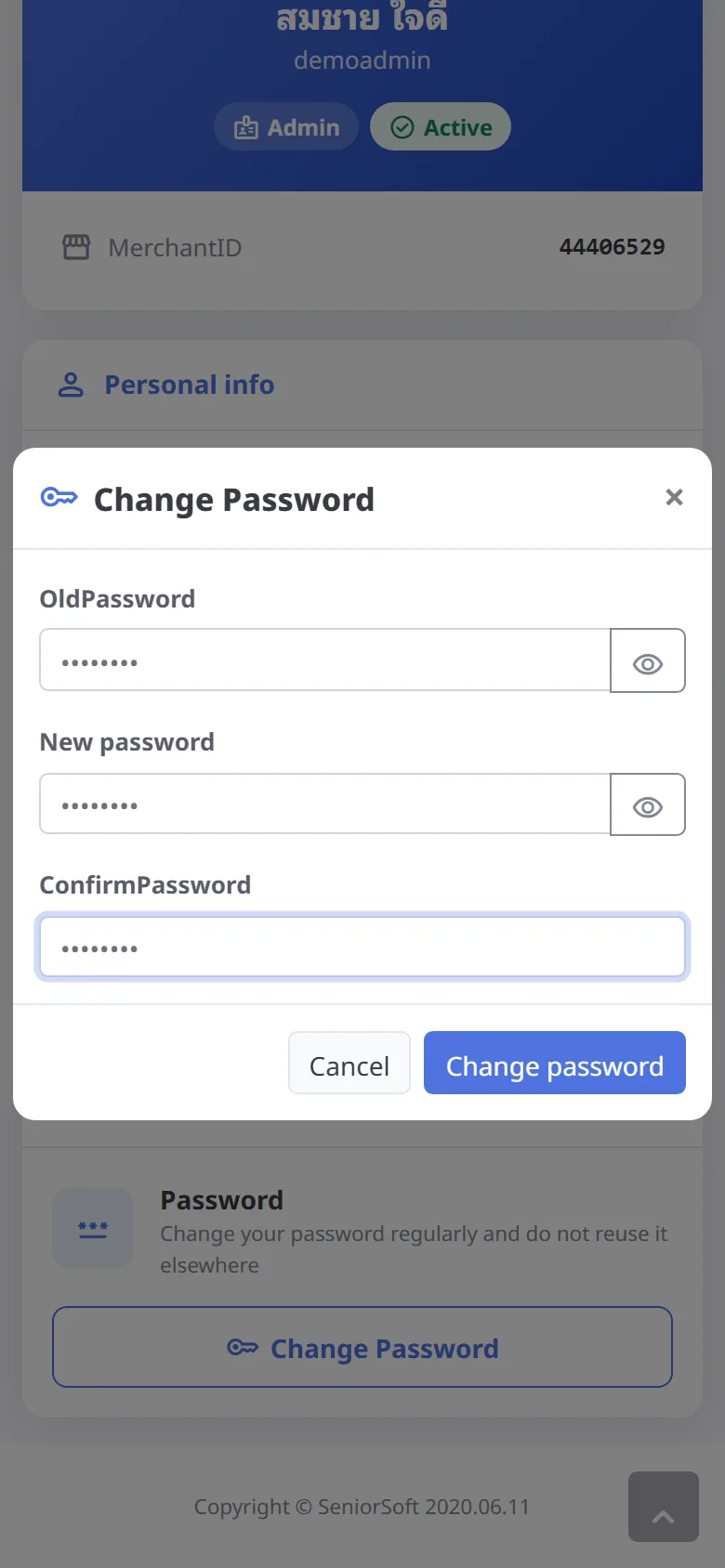
Change password
Press Change password, enter your old password, the new one and confirm it, then press Change password.